Grass Valley Trinix
This connector uses the serial-over-Ethernet RCP router protocol and is designed to communicate with a Grass Valley Encore controller, which in turn controls the Trinix router.
About
Version Info
| Range | Key Features | Based on | System Impact |
|---|---|---|---|
| 1.0.0.x | Initial version. | - | - |
| 2.0.0.x [SLC Main] | Removed matrix parameters | 1.0.0.6 | Any logic linked with the matrix will be broken. |
Product Info
| Range | Supported Firmware |
|---|---|
| 1.0.0.x 2.0.0.x |
1.7.4.3 |
System Info
| Range | DCF Integration | Cassandra Compliant | Linked Components | Exported Components |
|---|---|---|---|---|
| 1.0.0.x | No | Yes | - | - |
| 2.0.0.x | No | Yes | - | - |
Configuration
Connections
Serial connection
This connector uses a serial connection and requires the following input during element creation:
SERIAL CONNECTION:
Interface connection:
- IP address/host: The polling IP of the Encore controller
- IP port: Must be set to port 12345.
- Number of retries: Should be set to 0, because the buffer system already includes 3 retries on every command.
- Timeout of a single command (ms): By default 60 000, because the buffer system already contains a timeout mechanism if the device takes too long to respond.
Encore Configuration
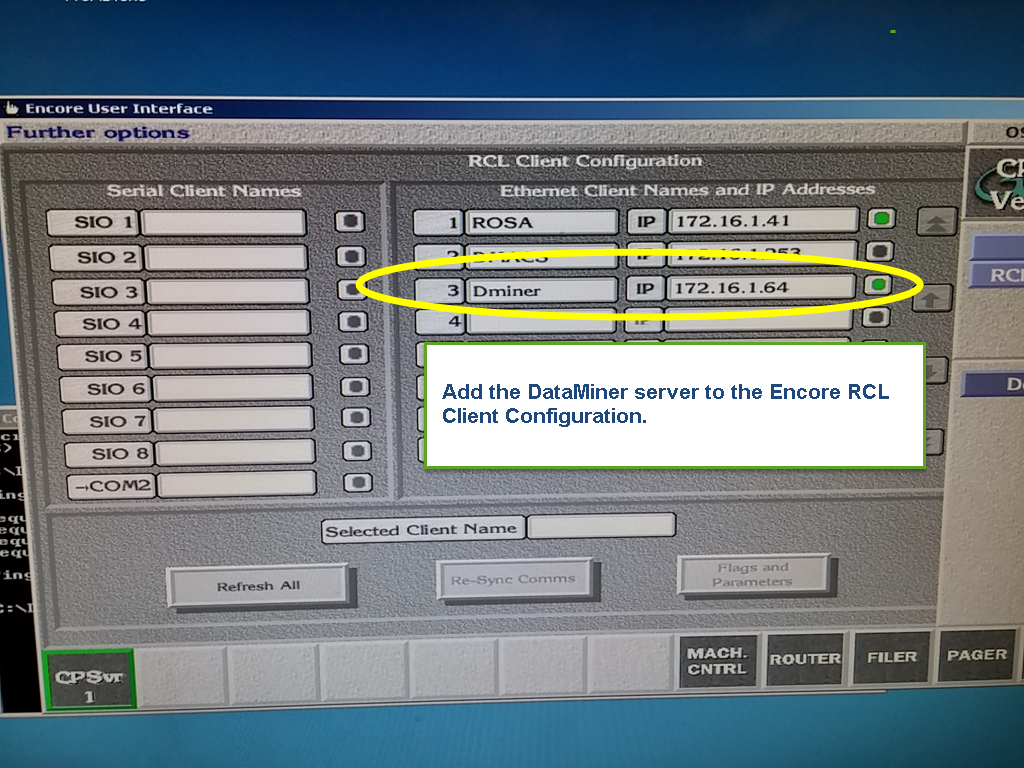
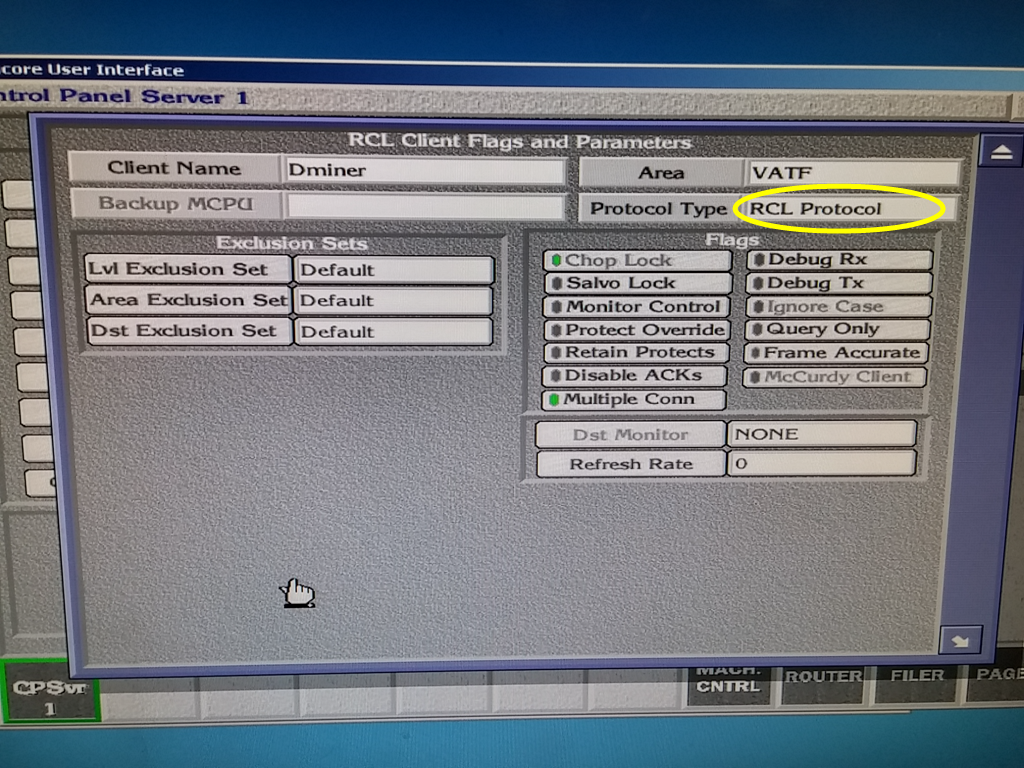
Before you create the element in DataMiner, you must configure an RCP client in the Encore system. To do this, you need to know the IP address of the DMA that will be communicating with the Encore controller. Until you configure the DataMiner server (DMA) as an RCP client, the Encore controller will refuse any attempts to connect, and this connector will fail. The Encore controller screen should look like the screenshots below.
Usage
General
The General page contains basic information about the router and controller, including the System Name, the Software Version of the router, the Number of Inputs, and the Number of Outputs.
Connection Status parameters on this page provide an overview of the state of each IP interface (Up/Down).
The page button to the Connection Details subpage can be useful to get more information on how the communication with the device is managed.
There is also a button that displays the Set Commands. This information can provide insight in how the sets on the matrix view were handled by the connector.
Connection Details
On the left side of this page, you can find the Connection Status and Session ID that the device gave to DataMiner. Next to that, the All Destinations Initialized value indicates if the destinations are already initialized. If they are, repolling the destination names from the device will update the columns of the Destinations Table, but not the Output Labels of the matrix view. If you want to re-initialize these output labels as well, click Reset Matrix View. This will reset this flag and will make sure the output labels are again equal to the destination names configured on the device. The same goes for the value All Sources Initialized. If you want to enable logging, to have an overview of the flow of the connector in the logging of the element, you can enable the Detailed Logging button. Check the notes below for more details.
At the bottom of the page, you can find the Reset Matrix View button. When you click this button:
- The buffer is cleared (which means that sets in the buffer will no longer be executed).
- The source and destination names will be reinitialized (which means that if you changed the input and output labels of the matrix view, these changes will be lost, and the original labels will be used again).
On the right, five parameters show the current status of the buffer:
- Command Currently Executed: Internal code name describing the type of command, possible additional parameters, and a unique message ID, needed to make sure that the correct responses are matched with the correct commands.
- Number of Commands In Buffer: Indicates how many commands are still waiting in the buffer.
- Number of Retries: Indicates how many times the current command has already been tried. The maximum number of retries is three. If the correct response still has not been received, an error will be logged, and the command will be removed from the buffer.
- Last Response Received On and Last Command Sent On: These two parameters indicate when the connector last detected communication.
Matrix Set Commands
At the top of the page, you can set the Maximum Number of Set Commands Saved. Set Commands are also known as "Take Destination" commands. Note that the content of the table has no influence on the content of the buffer in the background of the flow of the connector. This table is only there for logging purposes and to inform you of the responsiveness of the connector to sets. With the Clear Set Commands Log Table button, you can manually clear the entire table. The content of the table is saved, but as the buffer is cleaned on every restart of the element, this has no influence on the flow of the connector.
The table has five columns:
- Index: The message ID of the command.
- Full Command: A description of the command.
- Time Added: The date and time when the command was added to the buffer.
- Status: The status of the command, which can be In Buffer (0), Busy (1), First Retry (2), Second Retry (3), Third Retry (4), Succeeded (5), Failed (6).
- Status Updated: The date and time when the status of the command was last updated. If the command was successful, the difference between the Status Updated and Time Updated indicates how long it took to apply and confirm the setting.
Matrix
The Matrix page (available in the 1.0.0.x range) contains the full matrix of the Trinix router. You can filter the matrix by clicking on the magnifying glass icon in the upper left corner. Click the matrix to make a crosspoint. Note that you will only see the effect of the set in the matrix control when the device has accepted the set. If you click the matrix, you may need to wait several seconds before the change is implemented. If you make multiple changes in a row, it can take even longer.
Sources
The Sources page contains the Sources Table, which lists all the sources in the Trinix router, with the following columns:
- Full Source Index: A concatenation of the area index, a delimiting colon, and the source index.
- Area Index: The index of the area to which the source belongs.
- Source Index: The index of the source.
- Full Source Name: A concatenation of the area name, a delimiting colon, and the source name.
- Area Name: The name of the area to which the source belongs.
- Source Name: The name of the source. This name will also be used to initialize the input labels in the matrix view.
- Tieline: Discrete value indicating whether the source is tieline-related.
- Present levels: Indicates on which levels the source is (between level 0 and level 31).
Destinations
The Destinations page contains the Destinations Table which lists all the sources in the Trinix router, with the following columns:
- Full Destination Index: A concatenation of the area index, a delimiting colon, and the destination index.
- Area Index: The index of the area to which the destination belongs.
- Destination Index: The index of the destination.
- Destination Full Name: A concatenation of the area name, a delimiting colon, and the destination name.
- Area Name: The name of the area to which the destination belongs.
- Destination Name: The name of the destination. This name will also be used to initialize the input labels in the matrix view.
- Tieline: Discrete value indicating whether the destination is tieline-related.
- Present levels: Indicates on which levels the destination is (between level 0 and level 31).
- Connected Sources Last Updated On: The date and time when the destination status was last polled. With the destination status, the connector knows how many and which sources are connected to this specific destination.
- Number of Connected Sources: The number of sources the destination is connected to.
- Connected Source(s): A concatenation of the full source indexes (delimited by a semicolon) of the connected sources.
Notes
Buffer
This connector was built with a custom buffer management system. It ensures that more important commands get prioritized over less important commands, e.g., set commands are prioritized over get commands. On the Connection Details page, you can see an overview of the current status of that buffer. When you want to follow the flow of the buffer in more detail, you can enable Detailed Logging and look in the logging of the element (by right-clicking the element and selecting View > Log). The buffer is in effect a concatenated string that has seven different sections, delimited by an asterisk ("*"). The connector will always take the first command in that buffer and execute it. When it receives the expected response, it will move on to the next command. If the connector receives an unexpected response, it will retry up to three times.
From version 1.0.0.2 onwards, this connector can poll from 2 different IP addresses. The Redundant IP feature makes it possible to change from the primary to the secondary address when the primary fails. This way, polling can continue from the backup device.
Types of commands
Within every section, the commands are delimited by a semicolon (";"). Within every command, the data is delimited by a comma (","). Every command contains two letters that indicate the type of command and a message ID suffix (which is a two-digit figure), used to uniquely match the response to the corresponding command. Two types of commands (TI and QDS) also contain additional data that will be used to correctly parse the command and response. These are the possible commands (in order of importance):
Subscribe for asynchronous destination statuses: SB, Message-ID Suffix
- The subscription is renewed every hour.
Take Destination: TD, Matrix Input Number, Full Source Index, Full Source Name, Matrix Output Number, Full Destination Index, Full Destination Name, Message-ID Suffix
- This is the only set command, which is added to the stack every time you click a crosspoint in the matrix view.
- This command will set the input to the new output and disconnect other inputs that were previously connected to the output.
Query Destination Status (of one destination at a time): QDS, Full Destination Index, Message-ID Suffix
- This get command is added for every destination every three hours. If a set command is done, to double-check, a QDS command of that specific destination is added into the front of this section in the buffer.
Query Destinations: QD, Message-ID Suffix
- This get command is added to the buffer once every day and queries all destinations, with their full destination names and full destination indexes. The corresponding response typically consists of multiple parts.
Query Sources: QS, Message-ID Suffix
- This get command is added to the buffer once every day and queries all sources, with their full source names and full source indexes. The corresponding response typically consists of multiple parts.
Query Software Version: QSW, Message-ID Suffix
- This get command is added to the buffer once every day and queries the software version.
Query System Name: QSN, Message-ID Suffix
- This get command is added to the buffer once every day and queries the system name.
Router Connect: RC, Message-ID Suffix
- This get command is added to the buffer once every 5 minutes as long as the connector is not connected to the device. When the connector is connected to the device, this command is no longer executed.