Microsoft Platform - WMI Tools
Windows Management Instrumentation Tester (WBEMTEST)
WBEMTEST is a built-in tool available on all Windows installations. It allows you to run and test WMI (Windows Management Instrumentation) queries locally, which is useful for troubleshooting configuration or permission-related issues and verifying the availability of requested WMI data.
To use this tool, open the Start menu and type wbemtest into the search or run dialog box.
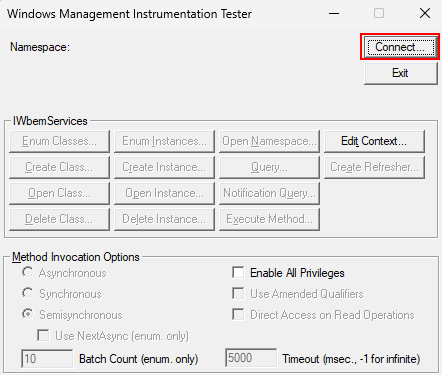
When you launch WBEMTEST, this will work slightly differently on different operating systems. Some will automatically connect to a WMI namespace, but others will not. In case you are not connected automatically to a WMI namespace, click the Connect button.
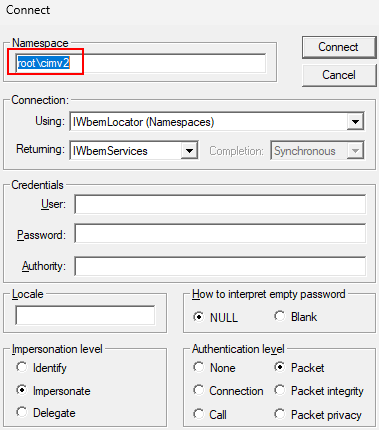
On the next page, set root\cimv2 as namespace if it is not already set, then click Connect. When the connection is successful, you will return to the main user interface with full functionality enabled (prior to connecting, most buttons are grayed out).
Note
- If you want to test if you can access a remote computer's WMI, instead specify the namespace
\\{InsertRemoteComputerIpOrHostnameHere}\root\cimv2. - If you do not provide credentials, the tool will use the credentials of the currently logged-in user.
- In case you are unable to connect, you can enter an alternative in the Connect window. This is helpful for testing access with different user accounts.
Once you are logged in, you can perform WMI queries on the server to confirm that the server is able to reply to WMI queries.
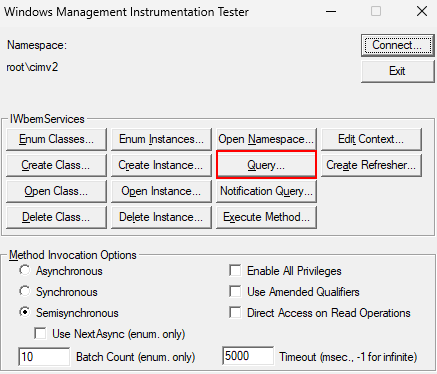
To perform queries, click the Query button.
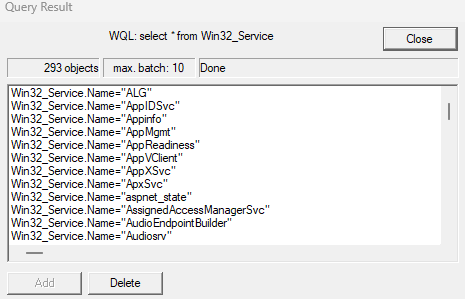
In the following window, you can test WMI queries. In the following example, the list of services available in the server will be retrieved:
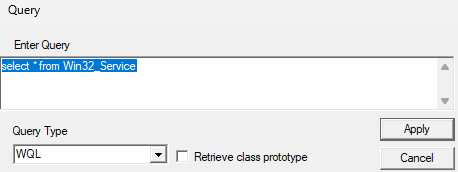
If the server is able to reply correctly, you should be able to see the result of the query:
Tip
For more information about the WMI queries executed by the Microsoft Platform connector, refer to Microsoft Platform - WMI Queries.