Skyline Cassandra Validator
This connector is obsolete. It was previously used to monitor the Cassandra databases of a DataMiner System. The Apache Cassandra Cluster Monitor should now be used instead.
About
Version Info
| Range | Key Features | Based on | System Impact |
|---|---|---|---|
| 1.0.0.x [SLC Main] | Initial version | - | - |
System Info
| Range | DCF Integration | Cassandra Compliant | Linked Components | Exported Components |
|---|---|---|---|---|
| 1.0.0.x | No | Yes | - | - |
Configuration
Connections
This connector uses a virtual connection. No connection information has to be specified during element creation.
Initialization
When the element has been created, go to the Settings subpage of the General page, and specify the domain user (i.e., Domain\User) and password that will be used to do remote scripting to retrieve the Cassandra information through Cassandra Nodetool. This user must belong to the Administrators group.
As the connector will use remote scripting on all the servers in the DMS, you will need to enable remote scripting and set the settings accordingly. To enable remote scripting on the servers, execute "winrm quickconfig" with PowerShell.
Depending on your system/network, it is possible that you will need to change the configuration. You can retrieve this configuration with the command "winrm get wirnm/config".
We recommend the following settings:
winrm set winrm/config/winrs '@{IdleTimeout="7200000"}'
winrm set winrm/config/winrs '@{MaxConcurrentUsers="10"}'
winrm set winrm/config/winrs '@{MaxProcessesPerShell="25"}'
winrm set winrm/config/winrs '@{MaxMemoryPerShellMB="1024"}'
winrm set winrm/config/winrs '@{MaxShellsPerUser="30"}'
The minimum PowerShell version of the DMA hosting the connector is v4.0.
Usage
General
This page contains the Cluster Table, which displays information on all the DMAs in the DMS. To add data to the table, use the Find Agents button. This will add all the DMAs that are found in the DMS.
By default, the connector will assume that every DMA uses a Cassandra local database and that the keyspace used by DataMiner is "SLDMADB". If this is not the case, you will need to change this.
Cassandra Tables
This page displays the Cassandra table statistics in the Cassandra Information table. To add data to this table, either use the Get Info button or enable automatic polling on the Settings subpage of the General page.
Cassandra GC
This page displays information related to the garbage collection for the Cassandra application, in the Cassandra GC table. To retrieve this information, automatic polling should be enabled on the Settings subpage of the General page.
You can also poll the table manually with the Get Data button, but in that case the displayed information will only apply for the interval starting from the last time the GC information was polled.
DataPoints
This page allows you to retrieve information on how many cells (i.e., parameters) are being trended and how much data is stored in the database for these cells.
Keep in mind that this is the information that is in the database, so it is possible that information is displayed for parameters for which trending has recently been disabled.
Currently, elements that have been imported from another DMA are not supported for this page.
Elements
This page displays all elements that have trending information in the database. To display the data, use the Get Data button.
To retrieve the number of cells that are being trended for an element, use the Get Count button in the Get DataPoints Count column. To retrieve this information for all elements at once, use the DataPoint Count button.
To check how much data is stored for an element, go to the DataPoints page or use the Get Count button in the Get Data Count column of this table. However, keep in mind that this can take some time depending on the number of data points (i.e., trended cells).
Troubleshooting
Cannot validate argument on parameter 'Session'
This error is thrown if you specified a local user in the settings instead of a domain user. In case no domain users available and you cannot request such credentials, you can use the following workaround:
Specify the user in the following format: .\user, for example: .\Administrator
Open PowerShell.
Execute the following command: *Get-Item -Path WSMan:\localhost\Client\TrustedHosts
*This should return a list of all trusted hosts of that server.
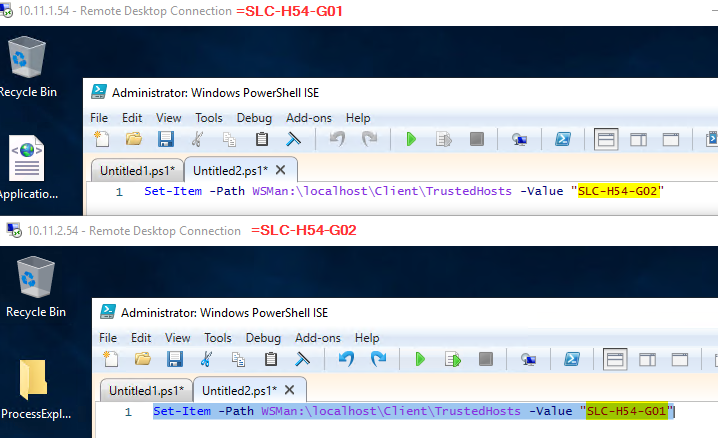
Add all server names to this list. For Failover DMAs, this is simply the other server. Use the following command for this:
*Set-Item -Path WSMan:\localhost\Client\TrustedHosts -Value "SERVERNAME"
*For example, for an internal Failover setup, this looks like this:
NOTE: Only do this if there is absolutely no other option, as it may degrade security. See also: https://community.spiceworks.com/topic/2027703-how-to-use-invoke-command-with-remote-local-administrator-account
WinRM - Cannot connect to the destination
In case the PowerShell commands cannot retrieve the needed information (e.g., GetTime fails), test the connection manually.
You can do so using the following procedure in a PowerShell window:
$password = ConvertTo-SecureString 'user_password' -AsPlainText -Force
$cred = New-Object System.Management.Automation.PSCredential('domain\domain_user', $password)
$sessions = New-PSSession -ComputerName 'server_name' -Credential $cred

Invoke-Command -session $sessions -ScriptBlock {cd 'C:\Program Files\Cassandra\bin'}
$r = Invoke-Command -session $sessions -ScriptBlock {.\nodetool tablestats -H SLDMADB}
Remove-PSSession -Session $sessions
Write-Output $r
If this does not result in any problems, then you probably have no issues with the PowerShell commands. Otherwise, you may get an issue when sending the Invoke-Command:

This error message simply means that the Windows Remote Management has not been configured on the remote or local server. Use the following command, followed by a "y":
winrm quickconfig
In addition, you may need to tweak the configuration, as detailed in the "Configuration" > "Initialization" section above.
PowerShell Version
If you get the following exception, the server is running a PowerShell version lower than v4.0:
System.IO.FileNotFoundException: Could not load file or assembly 'System.Management.Automation, Version=3.0.0.0, Culture=neutral, PublicKeyToken=31bf3856ad364e35' or one of its dependencies. The system cannot find the file specified.
File name: 'System.Management.Automation, Version=3.0.0.0, Culture=neutral, PublicKeyToken=31bf3856ad364e35'
   at Skyline.Protocol.Powershelly.PowerShellScript.RunRemoteScript(String host, String user, String password, String command, String dir)
   at Skyline.Protocol.MyExtension.CassandraInfo.GetCassandraTablesStats(SLProtocolExt protocol, Host host, String& sError)
In this case, the element will not function correctly. Make sure the correct PowerShell version is installed if you want to use the element.