Skyline IP Network Manager
Configuration
System Requirements
In order to use the IP Network Manager, you will need at least DataMiner version 8.0.3.
Setup
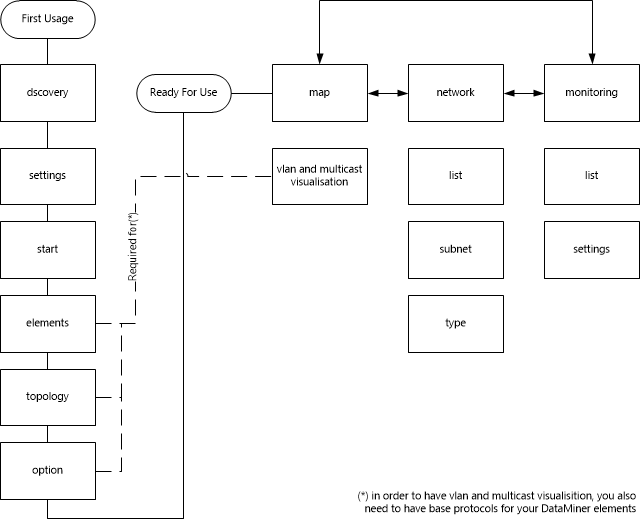
Initially, the application will not hold any devices to manage. It is therefore necessary to perform a discovery before you can start using the IP Network Manager. For this, you can use the Discovery Wizard of the application.
How to Use
You should use DataMiner Cube to use the IP Network Manager Application. In the Surveyor in Cube, go to Apps. Then click IP Network Manager to open the application.
Map
When you open the application for the first time, the map page will be empty. In order to start working with the IP Network Manager, a discovery is needed to populate the application with devices. For this, you need to use the Discovery Wizard.
The map page shows the network devices that the application is managing. An icon is used to represent a device.
| Icon | Device Type |
|---|---|
 |
Server |
| Router | |
| Switch | |
| Unknown |
Network
Go to this page to get a overview of the managed devices.
List
The subpage List shows the devices that are managed by the application. Specifically, the table contains the following columns:
- IP: The IP address by which the device is managed.
- DNS/NetBIOS Name: A textual representation by which the device is identified.
- Device Type: The type that the application has classified the devices into. You can manually override the device type.
- sysDescr: The system description as found on the device.
- Network/Prefix: The network address and network mask (in prefix notation) of the IP address from the IP column.
- Discovery Status: The status of the last discovery.
- LInked Element: The element name of the DataMiner element linked to this device.
Additionally, there are number of options available in the context menu. You can right-click a row to select one of these options:
Create Element: This will allow you to create a DataMiner element from a discovered device. After you select this option, a pop-up window will allow you to supply the following information for the element you are creating:
- Element Name: The name for the element.
- Polling IP: The IP address
- Protocol: The DataMiner connector that should be used. Note that the production version will be used automatically.
Link Element
Unlink Element (permanently)
Unlink Element (temporary)
Delete Selected
Other
Subnet
The subpage Subnet shows the device in a tree structure, grouped by IP network.
Type
The subpage Type shows the device in a tree structure, grouped by device type.
Device Monitoring
Go to this page to verify and set up the device monitoring. Note that this does not require the devices to be linked to elements.
List
The subpage List shows the devices that are managed by the application. The table contains the results of the monitoring tests which were currently running. More specifically, the following columns are available:
- IP: The IP address by which the device is managed.
- DNS/NetBIOS Name: A textual representation by which the device is identified.
- Device Type: The type that the application has classified the devices into. You can manually override the device type.
- Ping Status
- FTP Status
- SMTP Status
- DNS Status
- HTTP Status
- Database Status
- TCP Status
- RTSP Status
- RTMP Status
- TFTP Status
In order to enable a monitoring test for a specific device, a number of options are available in the context menu. You can right-click a row to select one of these options:
- Enable/Disable Ping Test: Enables or disables the Ping test with the default settings.
- Enable/Disable TCP Test: Enables or disables the TCP test with the default settings.
- Enable/Disable Database Test: Enables or disables the Database test with the default settings.
- Enable/Disable DNS Test: Enables or disables the DNS test with the default settings.
- Enable/Disable FTP Test: Enables or disables the FTP test with the default settings.
- Enable/Disable HTTP Test: Enables or disables the HTTP test with the default settings.
- Enable/Disable RTMP Test: Enables or disables the RTMP test with the default settings.
- Enable/Disable RTSP Test: Enables or disables the RTSP test with the default settings.
- Enable/Disable SMTP Test: Enables or disables the SMTP test with the default settings.
- Enable/Disable TFTP Test: Enables or disables the TFTP test with the default settings.
- Other
Settings
The subpage Settings allows to change the settings of the monitoring tests currently running on the device.