Slack Messaging
About
This connector can be used to integrate Skyline DataMiner with a Slack workspace. It will communicate with Slack and ensure that the configured list of actions is executed. In order to keep this connector as general as possible, these actions are defined in automation scripts.
When commands are sent into a Slack channel, these will be picked up by the element running this connector. When the element detects a known command, it will execute the automation script linked to that command.
HTTP communication is used to communicate with the Slack API (http://api.slack.com). Two separate connections are made: one connection to the WEB API, and a second Web Socket connection.
The connector periodically retrieves the list of users and conversations via the WEB API (using polling), while messages that users send in a channel are pushed to the connector via the web socket interface.
Access tokens are used to authenticate on the API. Such a token can be obtained from the app configuration webpage (see Installation and configuration).
WebSocket communication requires that Socket Mode is enabled for the Slack app and an app-level token is configured. App-level tokens can be obtained from the app configuration webpage. These must have the connections:write scope.
Automation scripts that can be executed via Slack must have specific dummies and parameters (see Automation Scripts).
Users can use the !list command to retrieve an overview of all compatible and enabled scripts that can be executed. The command for each script can be customized on the Automation Scripts page.
Tip
To find out more about how this connector can be used to unify your team's communication between DataMiner and Slack, check out the Slack Messaging use case on DataMiner Dojo.
Installation and configuration
Creation
HTTP WEB API connection
This connector uses an HTTP connection and requires the following input during element creation:
HTTP CONNECTION:
- IP address/host: The polling IP or URL of the destination. Must be
slack.com. - IP port: The IP port of the destination, by default 443.
- Bus address: If the proxy server has to be bypassed, specify bypassproxy.
HTTP Web Socket API connection
This connector uses an HTTP (web socket) connection and requires the following input during element creation:
HTTP CONNECTION:
- IP address/host: The polling IP or URL of the destination. Must be slack.com.
- IP port: The IP port of the destination. Default: 443
- Bus address: If the proxy server has to be bypassed, specify bypassproxy.
Configuration of the Slack application and bot user
This integration works based on a Slack bot that must be preconfigured via the Slack API website. You can configure this as follows:
Go to https://api.slack.com/apps.
Click Create New App.
Provide a name for the app (i.e., DataMiner), and select the workspace in which you want to integrate the app.
Click Create App.
Go to the Bot Users page and select Add Bot User.
Give the bot user a name (i.e., DataMiner), and make sure that Always Show My Bot as Online is disabled.
The bot user will automatically be online when the connector is connected to the web socket connection.
Click Add Bot User.
Install the application in your workspace in order to receive the bot authentication token that can be used in the element.
Copy the Bot User Oauth Access Token, and paste it in the OAuth Access Token parameter on the Authentication page of the Slack element in DataMiner.
Go to the Socket Mode page, and enable Socket Mode.
Go to the App-Level Tokens section under the Basic Information page, and create a new token with the
connections:writescope.Copy the new app-level token, and paste it in the App-Level Token parameter on the Websocket page of the Slack element in DataMiner.
The connector will now connect to the Slack API, and shortly afterwards the bot user will come online.
How to Use
Below you can find more information on how to use the different pages of the connector.
General
This page displays general information on the Slack team to which the element is currently connected.
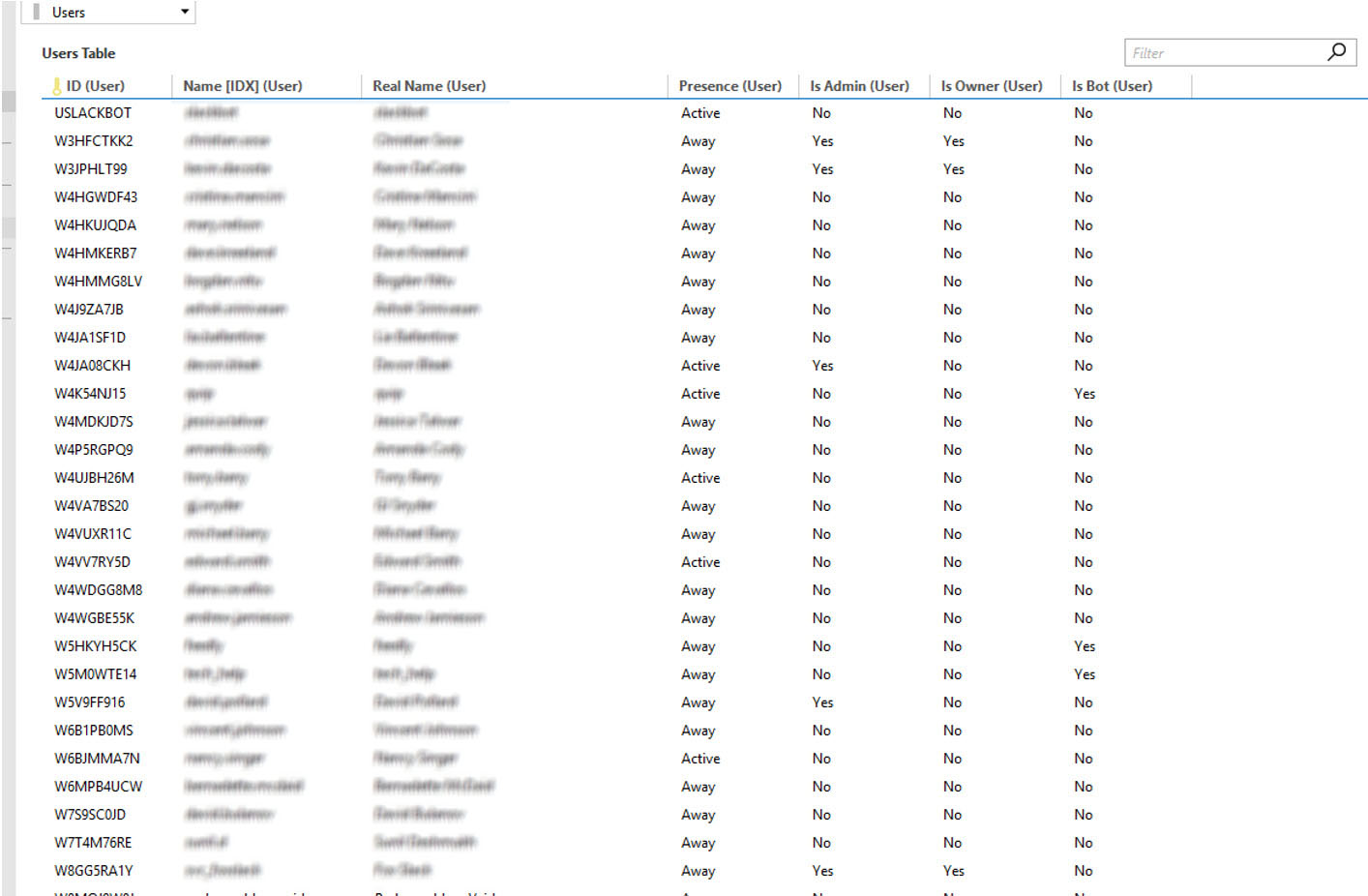
Users
This page contains a table with all users that are part of the Slack team.
Conversations
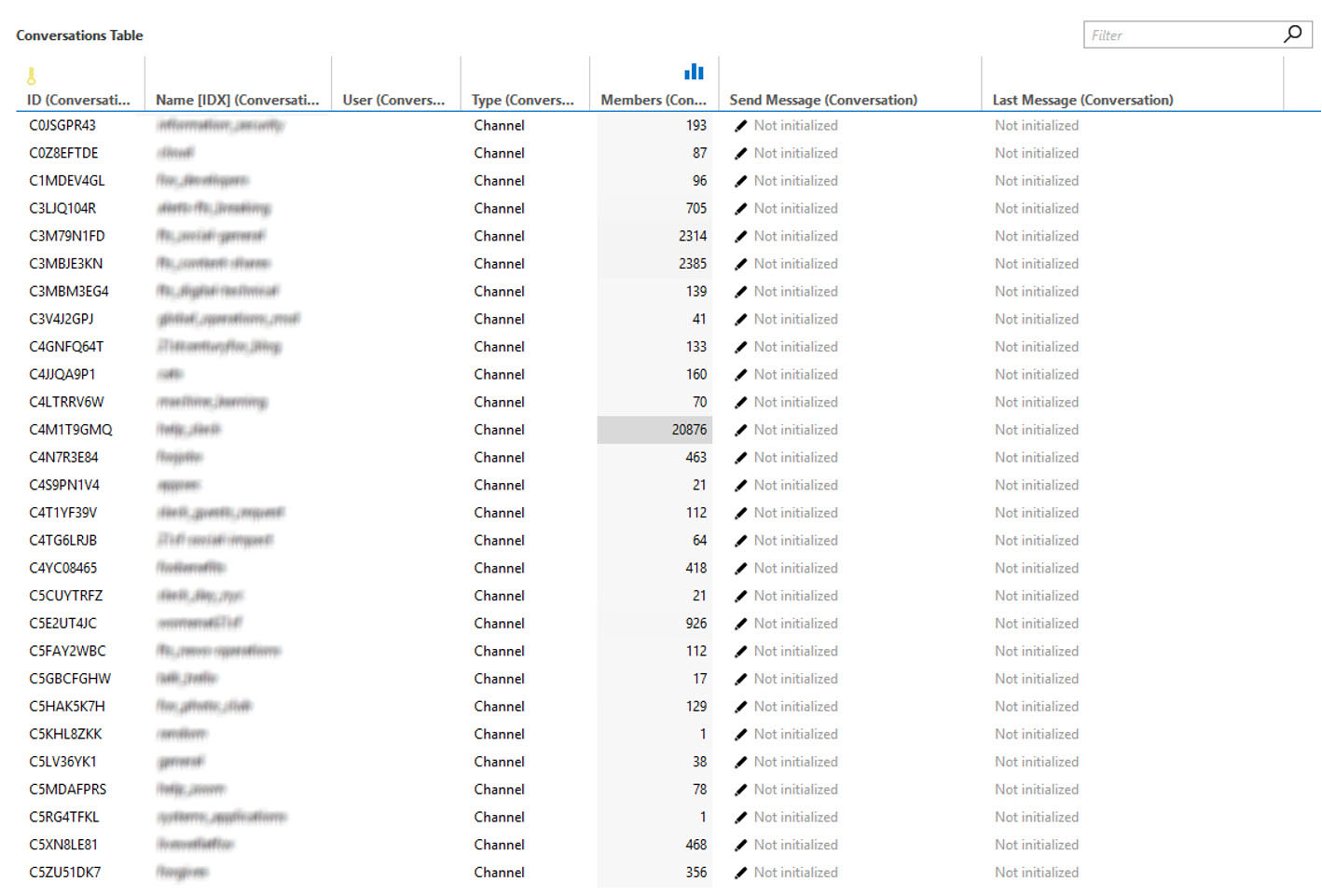
This page contains a table listing all possible conversations (public channels, private channels, instant messaging) that messages can be sent to. The "Send Message" column allows you to quickly send a message to a specific conversation. The last received message is shown in the "Last Message" column.
Automation Scripts
This page contains a table with all existing automation scripts in DataMiner that can be executed via commands in Slack.

To refresh the content of this table, use the Refresh button.
The Description column contains user-defined text that is presented when the list command is requested from a conversation.
In the Command column, a command can be assigned to each automation script. When a user sends one of these commands in one of the channels that include the bot, the connector will run the linked automation script. This allows the administrator to freely configure the name of the commands associated with each automation script.
The State column allows you to enable or disable the possibility to execute a particular script.
Only scripts that were adapted to be compatible with this Slack integration are shown in the table. In order for a script to be valid, it must have the following dummy and parameters:
- Dummy
SLACK: The Slack DataMiner element that is executing the script. - Parameter
CONVUSERNAME: The end user name. This can be used by the script to reply with messages referring to the name of the Slack user that invoked a command. - Parameter
CONVID: The ID of the Slack conversation in which the command was invoked. - Parameter
SLACKARGUMENTS: The plain text after the command name that was provided by the Slack user when the command was invoked.
Tracked Messages
Added in version 1.0.0.3.
This page contains a table with all tracked messages. These messages are linked with a unique tag (identifier), which can be used to update the message inside the Slack channel.
The number of days that messages should remain in the table can be customized.
Authentication
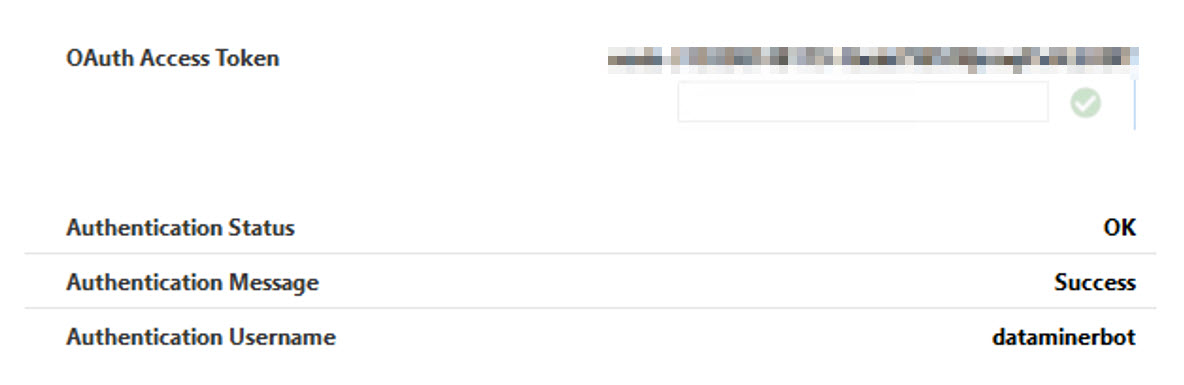
On this page, the OAuth access token that should be used to communicate with the Slack API must be configured. The page also contains some parameters that display the current status of the authentication.
Websocket
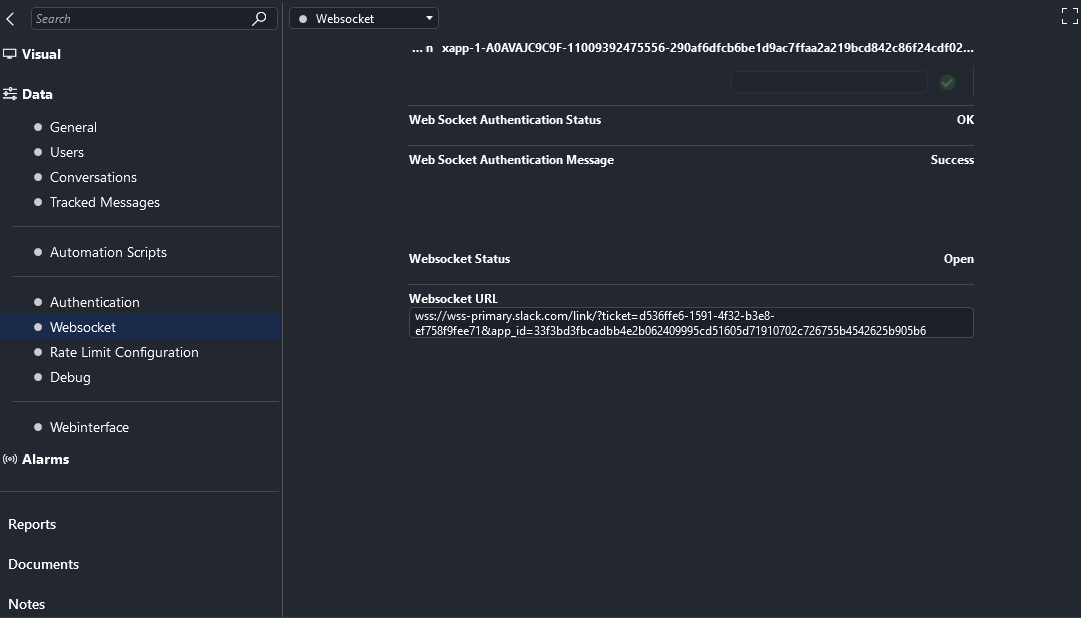
On this page, the App-Level Token that should be used to connect to the Slack Web Socket must be configured. The page also contains some parameters that display the current status of the web socket connection.
Web Interface
This page displays the app configuration page on the Slack API website. Note that the client machine has to be able to access the device, as otherwise it will not be possible to open the web interface.
Notes
External sets
The connector provides the functionality to send a message from an external source in DataMiner (i.e., an automation script) to a channel in Slack. This can be done in two different ways:
Simple XML:
Set to parameter with ID 50.
Only basic formatting.
Format is XML:
<Message>
   <Channel>name or ID of the channel</Channel>
   <Text>the text to send to the channel</Text>
   <Tag>unique identifier</Tag>
</Message>
The tag can be chosen by the sender to be able to uniquely identify the message. This can be used later to send an update of this message to the Slack channel.
Raw JSON string:
Set to parameter with ID 51.
Allows more advanced formatting and attachments.
Format: see https://api.slack.com/methods/chat.postMessage.
JSON is sent directly to the chat.postMessage WEB API method, without modifications.
From version 1.0.0.3 onwards, it is also possible to update a message that was previously sent to a Slack channel with a unique tag assigned:
Set to parameter with ID 52
Format is XML:
<Message>
   <Tag>unique identifier of the message</Tag>
   <Text>new message</Text>
</Message>