Starlink Enterprise Account
About
The purpose of this connector is to monitor Starlink devices through the Telemetry API and the Management API over HTTP using JSON files.
Starlink is an internet service that uses a satellite constellation in a low Earth orbit to deliver high-speed low-latency broadband internet. Because Starlink satellites are in a low orbit, at about 550 km from Earth, the round-trip data time between the user and a satellite is significantly lower compared to internet services that make use of single geostationary satellites.
The Starlink Telemetry API is a low-latency API for accessing the telemetry data from Starlink devices. This API is only available for enterprise accounts with an account manager. It is designed for users that have their own data infrastructure to monitor Starlink devices remotely. The API is stateless and will only respond with current telemetry data.
The Starlink Management API is used to activate, deactivate, and otherwise manage Starlink user terminals. Next to this, it can return paginated results containing data usage for the current and previous billing cycles for service lines on an account. Similar to the Telemetry API, this API is only available for enterprise accounts with an account manager.
Elements that are created based on this connector do not show anything. This connector is designed for querying the Starlink API V2 only. A Starlink Enterprise element is required on the DMS to make the polled information visible, and available for alarm monitoring and trending.
Since the introduction of the Starlink API V2, credentials are needed per account. These credentials have to be entered in the Starlink Enterprise Account element. The name of the Starlink Enterprise Account element has to be Starlink Account [account name].
Note
LEGAL NOTE: This connector (or package) is intended solely for use in production with Skyline's usage-based services model. Any other use is prohibited. For more detailed information, see Usage-based services. For inquiries regarding commercial production usage, contact Skyline Sales at sales@skyline.be.
Tip
To optimize your use of this connector, we recommend deploying our Standard Product Solution Starlink Enterprise via the Catalog. This way, you will also be able to use the complementary low-code app and standard available dashboards.
Configuration
Connections
HTTP Connection - Telemetry API
This connector uses an HTTP connection to be able to interact with the API and requires the following input during element creation:
HTTP CONNECTION:
- Type of port: TCP/IP
- IP address/host: api.starlink.com
TCP/IP settings
- IP port: 443
- Bus address: ByPassProxy. This must be filled in to bypass any possible proxy that could block the HTTP communication.
Note
Using ByPassProxy may result in Error : 12002. ERROR_WINHTTP_TIMEOUT if the server requires routing through a security-enforcing proxy. In such cases, remove the ByPassProxy entry from Bus address to restore connectivity.
HTTP Connection - Management API
This connector uses a second HTTP connection thread to poll management data in parallel with telemetry data and requires the following input during element creation:
HTTP CONNECTION:
- Type of port: TCP/IP
- IP address/host: api.starlink.com
TCP/IP settings
- IP port: 443
- Bus address: ByPassProxy. This must be filled in to bypass any possible proxy that could block the HTTP communication.
Note
Using ByPassProxy may result in Error : 12002. ERROR_WINHTTP_TIMEOUT if the server requires routing through a security-enforcing proxy. In such cases, remove the ByPassProxy entry from Bus address to restore connectivity.
Initialization
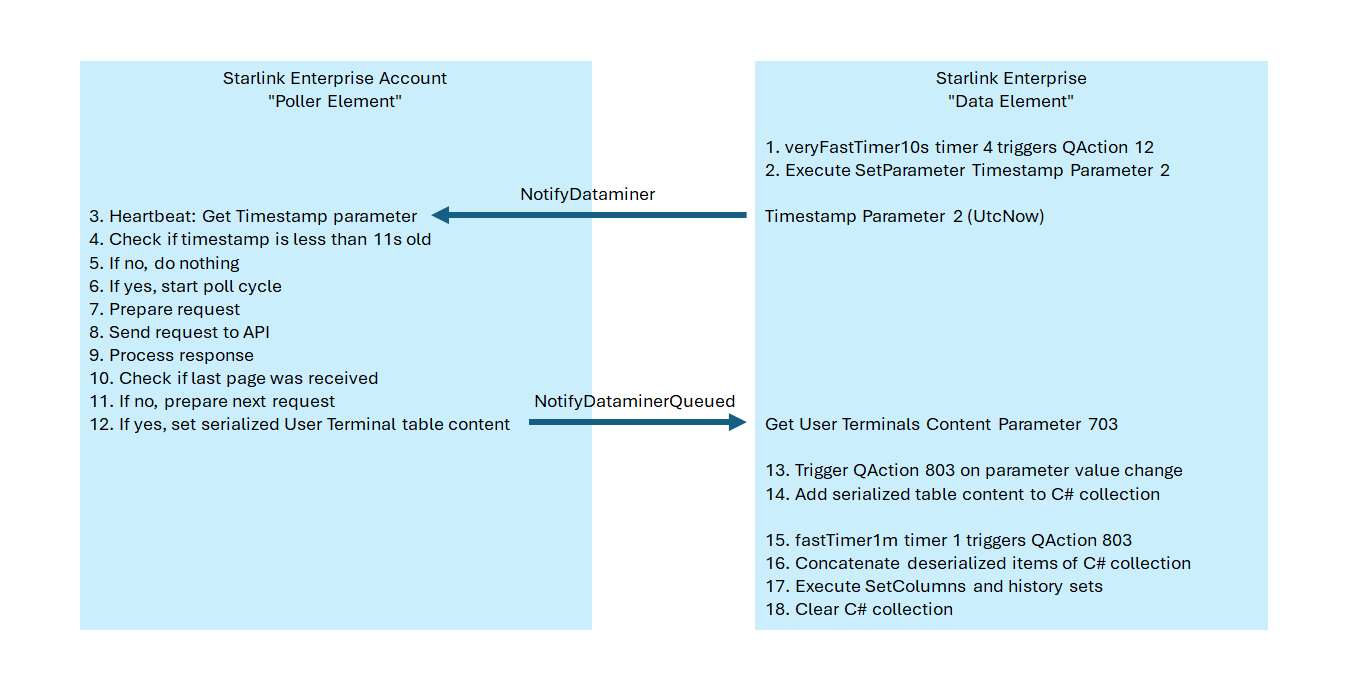
A newly created element will only start polling data if an active Starlink Enterprise element is available on the DMS and when both the Client ID and Client Secret are filled in on the Configuration page.
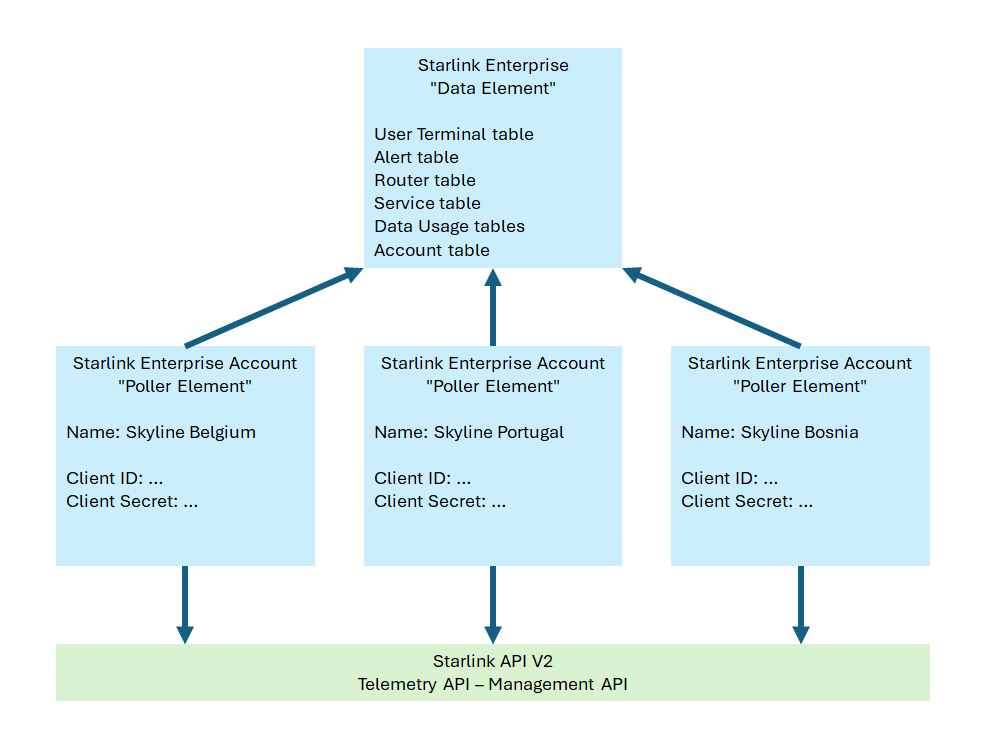
If the name of the Starlink Enterprise Account element does not equal Starlink Account [account name], the parameter set logic will not work.
A heartbeat check is implemented before the Starlink API is queried to confirm that the Starlink Enterprise element is able to receive the response content. If the Starlink Enterprise element is busy, the API request is postponed.
How to Use
Communication and Logging
The connector uses JSON over HTTP to retrieve its data.
To see the actual traffic between the Starlink Enterprise Account element and the Starlink Enterprise element, check the element log file. You can open the element log file by right-clicking the element in the Surveyor and selecting View > Log.
To see the actual traffic between the Starlink Enterprise Account element and the Starlink API, a built-in DataMiner tool called Stream Viewer can be used. You can access it by right-clicking the element in the Surveyor and selecting View > Stream Viewer.
A healthy element will show groups 700, 701, 702, 703, 704, 705, and 709 in the Stream Viewer. If you only see group 700 in the Stream Viewer, check the Authentication parameter and re-enter the client ID and client secret if the authentication failed.
Unexpected column names and user terminal alerts will be logged in the element log file. If you encounter these, please contact Skyline so that the connector can be corrected or extended. However, note that lines in the element log file indicating token_expired can be safely ignored, as these are also added when nothing is wrong with the element.
When the Info Logging Level of the element log file is raised to Level 1 or higher, you will see a line in the log file when no terminals are assigned to the account or when no services are active for the account.
Client ID and Secret
The General page contains the Client ID, the Client Secret, and the Authentication field. When the specified client ID and client secret have both been accepted by the API, the Authentication field will indicate Successful. The connector will update its access token every 15 minutes, just before it expires.
In case the traffic inside the Stream Viewer seems minimal, check if the Authentication parameter indicates Successful. If it instead indicates Failed, most likely the client ID or the client secret is not correct.
The polling mechanism is triggered after the value of the Client Secret parameter changes. This means that a Client Secret value change is required to trigger a new poll cycle after an incorrect Client ID is corrected.
Caution
Changing the client secret will also remove all dynamic virtual elements if Demo Mode is Enabled on the Starlink Enterprise element.
Starlink Enterprise Element Name
The Starlink Enterprise Element Name parameter defaults to Starlink Enterprise. If the name of your Starlink Enterprise element is different, change this parameter to the correct element name.
Telemetry Request Configuration
The Configuration page contains two telemetry request configuration parameters:
- Telemetry Batch Size represents the maximum number of telemetry entries to return in the response. The recommended batch size is ~65000 records per request (this is the maximum). If the batch does not have that size, it will return less. Keeping it at 65000 allows fast backpolling when needed.
- Telemetry Linger Duration represents the maximum number of milliseconds to collect telemetry entries. The recommended linger duration is ~15000 ms (this is the minimum) to ensure that all data points come in accurately. If the telemetry requests are timing out, please check the Timeout of a single command (ms) setting in the element configuration. Preferably, the timeout of a single command should be slightly bigger than the Telemetry Linger Duration.
Ignoring Non-Serving User Terminals
With the Poll Only Service Linked Terminals toggle button, you can enable a filter on the User Terminals query. This button is set to Off by default, which will poll all the user terminals from the management API whether they have a service line configured or not. Toggling the button to On will poll only user terminals that are linked to a service line.
Important
Enabling the Poll Only Service Linked Terminals filter will stop updating user terminals that do not have a service line configured. Those rows in the table will be removed after the specified cleanup time. If DVEs are enabled for terminals that do not have a service line configured, please disable them if you are using this filter.
Table Cleanup Mechanism
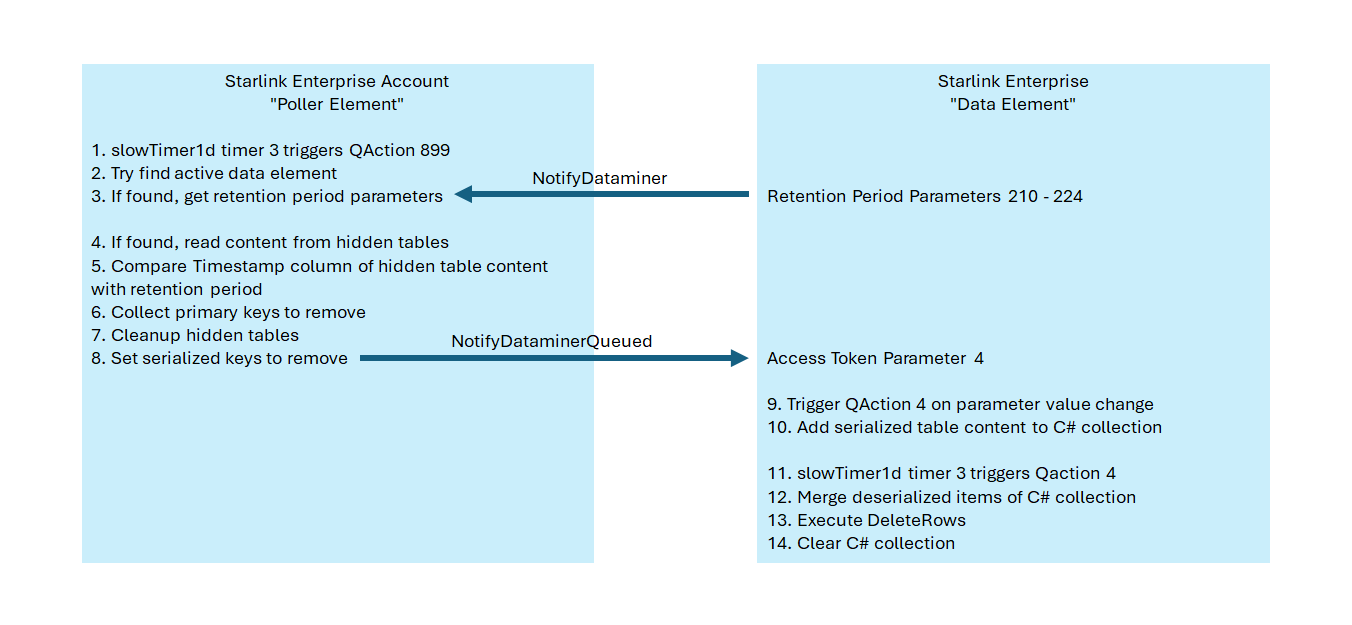
The automatic table cleanup mechanism is triggered once a day.
Protocol XML ID Ranges
When contributing to this connector, please use the ID ranges in the table below for the Protocol XML file. For readability purposes, the last two digits of the ID should indicate the API call. Components used for polling the telemetry have an ID that ends with 02. Components used for polling the products have an ID that ends with 09.
| ID Range | Parameter | Trigger | Action | Group |
|---|---|---|---|---|
| 1 - 99 | Hidden Standalone | |||
| 100 - 199 | Visible Standalone Read | |||
| 200 - 299 | Visible Standalone Write | |||
| 300 - 399 | Prepare Request Dummy | Start Poll Cycle | Prepare Request URL and Body | |
| 400 - 499 | HTTP Request URL | |||
| 500 - 599 | HTTP Request Body | |||
| 600 - 699 | HTTP Response Status Code | |||
| 700 - 799 | HTTP Response Content | Send Request From QAction | Execute Request Group | Poll Session |
| 800 - 898 | After Request Dummy | After Request Group | Try Get Next Page or Finish Poll Cycle | |
| 1000 - ... | Table |