Configuring outgoing email
A DMS can be configured to send out email notifications and reports via an SMTP server.
To enable this, a default "From" address must be specified, and SMTP settings need to be configured. You can configure these settings in several different ways:
- Via DataMiner Cube (from DataMiner 10.5.0 [CU13]/10.6.0 [CU1]/10.6.4 onwards)
- Directly in DataMiner.xml. This requires a DataMiner restart.
- Using the SLNetClientTest tool.
Note
For this feature, this product includes software developed by the OpenSSL Project for use in the OpenSSL Toolkit (http://www.openssl.org/). In recent DataMiner versions, OpenSSL library version v1.1.1c is used.
Prerequisites
In order to send out email notifications or email reports, a DataMiner Agent has to be able to connect to an outgoing email server (SMTP server).
Default 'From' address
To specify the default "From" address to be used in outgoing email messages, do the following:
Go to Apps > System Center.
In System Center, go to Agents > system.
In the Email box, specify the default "From" address.
Click Save.
Restart the DataMiner Agent.
Configuration via DataMiner Cube
Starting from DataMiner 10.5.0 [CU13]/10.6.0 [CU1]/10.6.4, it is possible to configure the SMTP settings via DataMiner Cube. This is the only way to configure OAuth 2.0 credentials, as providers typically require an interactive (2FA) login with their authorization server to retrieve the tokens.
In DataMiner Cube, go to System Center > System settings > SMTP.
Select the preset you want to use: Microsoft OAuth 2.0, Google OAuth 2.0, or a custom preset.
Configure the settings as required for the preset.
For more details about the OAuth presets, refer to Microsoft OAuth and Google OAuth below.
For details on the settings you can configure for a custom preset, refer to SMTP server settings.
Note
Cube will always update the configuration on all Agents in the cluster.
- If not all Agents are configured the same way, a warning will be displayed, and you can compare the current configurations.
- If you need to configure one Agent differently from the rest, you should use one of the other methods (manual DataMiner.xml editing or the SLNetClientTest tool). Note that the two Agents in a Failover pair must always be configured the same way.
Microsoft OAuth
Fill in the Tenant ID, for example, 72f988bf-86f1-41af-91ab-2d7cd011db47.
Fill in the Application ID of your application that has been registered on Azure Portal and has been granted the
SMTP.Sendpermission.As the username, fill in the email address of the mailbox from where the emails will be sent.
Note
Microsoft requires the From sender to match exactly with an email address that belongs to the user. The configuration in DataMiner cannot be left empty.
Google OAuth
As the username, fill in the email address of the mailbox from where the emails will be sent.
Fill in the Client ID, for example, 888888888888-xxxxxxxxxxxxxxxxxxxxxxxxxxxxxxxx.apps.googleusercontent.com.
Fill in the Client Secret, for example, GOCSPX-xxxxxxxxxxxxxxxxxxxxxxxxxxxx
Click Retrieve tokens.
The system web browser will be launched and will navigate to the OAuth Account Endpoint.
In the web browser, log in and grant the permission to DataMiner to send emails.
If all goes well, Cube will display Tokens received successfully. If not, you can inspect the error response that was received from the authorization server.
Apply the settings and then use the Send test email button to confirm that every Agent can correctly send emails.
Updating the configuration when a DMA has been added to the DMS
In order to copy the existing configuration to a newly added DMA, perform the following steps:
On a DMA that was already in the cluster, go to System Center > System settings > SMTP.
Perform the following configuration, depending on the authentication type:
For authentication type XOAUTH2, enter the Client Secret again and click Retrieve tokens.
For authentication types other than None, enter the password again.
Click Apply.
Configuration directly in DataMiner.xml
To configure SMTP settings directly in DataMiner.xml:
Log on to the DataMiner Agent, either locally or through a remote desktop session.
Stop the DataMiner software.
Open the file
C:\Skyline Dataminer\DataMiner.xml.Go to the
<SMTP>section. If this section does not exist yet, add it.In this section, enter the correct SMTP server settings. See SMTP server settings.
Restart the DataMiner Agent in order to apply the new settings.
Note
If there are several DataMiner Agents in your DataMiner System, execute the above-mentioned procedure on every DataMiner Agent that has to be able to send email messages.
SMTP server settings
Basic SMTP server settings
Host: The name or IP address of the SMTP server.
HostPort: Default port is 25.
If the server supports or requires SSL communication, use port 465 instead of port 25.
If SSL has to be used on a non-standard port (e.g., 123), specify
123-ssl.If you explicitly do not want to use SSL, specify
465-nossl.If you want to use STARTTLS, specify, for example,
123-starttls.
LoginMethod: The method that will be used to authenticate the DataMiner Agent when it logs on to the SMTP server. The following methods can be specified:
NoLoginMethod: The user will not be authenticated by the server.
LoginPlainMethod: Username and password will be sent to the server unencrypted.
AuthLoginMethod: Username and password will be sent to the server using simple base64 encoding.
CramMD5Method: The user will be authenticated using CRAM MD5 (Challenge-Response Authentication Mechanism, see RFC 2195). The server generates a challenge, to which the user has to respond with a username and the MD5 HMAC (Hash-based Message Authentication Code) of the challenge (with the user password as the key).
NTLM: The user will be authenticated using the MS NTLM (NT LAN Manager) protocol.
XOAUTH2: The user will be authenticated using OAuth 2.0. This requires interactive configuration through DataMiner Cube in order to acquire the necessary tokens.
Auto: The authentication protocol to be used will be auto-negotiated.
User: The username with which the DataMiner Agent will log on to the SMTP server.
If LoginMethod is set to "NoLoginMethod", no username has to be specified.
Password: The password with which the DataMiner Agent will log on to the SMTP server.
If LoginMethod is set to "NoLoginMethod", no password has to be specified.
OAuth SMTP server settings
The following additional settings are only used when LoginMethod is set to XOAUTH2.
Note that these cannot be configured directly in DataMiner.xml. To configure these settings, use DataMiner Cube.
OAuthClientID: The client ID that has been requested for DataMiner.
OAuthClientSecret: The client secret corresponding to the client ID.
OAuthTokenEndpoint: The URI of the OAuth token endpoint.
OAuthConfigData: Placeholder for additional settings that can be stored here by the client application (for example, DataMiner Cube)
Advanced SMTP server settings
You can specify the following advanced settings. However, these are not mandatory.
Helo: The fully qualified domain name of the client, which will be sent to the SMTP server in the HELO command.
Example:
<Helo>pc.company.local</Helo>MaxSubjectLength: The maximum length of the message subject.
Example:
<MaxSubjectLength>78</MaxSubjectLength>From: A custom "From" address that will override the default "From" address specified in the DataMiner Agent interface.
Example:
<From>address@example.com</From>
Example of SMTP server configuration
The example below shows how the SMTP element in DataMiner.xml should be configured.
<SMTP>
  <Host>smtp.mail.com</Host>
  <HostPort>587-starttls</HostPort>
  <LoginMethod>AuthLoginMethod</LoginMethod>
  <User>MyMailName@mail.com</User>
  <Password>MyMailPassword</Password>
</SMTP>
The screenshot below illustrates what this same configuration will look like in DataMiner Cube.
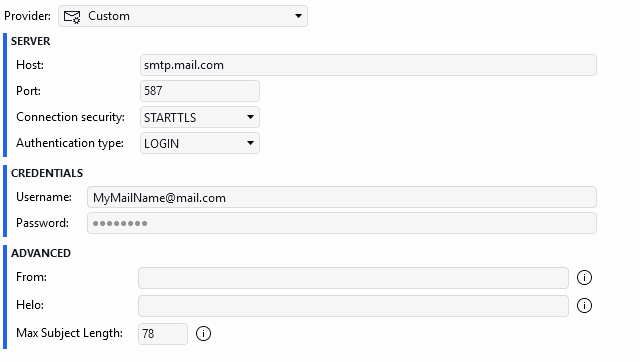
SMTP configuration in DataMiner Cube 10.6.4