Configuring DOM security
From DataMiner 10.5.11/10.6.0 onwards, you can configure definition-level security settings for DOM. From DataMiner 10.5.0 [CU12]/10.6.3 onwards, you can also configure security at DOM instance level. In the background, this will make use of the link security feature.
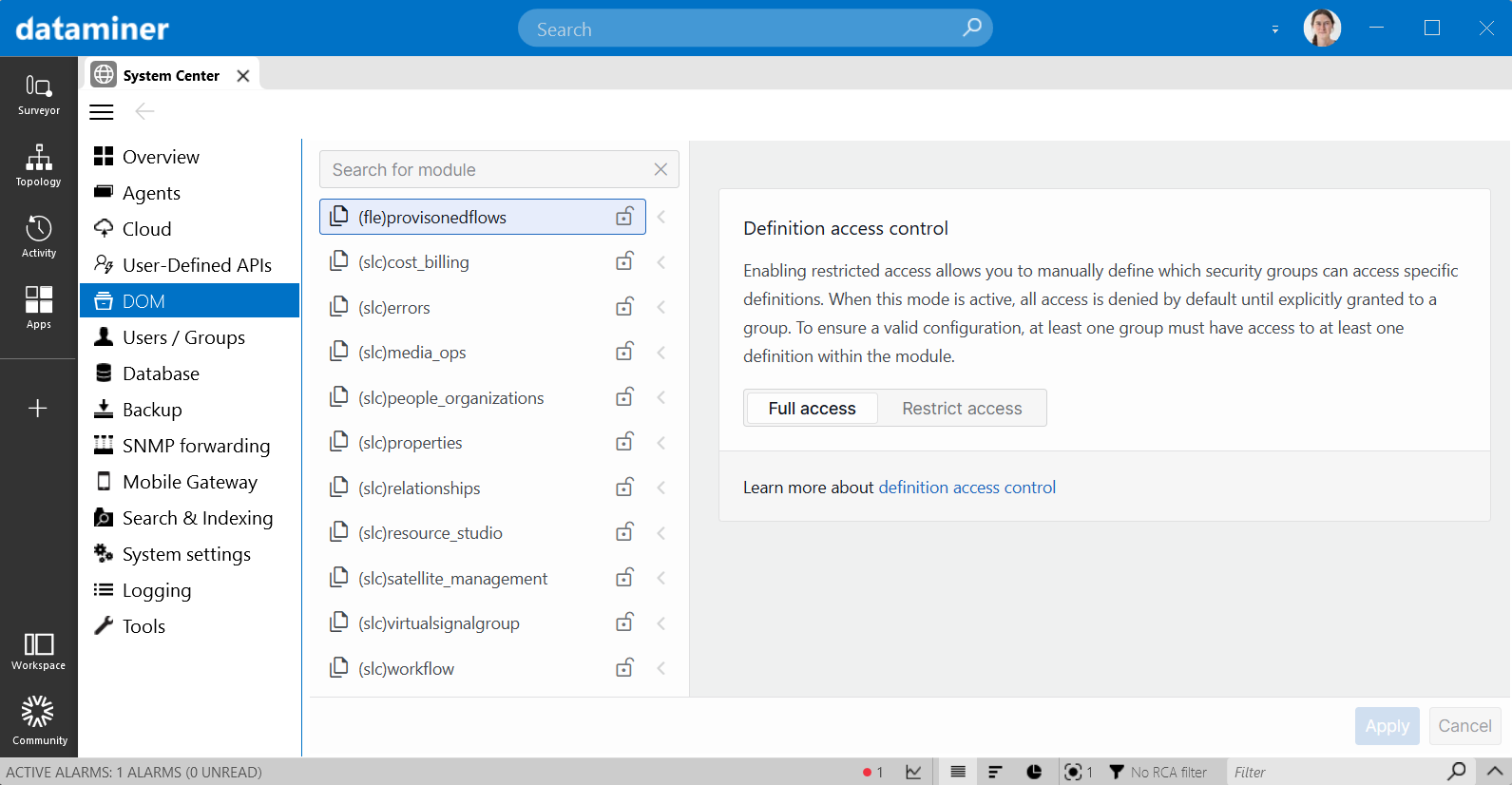
Configuring DOM security in DataMiner 10.6.9
Accessing the DOM security UI
If you have the required user permission (Modules > System configuration > Object Manager > Module settings), you can configure DOM security in either of the following ways:
Browse to
https://<DMA IP or hostname>/dom.In DataMiner Cube, go to System Center > DOM.
Note
The UI can also be embedded in a low-code app to allow direct access from within that low-code app. To do so, use a URL like https://<DMA IP or hostname>/dom/#/?embed=true in a Web component. You can also make the embedded UI show specific DOM modules by adding the IDs of those modules in the URL, for example: https://<DMA IP or hostname>/dom/#/?embed=true&moduleIds=myDomModule1,myDomModule2,myDomModule3.
Configuring security
The UI displays all available DOM modules in a list on the left, with a filter box at the top so you can quickly find the module you are looking for.
By default, all users will have full access to all DOM modules, which means that they will all be allowed to create, read, update, and delete DOM definitions in all available DOM modules.
To restrict access for specific definitions and their instances:
Select a module, and switch to Restrict access with the button on the right.
At this point, no one will have access to the definitions in the module. The list of DOM definitions within the module will expand so you can select a definition.
Select the definition for which you want to configure access.
You will now see a table listing the user groups that have access to the selected definition. By default, the table is empty because no groups have access yet.
In the upper-right corner, click + Add groups and select the groups that should have access to the definition.
Each added group gets Full access by default. This means group members can read, update, and delete instances of that definition.
Note
To remove a group's access to a definition, click the recycling bin button in that row.
If you want to limit a group's access to specific DOM instances:
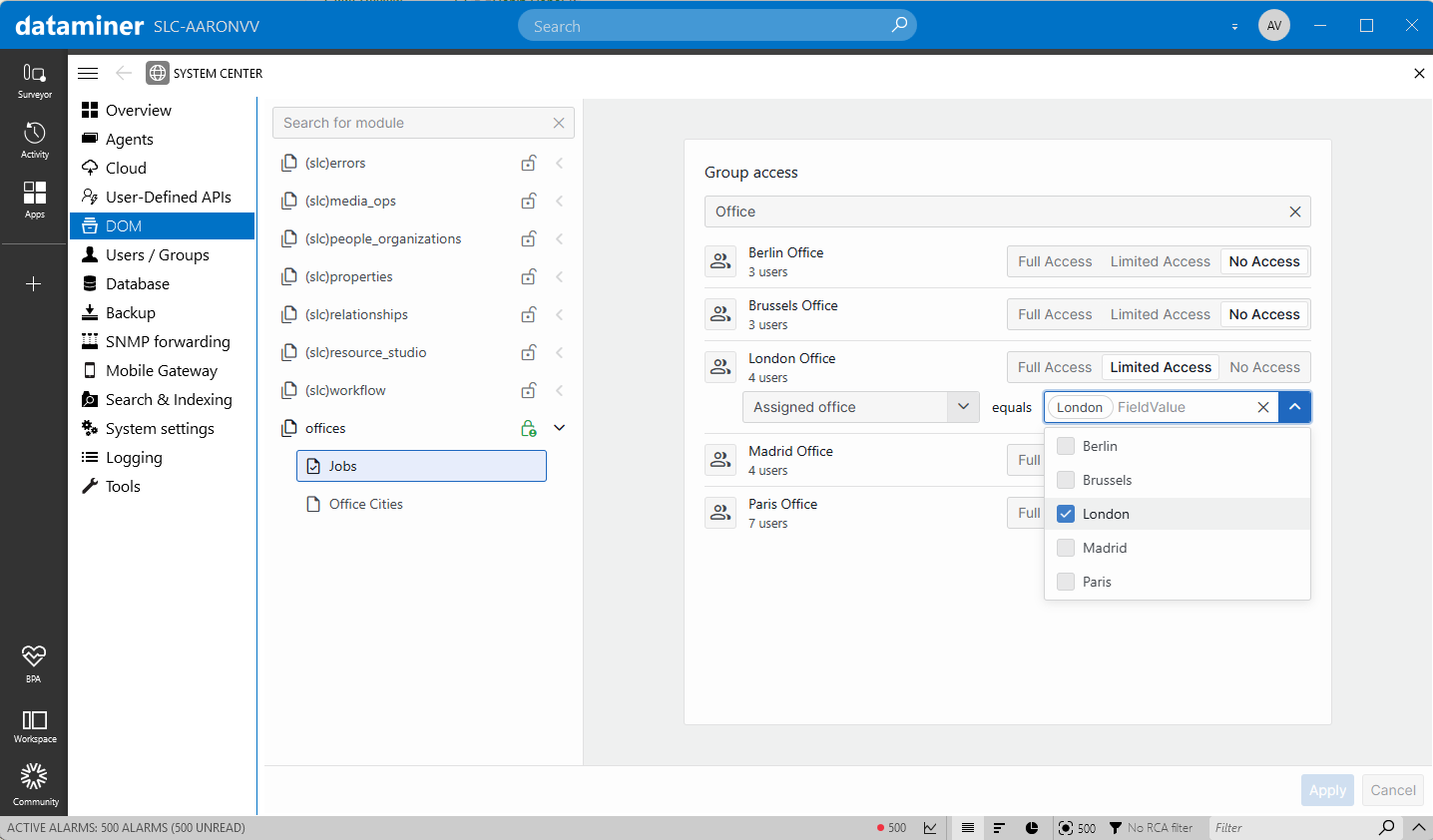
In the Condition column, click Add condition.
Select a field descriptor from the dropdown.
Specify one or more values the field can contain.
When a condition is set, the access level badge changes from Full to Limited. With Limited access, the group can only access DOM instances where the specified field contains any of the specified values.
For example, the user group Frankfurt Teleport Engineers can only access Transmission Bookings instances where the Teleport Location field contains the value Frankfurt.
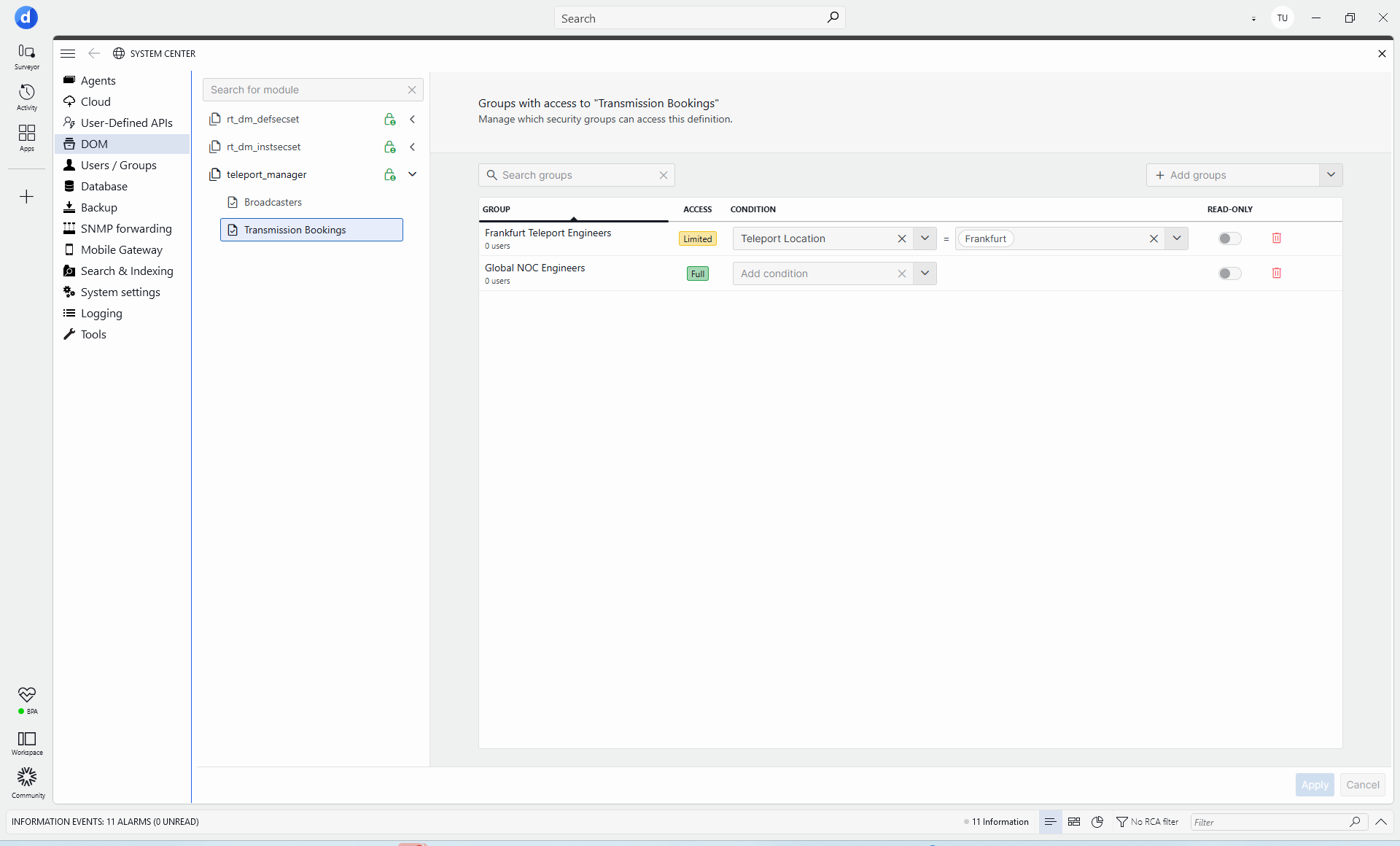
Instance-level security condition in DataMiner 10.6.9If you want to give a group read-only access, enable the Read-only toggle button for that row.
Repeat this for each definition users should have access to.
In the lower-right corner, click Apply to save your changes.
If the Apply button is not available yet, this means that at least one DOM module still has invalid settings. To correct this, make sure that for each module at least one user group has full access to at least one definition in that module.
Note
When changes are applied to the security configuration of a DOM module, that module will be reinitialized.