Adding data to a component
To add data or change the data of a component:
Click on the component or hover the mouse pointer over the component and click the
 icon.
icon.In the Data pane on the right, any data that does not match the visualization of the component will become unavailable. Data that is compatible with the component will be marked with the following icon:

Drag the compatible data entry onto the component. See Available data types.
To find specific data more quickly, you can use the filter box at the top of each data section.
For some components, you can add the complete set of a certain type of items. In that case, the
icon will be displayed in front of the group in the Data pane, and you will be able to drag the entire group onto the component.Note
- If you add the entire Bookings dataset to a dropdown, list, or tree component, you will also need to link this to a time range component.
- You can filter on all versions of a protocol by adding the protocol itself to the component. In earlier versions, only the first of the available versions will be added in that case.
Data input can also be provided by any another component. When a component has been added to the dashboard or low-code app, the Components or Feeds section (depending on your DataMiner version) is added to the available data in the Data pane. You can then drag an entry from this section to a different component in order to link it to the component. For more information, see Component data.
From DataMiner 10.3.0 [CU21]/10.4.0 [CU9]/10.4.12 onwards, data can also be provided by a variable. Variables are reusable data objects that can be dynamically updated.
Some components allow you to specify multiple data entries. For example, for a state component and a line chart component, multiple parameters can be dragged onto the component.
Note
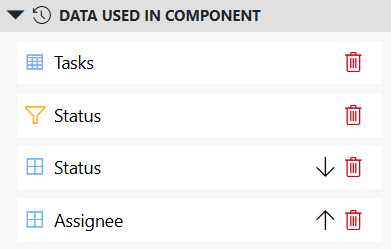
For some visualizations that use multiple data entries (e.g., parameter table, state), you can modify the order in which these data entries are displayed. To do so, in the Data used in component section of the Data pane, click the arrow icons next to the data entries to place them higher or lower in the order.
If you try to add data that is not compatible with the component, a red icon will be displayed on the component when you try to drag the data onto it.
Some visualizations and data allow you to specify an additional filter. In that case, a yellow filter icon will be displayed below the component when you select it or hover the mouse pointer over it:

After you click this icon, compatible filters will be marked with this icon in the Data pane, and you will be able to drag these onto the component just like data.
After data or filters have been added, the Data pane shows which items are currently used:
Data used in dashboard/page/panel: Lists all data items used in the current dashboard or low-code app page or panel, such as data sources, filters, and more.
From DataMiner 10.5.0 [CU13]/10.6.0 [CU1]/10.6.4 onwards, in the Low-Code Apps module, this section also indicates how the data is used (for example, as a data source or filter) by displaying corresponding icons. The items are sorted by type and then by name. If a data entry is used in multiple ways in the page or panel, multiple icons are displayed.
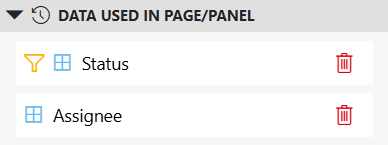
Low-Code Apps Data pane in DataMiner 10.6.4Data used in component: Lists all data items used in the currently selected component. Entries can be reordered within this section to control the order in which they are displayed in the visualization.
From DataMiner 10.5.0 [CU13]/10.6.0 [CU1]/10.6.4 onwards, in the Low-Code Apps module, this section also includes filters and groups. If a data entry is used in multiple ways within the component, it appears on separate lines. The items are sorted by type and then by name.
Low-Code Apps Data pane in DataMiner 10.6.4