Managing dashboard folders
Adding a folder
First decide whether you want to add the new folder inside an existing folder or at the top level:
To create the folder inside an existing folder, right-click that folder in the navigation pane on the left and select Add > Folder (from DataMiner 10.5.0 [CU11]/10.6.2 onwards) or Create folder (in earlier versions).
To create a new top-level folder, right-click the background of the navigation pane on the left and select Add > Folder. Prior to DataMiner 10.5.0 [CU11]/10.6.2, make sure no folder is selected by clicking the Dashboards button in the header bar, click the ellipsis ("...") button in the upper-right corner of the dashboard list, and select New folder.
Specify the name of the folder and click Create or OK, depending on your DataMiner version.
Note
A dashboard folder name must not start with a space.
The following characters are not allowed in a dashboard folder name:
/ \ : ; * ? < > | °
If you do specify a backslash (“\”) in a folder name, this will not become part of the folder name. Instead a subfolder will be created, with the characters after the backslash as its name.
From DataMiner 10.3.0 [CU20]/10.4.0 [CU8]/10.4.11 onwards , you can select whether other users should be able to view and edit the folder in the Security box.
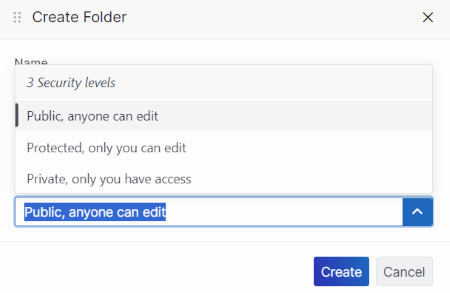
Setting dashboard folder security level in DataMiner 10.4.11Note
- Once the folder has been created, you can further refine which users have which level of access in the dashboard folder options. See Changing dashboard settings.
- The built-in Administrator account always has full access to all folders.
Deleting a folder
Select the folder in the navigation pane.
Right-click the folder in the dashboards list and select Delete.
Click OK to confirm the deletion.
Note
- When you delete a folder, any dashboards or folders within that folder will also be deleted.
- If a folder contains a dashboard you are not allowed to modify, you will not be able to delete that folder.
Renaming a folder
Select the folder in the navigation pane.
Right-click the folder in the dashboards list and select Settings (from DataMiner 10.3.0 [CU12]/10.4.3 onwards) or Rename (in earlier versions).
Enter a new folder name, and click Apply or OK, depending on your DataMiner version.
Note
- When you rename a folder, the location and URL of all dashboards in that folder and any of its subfolders will automatically be adapted.
- If a folder contains a dashboard you are not allowed to modify, you will not be able to rename that folder.
Tip
For restrictions related to folder names, see Adding a folder.
Moving a dashboard to a different folder
Right-click the dashboard in the navigation pane and select Settings.
The Dashboard settings pop-up window will be displayed.
Click the Location box and either manually specify the new location for the dashboard, or select it in the tree view below.
You can also create folders at this point, by hovering the mouse pointer over the folder in the tree view where you want to create a folder and clicking the + icon. Then specify the folder name and click the check mark icon.
Click Apply.
Note
It is not possible to move a dashboard that is currently being shared. To move such a dashboard, you will need to temporarily stop sharing it and then share it again once it has been moved.
Configuring security for a folder
From DataMiner 10.3.0 [CU19]/10.4.0 [CU7]/10.4.10 onwards, user permissions can be customized for dashboard folders, allowing you to restrict access and prevent unauthorized modifications.
For more information, see Configuring security for a dashboard.