Changing app settings
The general settings of a low-code app include the actions that get triggered when the app is opened, which are configured on application level, and the general settings for pages and panels, which need to be configured for each specific low-code app page or panel.
Tip
For information on how to configure which users can access or edit an app, see Configuring app security.
Having an event triggered when the app is opened
From DataMiner 10.4.0 [CU19]/10.5.0 [CU7]/10.5.10 onwards, you can configure an event that will be triggered as soon as an app is opened. The event will be triggered in each of the following cases:
- When the app is published and therefore opened.
- When a user navigates to the app via the landing page.
- When a user navigates to the app via the URL
- When the app is previewed as a draft.
To configure such an event:
Make sure the low-code app is in edit mode. See Editing an app.
Click the ellipsis button ("...") in the upper-right corner and select App settings.
Next to On open, click Configure actions.
Configure the actions as detailed under Configuring app events.
Note that an "On app open" event currently has the following limitations:
If you run an interactive automation script with this event, the script window will always have a light gray background and will not inherit the background color of the page it is launched from.
Currently, linking is not supported. When a link is configured to a component value, the value will remain empty because the component is not yet loaded at the time when the action occurs. This also applies in case a value is passed through the URL.
Customizing the app styling using custom CSS code
From DataMiner 10.5.0 [CU12]/10.6.3 onwards, you can make a low-code app use custom CSS code.
This allows you to override the default styling of the low-code app.
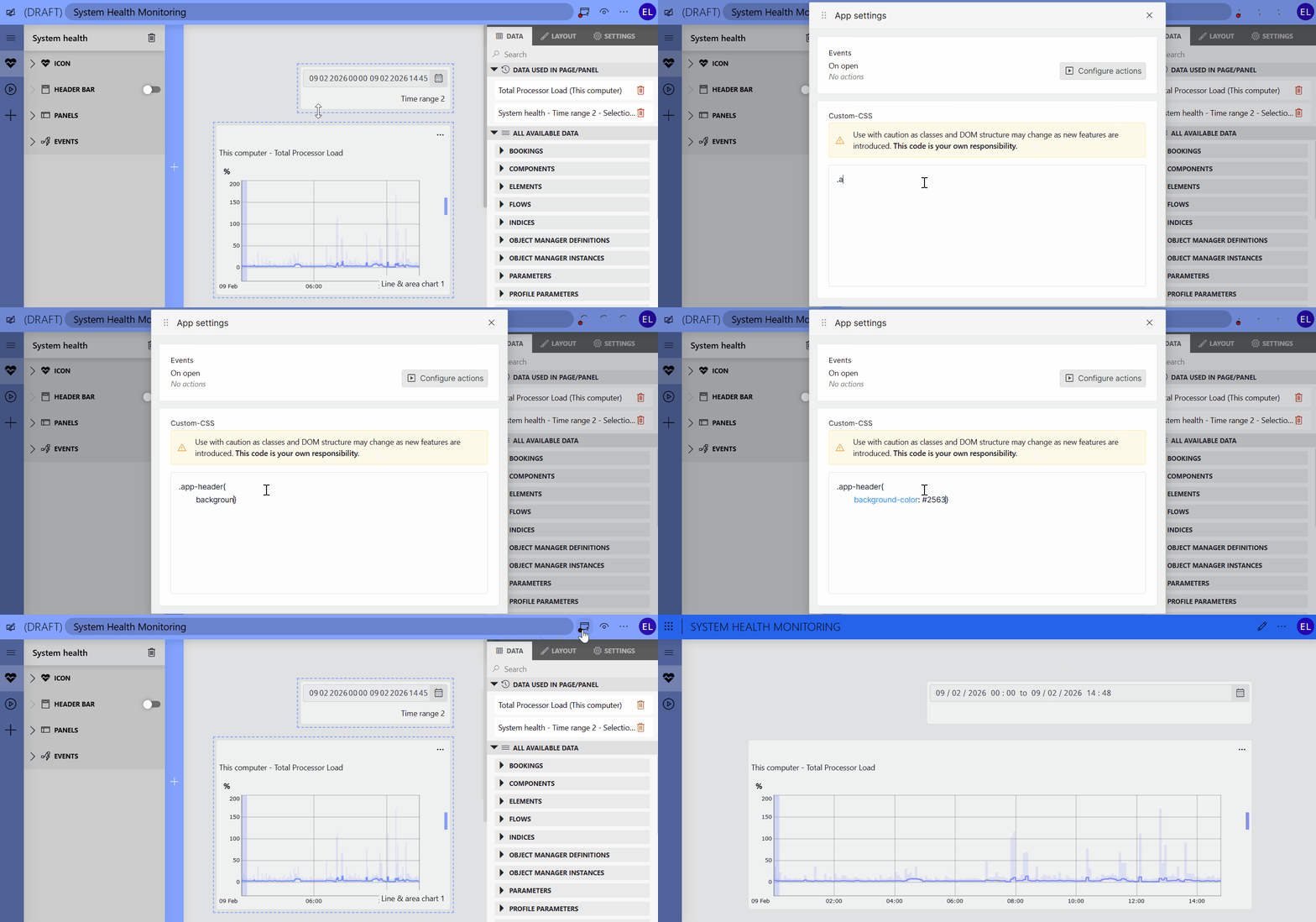
Low-Code Apps Custom CSS feature in DataMiner 10.6.3
Caution
This feature is intended for advanced users only. Use it at your own risk. We cannot guarantee long-term support of CSS customizations, as the default HTML structure of low-code apps may change over time.
To add, update, or delete a custom CSS file:
Make sure the low-code app is in edit mode. See Editing an app.
Click the ellipsis button ("...") in the upper-right corner and select App settings.
In the Custom-CSS section, add, update, or delete the CSS code.
Changes take effect when you exit the edit mode by either publishing the app or previewing the draft.
Configuring the settings for a page or panel
Make sure the low-code app is in edit mode. See Editing an app.
Select a page in the leftmost pane of the app editor. If you want to edit the panel settings, open the panels section in the page configuration pane.
Without selecting any of the low-code app components, in the configuration pane to the right, go to the Settings pane.
If a component is selected, this pane will instead show the settings for that component. In that case, click an empty area of the low-code app first.
Configure the following settings as required:
Page/Panel configuration
Use dynamic units: This option determines whether parameter units will change dynamically based on their value and protocol definition, in components where this is supported.
Allow components to shift: This option determines whether components will move to make room for a component that is dragged across the low-code app page. If the option is not selected, the position of the components becomes fixed.
Lazy load components: Available from DataMiner 10.3.4/10.4.0 onwards. Select this option to make sure components are only initialized when they first appear on the screen. This will shorten the load time considerably and improve the performance of the low-code app.
Note
- This option is only available if you add the
showAdvancedSettings=trueoption to the dashboard URL. - Even when this option is enabled, components will not be lazy loaded in edit mode.
- This option is only available if you add the
Fit to view: Available from DataMiner 10.2.7/10.3.0 onwards. Select this option to make sure all components are automatically adjusted to always be fully visible, so the user does not need to scroll.
Number of columns: Allows you to configure in how many columns components can be displayed in the low-code app. If you change the number of columns to a lower number and the columns currently contain components, these components will be automatically relocated when necessary. From DataMiner web 10.4.0 [CU20]/10.5.0 [CU8]/10.5.11 onwards, this is by default set to the maximum of 50.
Page/Panel updates
Allow WebSocket communication: Web socket communication is enabled by default, but can be disabled, e.g., in case this is not allowed by the firewalls in your network.
Fast polling timer: The polling interval (in s) for components that display real-time information.
Slow polling timer: The polling interval (in s) for components that do not display real-time information.
Note
Changes to these settings will only take effect after you refresh the dashboard or app.
Click the pencil icon again to leave edit mode.
To save your changes and publish it, click the
 icon in the header bar.
Note
When you close a draft app you have been working on, it is saved automatically. As such, if you do not want to publish your app immediately, you can just close it to save it as a draft. However, draft apps are not shown by default on the landing page. To view them, enable the Show drafts toggle next to the search bar. Prior to DataMiner 10.4.0 [CU21]/10.5.0 [CU9]/10.5.12,click the cogwheel button and activate Show draft applications.