DataMiner Assistant for Microsoft 365
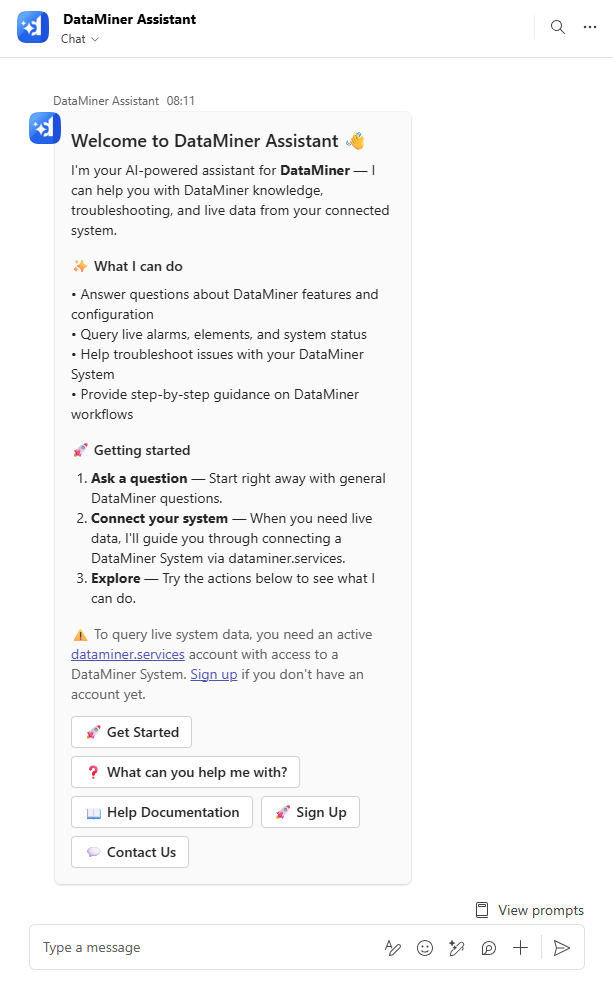
The DataMiner Assistant for Microsoft 365 allows you to access all the features from the DataMiner Assistant app directly from Microsoft Teams or Microsoft Copilot. If you have the necessary permissions, you will be able to request information from your DataMiner System from any location, even without direct access to DataMiner.
Prerequisites
To interact with a DataMiner System via the DataMiner Assistant, the DataMiner System must be connected to dataminer.services, and the following DxMs must be installed:
- Assistant (version 3.11.2.51719 or higher)
- CloudGateway (version 4.0.0.0 or higher)
Tip
See also: Deploying a DxM on a DMS node
To ensure that you have access to a DataMiner System from your Microsoft account, your Microsoft account must be linked to your DataMiner account.
Installation
You can download the DataMiner Assistant for Microsoft 365 directly from the Microsoft Marketplace, or you can deploy it from Microsoft Teams as follows:
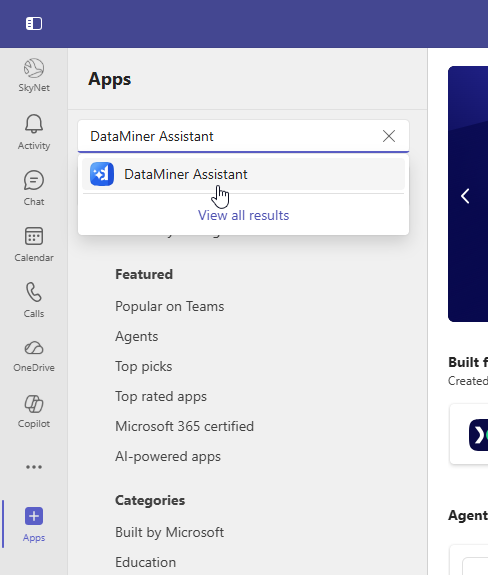
In Teams, click the Apps button in the sidebar on the left.
In the filter box at the top, specify DataMiner Assistant.
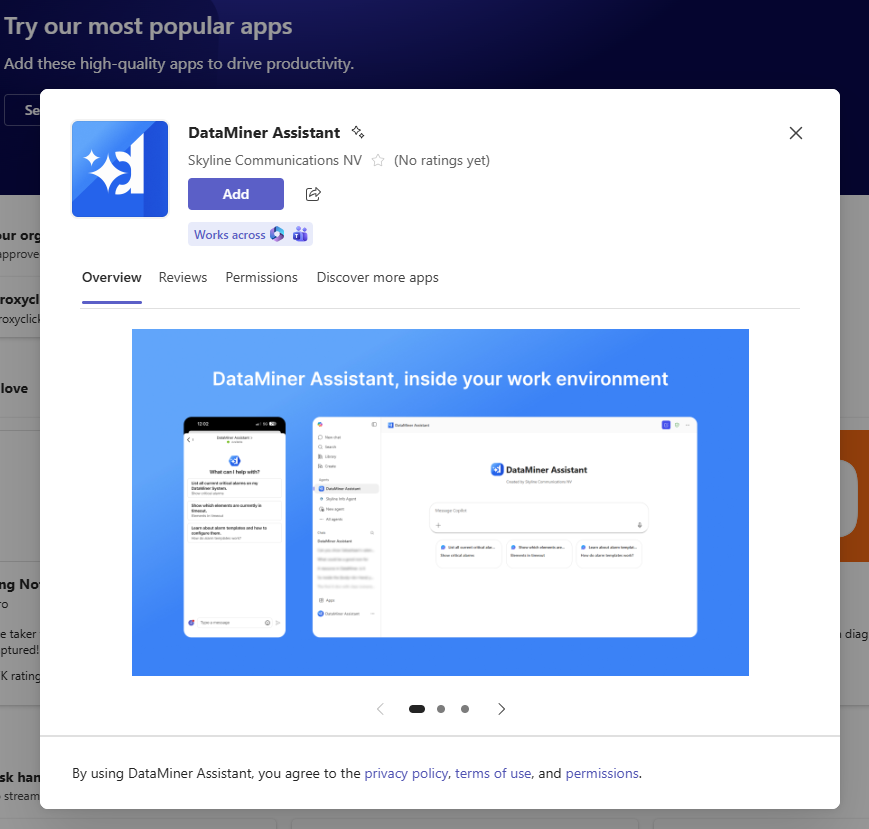
In the pop-up window, click Add.
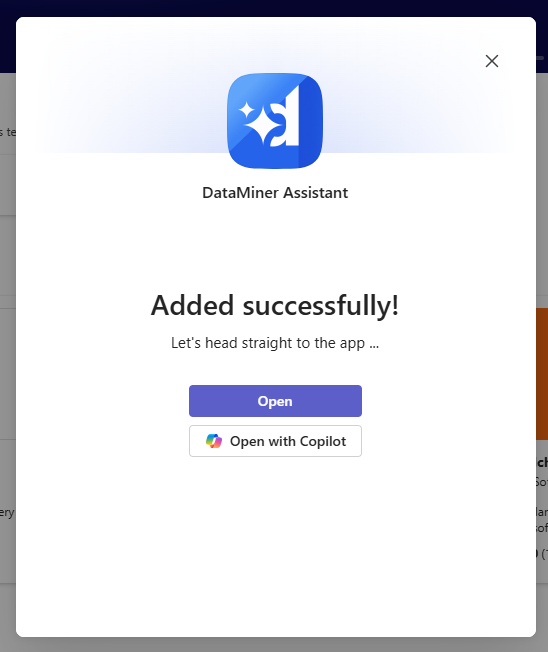
When DataMiner Assistant has successfully been added, either click Open to open it in a Teams chat, or click Open with Copilot to open it in a Copilot chat.
Key features
You can ask the DataMiner Assistant any questions about DataMiner Systems you have access to, or questions about DataMiner in general. You can also interact with the Assistant in several other ways.
Below you can find a quick guide of typical ways to interact with the Assistant. This may help you in case you are not sure what to do, but it is by no means a restrictive list of commands as the Assistant will respond to many similar commands, even in other languages.
| Interaction | Result | Example user input |
|---|---|---|
| Ask for help | Displays a help card outlining everything the Assistant can do. | "help", "what can you do?" |
| Authenticate | Starts the sign-in process to connect to your DataMiner account. | "sign in", "log in" |
| Sign out | Signs you out and disconnects from the active system. | "sign out", "log out" |
| Get account info | Displays your signed-in account details and the currently selected system. | "who am I?", "show my account" |
| System configuration | Guides you through selecting an organization and DataMiner System to work with. | "configure system", "switch system" |
| Get active system info | Shows the currently selected DataMiner System, including a link to open it in your browser. | "which system is active?", "show current system" |
| Configure agent | Configure the AI agent that is used for the conversation. A default AI agent can be selected for the current system. | "select agent", "change agent" |
| Configure model | Select the model that is used by the AI agent. A default model can be selected for the current AI agent. | "select model", "change model" |
| Agent info | Display the AI agent and model that are currently being used | "agent info", "active agent" |
| Live system queries | Sends queries to the DataMiner Assistant for real-time data (e.g., alarms, elements, services) and provides links to the monitoring UI. | "show active alarms", "what services are running?" |
| Session reset | Prompts for confirmation, then clears the conversation history so you can start fresh while staying signed in. | "reset", "start over", "clear history" |