Document Intelligence
Starting from version 2.0.7, the DataMiner Assistant DxM can analyze documents based on instructions you provide. This functionality is available through the Document Intelligence API and can be used in DataMiner Automation.
Typical use cases include:
Extracting satellite parameters from a PDF file.
Extracting contract information from a video content rights contract in Word.
Extracting order data from a bill of materials (BOM) Excel document.
Processing documents
The DataMiner Assistant combines OCR (Optical Character Recognition) and LLMs (Large Language Models) to analyze your files according to your instructions. The process consists of the following steps:
You upload a document.
Any file format supported by Azure Document Intelligence Service can be analyzed via the Document Intelligence API. Supported formats:
Images: JPEG/JPG, PNG, BMP, HEIC, HEIF
PDF
TIFF/TIF
Word (DOCX)
Excel (XLSX)
PowerPoint (PPTX)
HTML
Note
- Embedded or linked images are not supported in DOCX, XLSX, PPTX, and HTML files.
- A maximum file size applies, depending on the format:
- 20 MB for PPTX and TIFF/TIF files.
- 5 MB for all other file types.
You provide your instructions. These instructions (i.e., the "prompt") describe what the system should extract or analyze.
The quality of the final result depends heavily on the quality of these instructions. See Writing effective instructions for guidance.
The service runs OCR on the uploaded file to produce a plain-text representation of the document content.
The extracted text and your instructions are sent to an LLM. The model interprets your instructions and extracts or structures the requested information.
The model's output is returned as the Document Intelligence response.
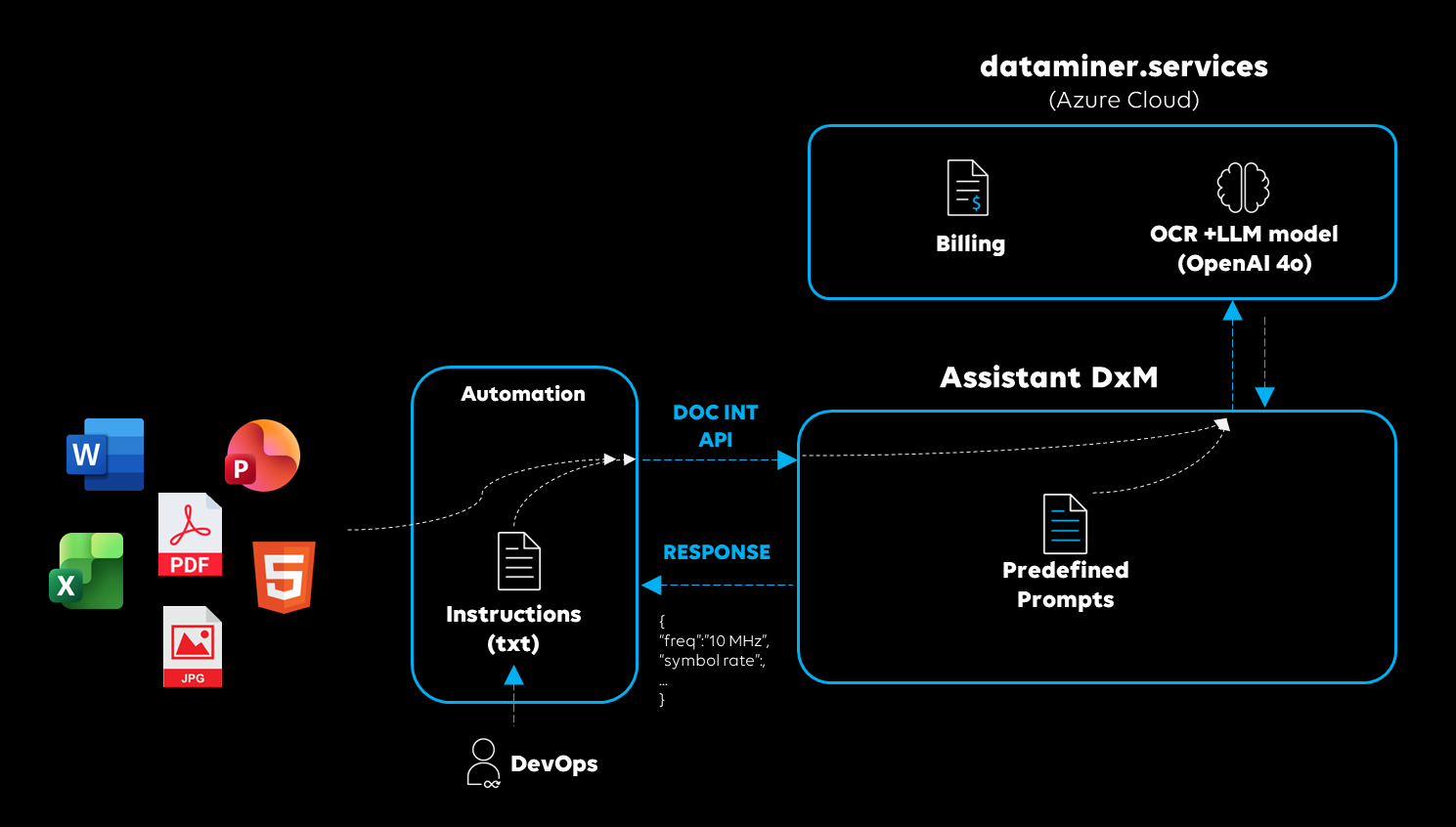
Using the Document Intelligence API in DataMiner automation scripts
Writing effective instructions
The quality of your instructions directly determines the quality of the output. While any natural-language text is accepted, a clear and precise prompt can make the difference between an excellent result and a mediocre one.
Keep the following guidelines in mind:
Be specific. Clearly describe the data you want to extract. The more details you provide, the more accurate and useful the response will be. Avoid vague requests.
Focus on the essentials. Extra information that is not directly relevant to your main question can steer the response in the wrong direction. Keep tangential details to a minimum.
Specify the output format. If you require the results in a specific structure, mention this explicitly. For example, when requesting a JSON response, clarify which fields and values are allowed and/or required.
Use examples. A practical, good example is often more effective than a long list of instructions.
Below is an example of the kind of instructions you can provide to the tool:
EXAMPLE OUTPUT:
{
    "satellites": [
        {
            "satellite_name": "SKY3B-3E",
            "uplink": {
                "frequency": "13062.5 MHz",
                "polarization": "Horizontal"
            },
            "downlink": {
                "frequency": "11262.5 MHz",
                "polarization": "Vertical"
            },
            "parameters": {
                "modulation_standard": "NS4",
                "symbol_rate": "35.294 MSym/s",
                "fec": "7/8"
            }
        }
    ]
}

POSSIBLE VALUES:
- "satellite_name": ["EUT1", "EUT2", "SKY3B-3E"],
- "polarization": ["Horizontal", "Vertical"],
- "modulation_standard": ["DVB-S", "DVB-S2", "NS3", "NS4"],
- "roll_off":["5%", "10%"],
- "fec": ["1/2", "2/3", "4/5"],

REQUIRED FORMATS:
- Date values should be formatted as dd/mm/yyyy hh:mm:ss.
- Frequency values should be formatted in MHz with 6 digits and 3 decimals places (e.g., 123.567 MHz).
- Symbol rate should be formatted in MSym/s with 3 decimals.

ADDITIONAL INFORMATION:
- If elements such as satellites are not found in the document, return an empty JSON array, e.g., "satellites": [].
- Satellite names are often abbreviations (e.g., EUT) followed by numbers and letters (e.g., 7A). Only the base identifier is required, so "EUT 7A-7E" can be mapped to "EUT 7".
Using Document Intelligence in automation scripts
From DataMiner 10.6.0/10.6.1 onwards, you can integrate Document Intelligence directly into DataMiner Automation.
For the full API reference, see Document Intelligence API reference.
The following code snippet shows how to use the built-in API call, including error handling. The namespaces shown below require the NuGet package Skyline.DataMiner.Dev.Automation (version 10.6.0 or higher) to be included in your automation script project.
using System.Collections.Generic;
using System.IO;
using Skyline.DataMiner.Net.Apps.DocumentIntelligence;
using Skyline.DataMiner.Net.Apps.DocumentIntelligence.Objects;

public void Run(IEngine engine)
{
    // Read file content
    var filepath = "C://myFolder//myFile.pdf";
    var fileBytes = File.ReadAllBytes(filepath);
    // Write instructions
    var instructions = "Extract the start and end time of my streaming event";
    // Create Document Intelligence helper
    var docIntelHelper = new DocumentIntelligenceHelper(engine.SendSLNetMessages);
    // Request Document Intelligence analysis
    var result = docIntelHelper.AnalyzeDocuments(instructions, new List<Document>()
    {
        new Document()
        {
            Name = "myFile.pdf",
            Content = fileBytes
        },
    });
    // Check for errors
    var traceData = docIntelHelper.GetTraceDataLastCall();
    if (!traceData.HasSucceeded())
    {
        var errors = traceData.GetErrorDataOfType<DocumentIntelligenceError>();
        engine.ExitFail("Document Intelligence analysis failed: " + string.Join(", ", errors.ConvertAll(e => e.Message)));
        return;
    }
    // Use the analysis result
    engine.GenerateInformation("Analysis result: " + result);
}
Deploy this Catalog package to see Document Intelligence in action. The included Satellite Parameter Extractor app showcases how to extract parameters from a PDF as part of an automated satellite reservations workflow, offering real-life input examples, custom instructions, and Automation integration.

Data security and privacy
Document Intelligence relies on external Azure AI services for both OCR and LLM processing: Azure Document Intelligence Service and Azure OpenAI Service (Global Standard Deployment). As a result, your data is transmitted to Microsoft Azure endpoints for processing, encrypted in transit, and handled according to Microsoft's data handling policies.
Important
- When data is sent to the Document Intelligence Service, both input data and analysis results may be temporarily encrypted and stored in Azure Storage for up to 24 hours after the operation is completed. Data remains in the service region. For the time being, this will be Western Europe for all users.
- The Global Standard Deployment of Azure OpenAI ensures the highest availability and lowest costs by processing data across Azure's global infrastructure. While temporarily stored data will never leave the designated region (currently Sweden for all users), prompts and responses might be processed in any geographic area.
- Ensure that all uploaded content complies with your organization's data handling policies, security requirements, and regulations (e.g., GDPR, CCPA).
Tip
We highly recommended reviewing the Azure Document Intelligence data privacy documentation and the Azure OpenAI data privacy and security documentation.
Pricing
Document Intelligence uses DataMiner credits, based on the amount of data analyzed. Credits will be deducted monthly based on metered usage.
For more information about the pricing of DataMiner usage-based services, see Billing and metering.