DataMiner UserDefinableApiEndpoint DxM
DataMiner UserDefinableApiEndpoint is an extension module that runs an ASP.NET Core web API. It handles the incoming API triggers over HTTP or HTTPS and sends the requests to the DataMiner Agent(s) in a round-robin way.
Caution
Although rate limiting is available, it is not a complete protection against unwanted traffic. You should also protect the endpoint with a firewall or other network security measure that allows requests only from trusted IP addresses or networks.
Installing the DxM
Even though this is an extension module, it follows the release cycle of DataMiner. This means that when you install a general DataMiner upgrade package, this module will also be automatically installed and updated on each DMA in your DMS.
If for some reason this extension module is uninstalled, the User-Defined APIs feature will become unavailable. If this happens, or if the installation somehow becomes corrupted, you can install the extension module using the MSI installer located in C:\Skyline DataMiner\Tools\ModuleInstallers\DataMiner UserDefinableApiEndpoint <VERSION>.msi. You will need Administrator rights for this.
Important
Downgrading DataMiner will not automatically downgrade the UserDefinableApiEndpoint DxM. This means that a downgrade could result in incompatibility between DataMiner and the extension module. To downgrade the UserDefinableApiEndpoint DxM, first uninstall the installed version, and then install the lower version. Do not just run the installer of the lower version without uninstalling first, as this may corrupt your installation.
Versions
Below you can find a list of all the UserDefinableApiEndpoint DxM versions and their requirements.
Required .NET version: The .NET version that is required to run the DxM.
Compatible with DataMiner version: The DataMiner version range that this DxM version is compatible with. Note that an older DxM version may not have the new features that were added in later versions, but it will include the core API functionality.
Installed with DataMiner version: The DataMiner version where the installer for this DxM version was first available. You can use this to know what the best matching DxM version is for a DataMiner Agent.
| DxM version | Required .NET version | Compatible with DataMiner versions | Installed with DataMiner version |
|---|---|---|---|
| 1.0.2 | .NET 5 | 10.3.6 to 10.3.7 | 10.3.5 (preview) |
| 1.1.0 | .NET 5 | 10.3.6 to 10.3.7 | 10.3.6 |
| 1.1.1 | .NET 6 | 10.3.6 to 10.3.7 | 10.3.7 |
| 2.0.0 | .NET 6 | 10.3.8 to 10.3.12 | 10.3.8 |
| 2.0.2 | .NET 6 | 10.3.8 to 10.3.12 | 10.3.9 |
| 3.1.0 | .NET 6 | 10.4.0+ | 10.4.1 |
| 3.2.0 | .NET 6 | 10.4.0+ | 10.4.3/10.4.0 (prior to [CU10]) |
| 3.2.3 | .NET 8 | 10.4.0+ | 10.4.9 |
| 3.2.4 | .NET 8 | 10.4.0+ | 10.4.10 |
| 3.3.0 | .NET 8 | 10.4.0+ | 10.4.0 [CU10]/10.4.12 |
| 3.3.1 | .NET 8 | 10.4.0+ | 10.5.6 |
| 3.5.0 | .NET 8 | 10.4.0+ | 10.5.12 |
| 3.6.0 | .NET 8 | 10.4.0+ | 10.6.1 |
| 3.7.0 | .NET 8 | 10.4.0+ | 10.6.7 |
| 3.8.0 | .NET 8 | 10.4.0+ | 10.6.8 |
| 3.11.0 | .NET 10 | 10.4.0+ | 10.6.10 |
Note
- Versions not listed above were not released in official DataMiner upgrade packages.
- As of .NET 8, DataMiner no longer installs .NET automatically. Manually install the ASP.NET Core Runtime Hosting Bundle available for the .NET version that matches your DxM version.
Consulting logging for the DxM
For logging of core functionality errors of the extension module, consult the logging in the following location:
%ProgramData%\Skyline Communications\DataMiner UserDefinableApiEndpoint\Logs
User errors, such as an empty route, are not included in this, as the exception passed to the user should give enough info. ASP.NET logging is managed by the Microsoft loglevel in the appsettings.
Logging related to the installation is placed in that same folder in the file UserDefinableApiEndpointInstaller.txt. Only the logging of the last installation is kept.
The UserDefinableAPIEndpoint DxM uses NATS to communicate with DataMiner. If there are issues and the logging contains errors related to NATS, refer to Troubleshooting – NATS.
Configuring HTTPS
Because API triggers contain a secret token, we strongly recommend that you only allow HTTPS communication. Using HTTP could expose these tokens.
You will need to configure bindings in IIS, and the firewall needs to allow incoming requests on port 443 (HTTPS). In the IIS binding, you can choose the IP address to listen to. This can be used to only have requests coming from one network interface. Select All Unassigned to allow requests from all interfaces. You can also specify a specific hostname here.
For more information on how to set this up, see Setting up HTTPs on a DMA.
Configuring the DxM
The extension module has a configuration file with some settings that are set to default values. It is important that you customize this configuration to match the needs for your API, by creating a custom configuration file of your own.
The default configuration file can be found in the following location: %programfiles%\Skyline Communications\DataMiner UserDefinableApiEndpoint\appsettings.json
Important
If you want to make changes to the configuration, create an appsettings.custom.json file within the same folder. This will prevent your settings from being overwritten by an upgrade. If you change the settings in appsettings.json, this will work, but your changes will be overwritten as soon as you upgrade DataMiner.
In this file, add the setting or settings that you want to override, with your custom value. The following main blocks of settings are available:
Important
When you have customized the settings, you will need to restart the DataMiner UserDefinableApiEndpoint service.
For example, to change the setting MessageBrokerTimeOutSeconds to a higher value, create an appsettings.custom.json file with the following content and then restart the service:
{
  "UserDefinableAPIs": {
    "MessageBrokerTimeOutSeconds": 500
  }
}
Kestrel
EndPoints
This contains the endpoint where the UserDefinableApiEndpoint DxM will be run. You can change the port here.
For example, this is the default configuration:
{
  "Kestrel": {
    "Endpoints": {
      "Http": {
        "Url": "http://localhost:5002"
      }
    }
  }
}
Limits
It is possible to restrict the number of open connections. By default, the DxM will allow 100 concurrent connections, but you can customize this number here.
For example, this is the default configuration:
{
  "Kestrel": {
    "Limits": {
      "MaxConcurrentConnections": 100
    }
  }
}
IIS rewrite rule
Note
The service-side rewrite rule checks described in this section are available from DataMiner 10.6.10/10.7.0 onwards. In earlier versions, the installer creates and validates the rule during installation or upgrade. If you change the Kestrel port on an earlier version, update the rewrite rule manually as described in Configuring the rewrite rule for older versions.
The UserDefinableApiEndpoint service owns the IIS rewrite rule named Reroute User Definable APIs. The rule is created when the service starts, and it is checked at a configurable interval while the service is running. If the rule is missing, disabled, duplicated, or altered, the service restores a single enabled rule with the expected configuration.
The managed rule matches requests under /api/custom and forwards them to the local HTTP port configured for Kestrel. When you change the Kestrel HTTP port in appsettings.custom.json, restart the service. The service then updates the rewrite target automatically, so you do not need to edit the rule manually in IIS.
The service repairs the rule when any of the following applies:
- The rule is missing, disabled, or duplicated.
- Request matching has been changed or removed.
- Processing, conditions, or the rewrite action have been changed in a way that can affect routing.
- The rewrite target points to the wrong local port or URL.
The service also checks the web.config file in the API folder at C:\Skyline DataMiner\Webpages\API\Web.config by default. It removes a <remove> entry or a <rule> entry with the exact name Reroute User Definable APIs when the entry suppresses or redefines the inherited rule. Other rewrite rules and configuration remain in place. To skip this folder-level check, set ApiWebConfigPath to an empty string.
The following settings are available under IisRewriteRule:
| Setting | Default value | Description |
|---|---|---|
SiteName |
Default Web Site |
The IIS site that contains the managed rewrite rule. |
ApiWebConfigPath |
C:\Skyline DataMiner\Webpages\API\Web.config |
The web.config file in the API folder to check for entries that suppress or redefine the managed rule. |
CheckIntervalInSeconds |
900 |
The interval, in seconds, between rewrite rule checks. |
DisableChecks |
false |
Disables rewrite rule validation and repair when set to true. |
For example:
{
  "IisRewriteRule": {
    "SiteName": "Default Web Site",
    "ApiWebConfigPath": "C:\\Skyline DataMiner\\Webpages\\API\\Web.config",
    "CheckIntervalInSeconds": 900,
    "DisableChecks": false
  }
}
The service reports the current rewrite rule state in the logging and publishes it in the DxM status.
| Status | Description |
|---|---|
Unknown |
The service has not performed a check yet. |
Healthy |
The latest check succeeded, either without changes or after a repair. |
Degraded |
The service could not check or repair the rule, for example because the IIS site is missing, the configuration is invalid, or the service account does not have the required access. |
Disabled |
Rewrite rule checks are disabled through DisableChecks. |
The service logs an informational message when the rule is first confirmed as healthy or when a problem is repaired. It logs an error when a check or repair fails. Repeated successful checks or repeated instances of the same failure use debug-level logging.
Rewrite rule creation and repair are handled by the running endpoint service instead of an installer custom action. The installer removes the managed rule only during a real uninstall and leaves it in place during a major upgrade so the service can continue to maintain it.
Configuring the rewrite rule for older versions
For DataMiner versions prior to 10.6.10/10.7.0, the installer does not maintain the rewrite rule while the service is running. If you specify a custom Kestrel port in appsettings.custom.json, update the rewrite target manually:
Open
Internet Information Services (IIS) Manager.In the Connections pane on the left, expand the top node and Sites node until you see Default Web Site.
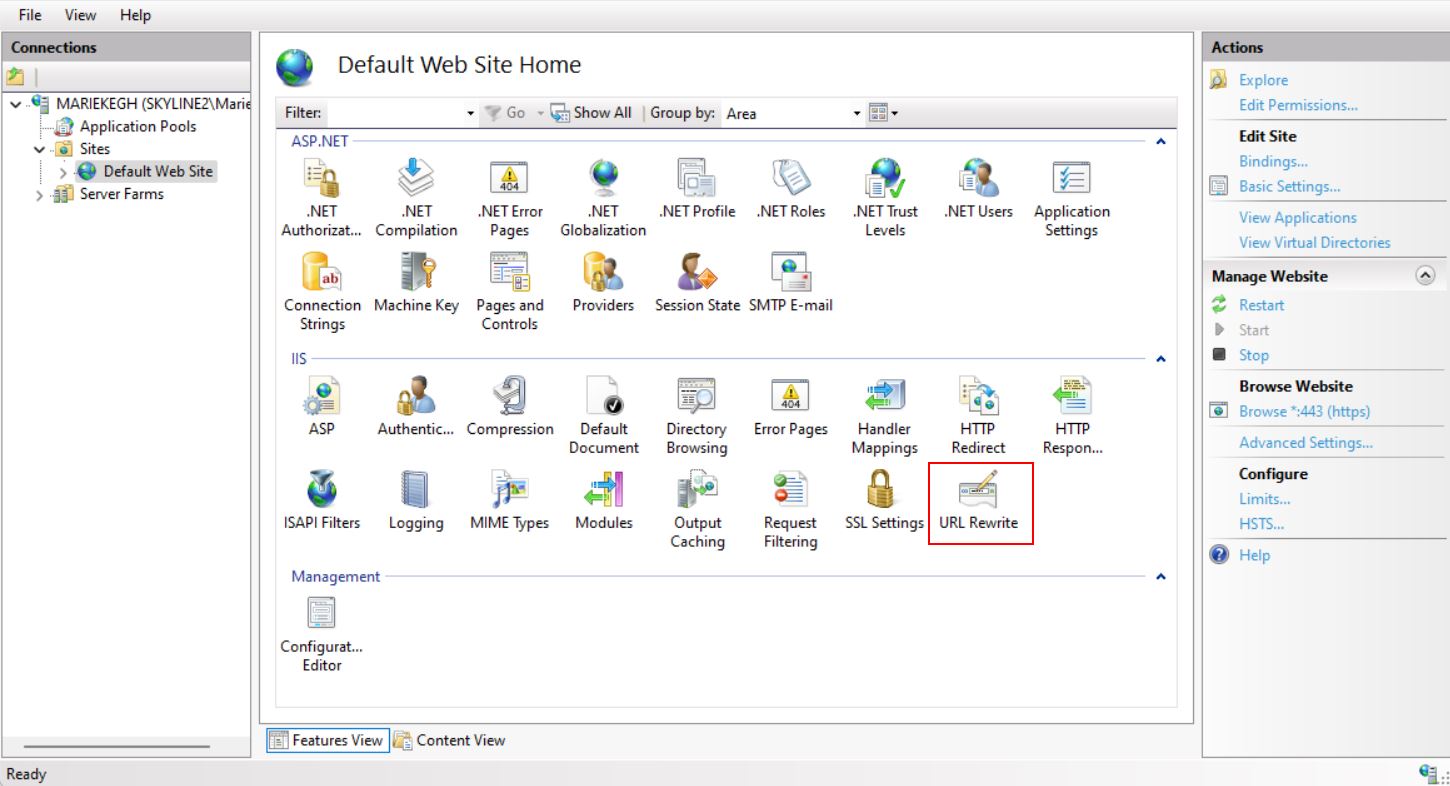
Select Default Web Site and then double-click URL Rewrite on the right.
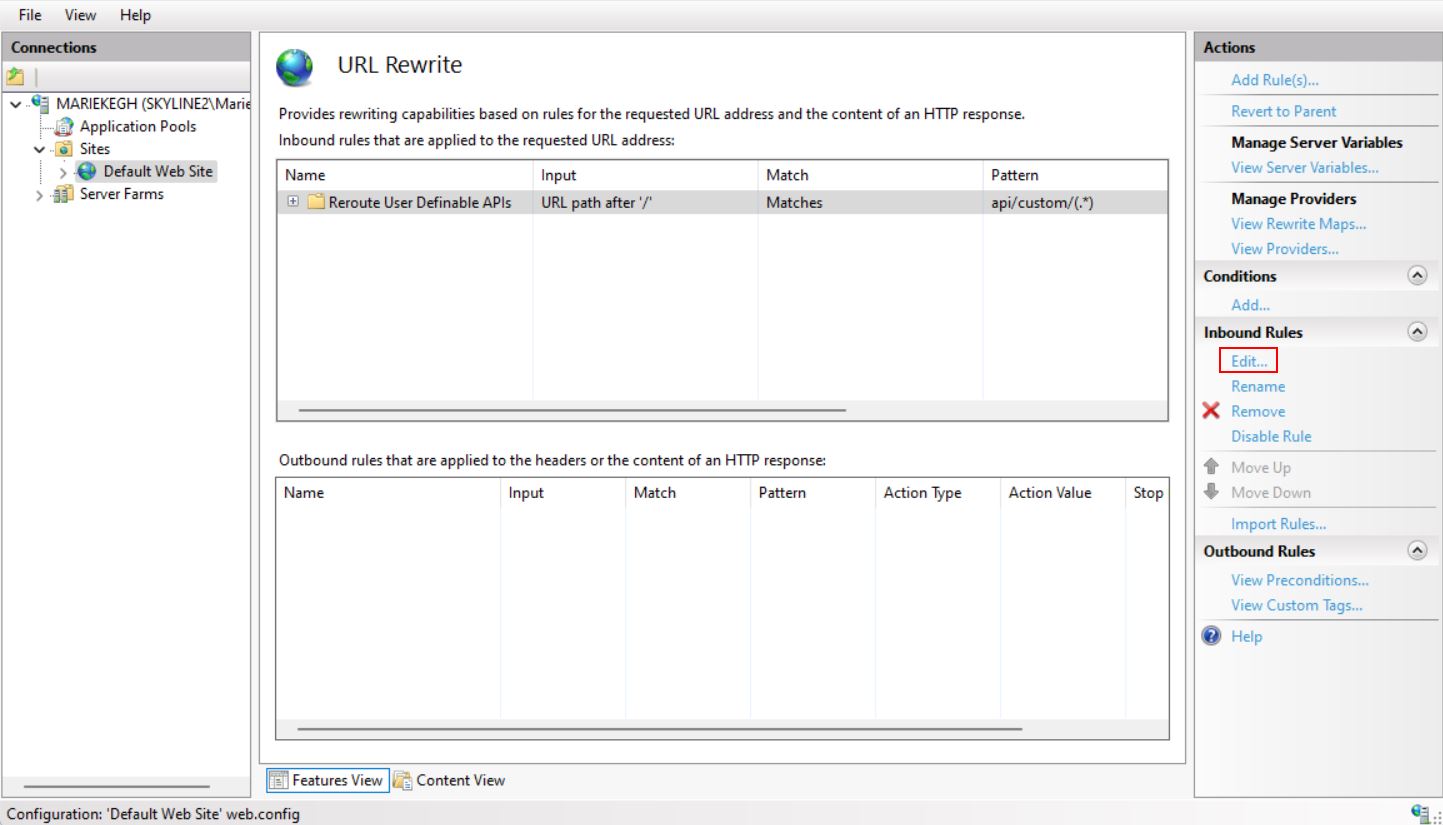
Select the Reroute User Definable APIs rewrite rule and click Edit in the pane on the right.
Under Action, in the Rewrite URL box, change the default port (5002) to the port you want to use.
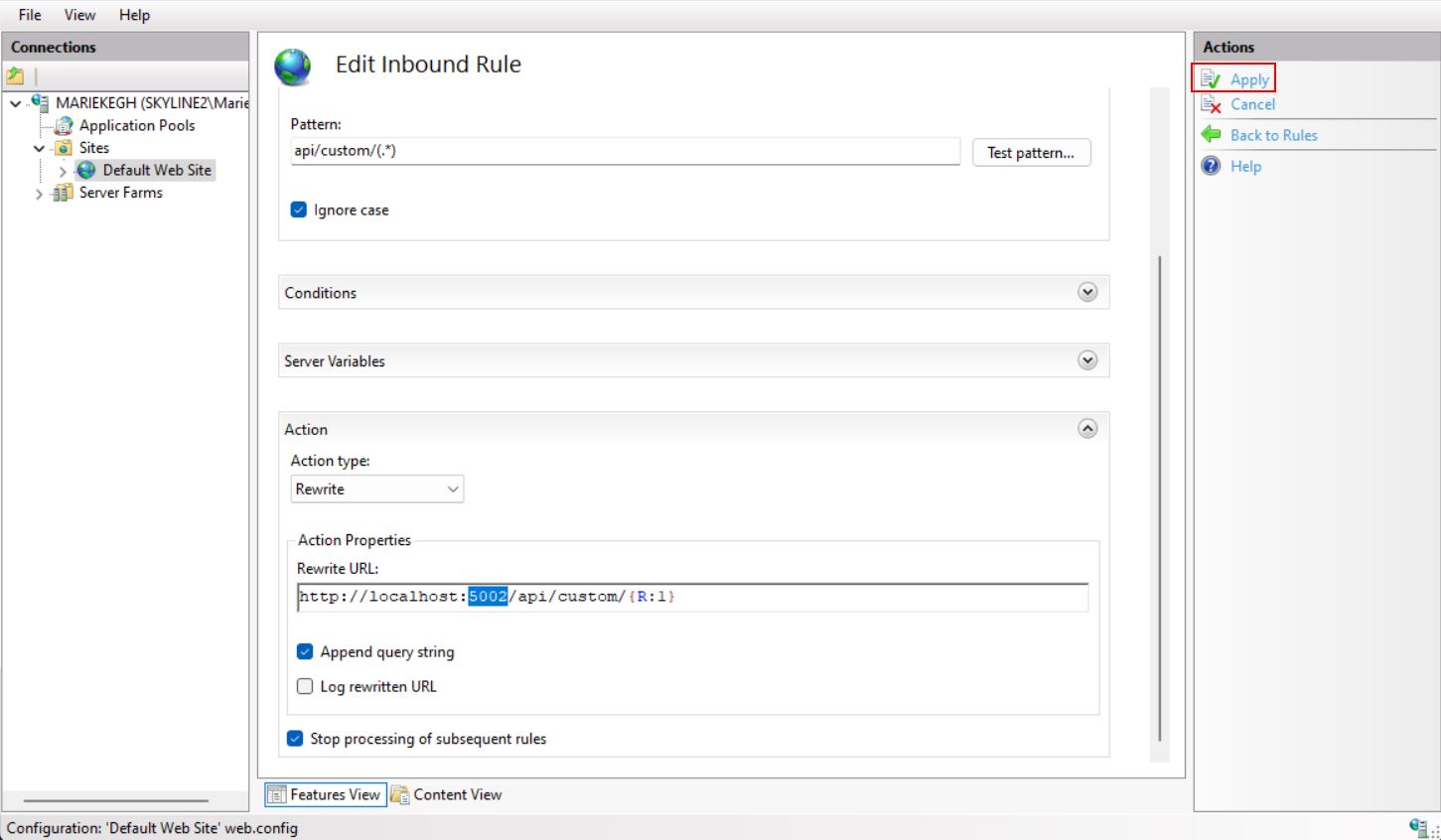
Click Apply.
Serilog
Serilog is the logging service used for UserDefinableApiEndpoint. Here you can change where the log files should be located, how big they can get, and how many files should be kept. You can also change the default log levels.
By default, a log file has a maximum size of 5 MB, and at most 3 files will be kept. When there are 3 files already and a new file needs to be created, the oldest file will be removed.
For example, this is the default configuration:
{
  "Serilog": {
    "Using": [ "Serilog.Sinks.Console", "Serilog.Sinks.File" ],
    "MinimumLevel": {
      "Default": "Information",
      "Override": {
        "Default": "Debug",
        "System": "Information",
        "Microsoft": "Information"
      }
    },
    "WriteTo": [
      {
        "Name": "Console"
      },
      {
        "Name": "File",
        "Args": {
          "path": "%ProgramData%\\Skyline Communications\\DataMiner UserDefinableApiEndpoint\\Logs\\UserDefinableApiEndpoint.txt",
          "fileSizeLimitBytes": 5000000,
          "rollOnFileSizeLimit": true,
          "retainedFileCountLimit": 3
        }
      }
    ],
    "Enrich": [ "FromLogContext" ]
  },
}
UserDefinableAPIs
This section contains options specific to this DxM module:
NatsSubject: The subject used for internal NATS messaging. This should not be changed.
Note
From DataMiner 10.3.7 onwards, NatsSubject is an optional setting.
MessageBrokerTimeOutSeconds: The time the message broker (sending the NATS trigger to SLNet) will wait for a response before it times out. By default, this is set to 90 seconds (i.e., 1.5 minutes). If you increase the timeout value, you will also need to increase the timeout in IIS.
SessionConfigPath: Optional. The path to the NATS config file. The default configuration will be used when this is not filled in.
CredentialsConfigPath: Optional. The path to the credentials file (.creds) used to connect to the NATS message bus. The default credentials will be used when this is not filled in.
RateLimitNotificationIntervalSeconds: Optional. The cooldown time before the endpoint will notify DataMiner when a rate limit is exceeded. Set to 60 seconds by default.
For example, this is the default configuration:
{
  "UserDefinableAPIs": {
    "MessageBrokerTimeOutSeconds": 90
  }
}
Changing the timeout
IIS has a timeout set to 120 seconds (2 minutes). When you increase the MessageBrokerTimeOutSeconds as mentioned above, you will also need to increase this timeout in IIS.
Note
The timeout in IIS should be longer than the MessageBrokerTimeOutSeconds, so that there is a margin.
You can change the time-out in IIS as follows:
Open the Internet Information Services (IIS) Manager app in Windows.
In the pane on the left, select the server. This should be the top item in the tree.
In the center pane, double-click Application Request Routing Cache.
In the pane on the right, under Proxy, click Server Proxy Settings.
Specify the timeout value in seconds in the Time-out (seconds) box.
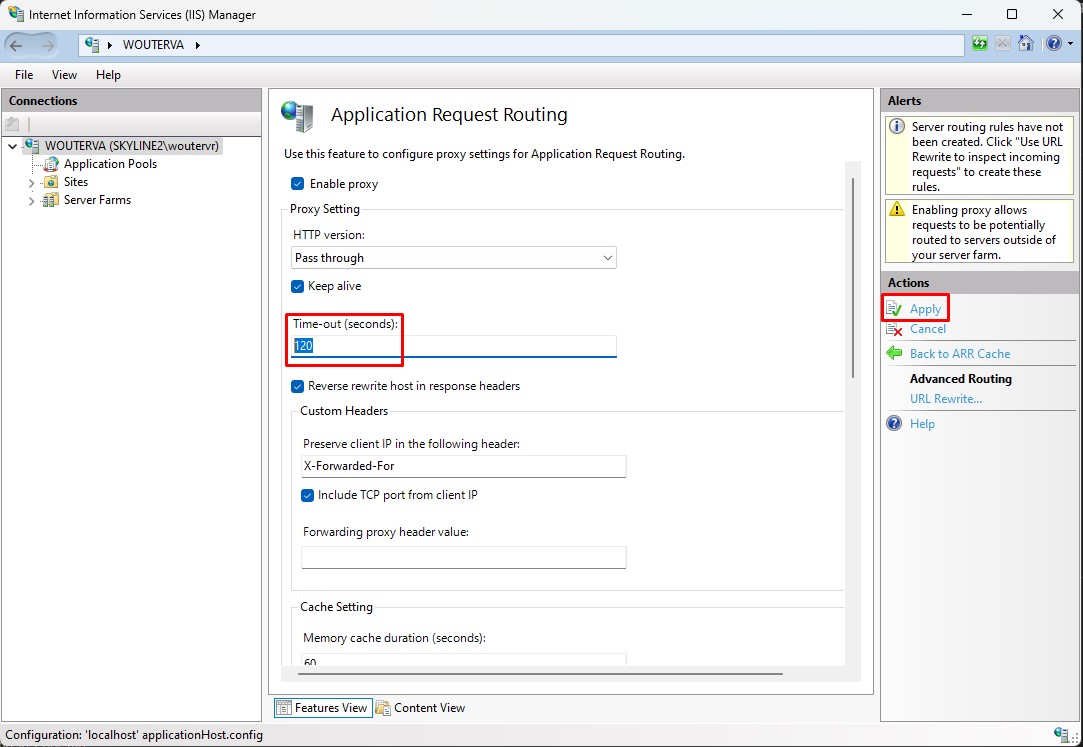
Click Apply.