Setting the active Visio file for an element, service, or view
Via the right-click menu of Visual pages, there are different ways to assign specific Visio files to elements, services, or views.
For an element
When you right-click a Visual page of an element, the following options are available:
Set as active [protocol name] protocol Visio file: Assigns a different Visio file to all elements using this protocol.
If you pick this option, the following further options are available:
Custom: Assigns the currently available custom protocol drawing to all elements using this protocol.
Protocol default: Assigns the protocol default drawing to all elements using this protocol. This is the drawing included in the protocol package.
General default: Assigns the general default drawing to all elements using this protocol. This is the drawing shipped with the DataMiner software.
Set as active [element name] element Visio file: Assigns a different Visio file to this specific element only.
If you pick this option, the following further options are available:
New blank: Opens a new, blank drawing in Microsoft Visio, which will automatically be assigned to the current element.
Note
The format of the blank drawing depends on the SkylineNewDrawing template. See Overview of the default Visio templates supplied by Skyline.
New upload: Opens the Open dialog box, which allows you to upload a new drawing to the DMS and automatically assign it to the current element.
Existing: Opens the Custom dialog box, which allows you to assign a previously uploaded drawing to the current element:
Next to Page, you can select which page should be displayed by default.
Optionally, you can select Force default page selection to always show this page by default.
With the Other file button, you can upload additional drawings to the DMS.
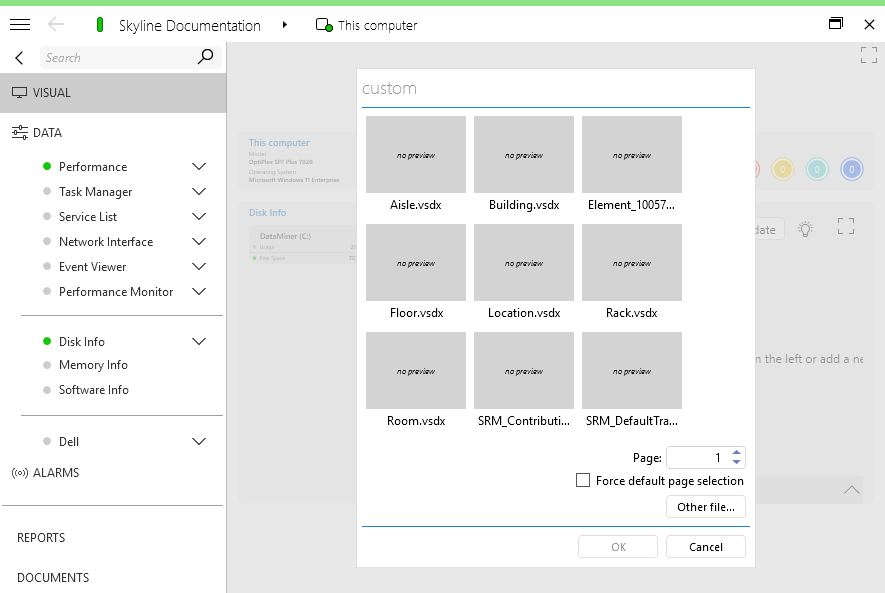
Setting an existing file as active Visio file in DataMiner 10.6.3
For a service or view
On the visual overview of a service or view, the right-click menu can contain the following options under Set as active Visio file:
Custom / General default: Only displayed in case a custom Visio file is available already. Allows you to switch between this custom file or the general default file for services or views.
New blank: Opens a new, blank drawing in Microsoft Visio, which will automatically be assigned to the selected service or view.
Note
The format of the blank drawing depends on the SkylineNewDrawing template. See Overview of the default Visio templates supplied by Skyline.
New upload: Opens the Open dialog box, which allows you to upload a new drawing to the DMS and automatically assign it to the selected service or view.
Existing: Opens the Custom dialog box, which allows you to assign a previously uploaded drawing to the selected service or view:
Next to Page, you can select which page should be displayed by default.
Optionally, you can select Force default page selection to always show this page by default.
With the Other file button, you can upload additional drawings to the DMS.
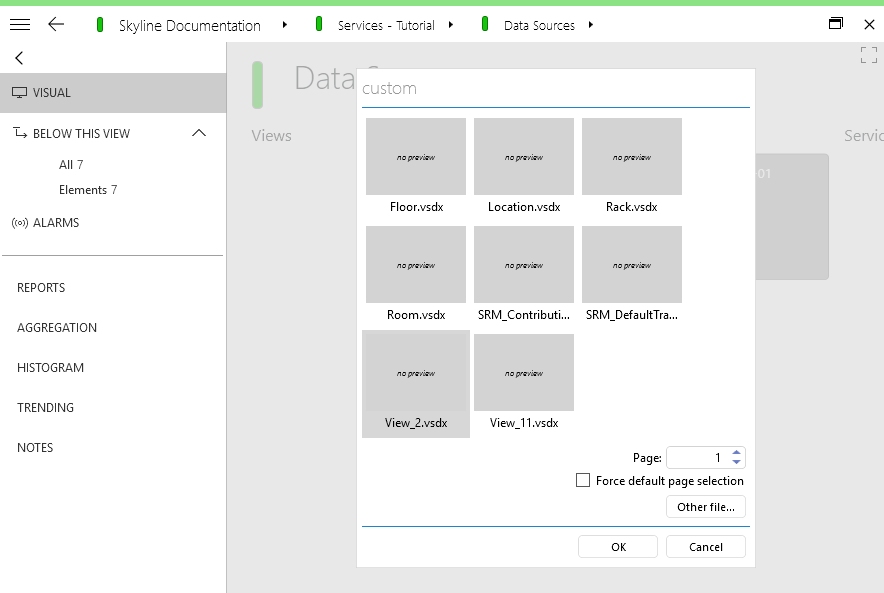
Setting an existing file as active Visio file in DataMiner 10.6.3
Note
The option to switch to a different Visio file is also available from an element, service, or view card's header bar menu. See Card header bar menu.