Creating a new DMS on dataminer.services
Watch this short video to learn how to create a new DataMiner System hosted on dataminer.services, or follow the steps below:
Next to DataMiner Systems, click Add DataMiner System.
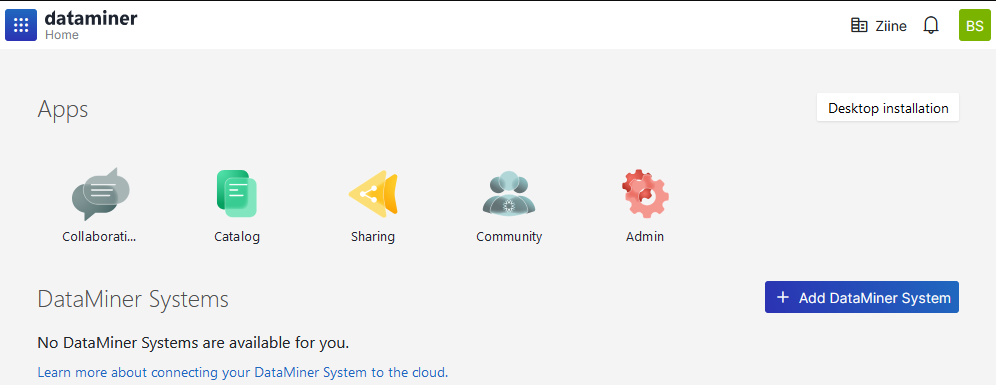
Select the organization under which you want to register the DataMiner System, or click Create a new organization if your organization does not exist yet.
If you select to create a new organization, you need to specify the name and the URL for the organization. Note that in the URL of the organization only lowercase alphanumerical characters (a-z and 0-9) are allowed, and the URL cannot consist of numbers only.
Select DataMiner as a Service.
Enter a name for your DataMiner System.
If you want the URL of your system to be different from the system name, fill in the Remote URL indicator.
Only lowercase alphanumerical characters (a-z and 0-9) are allowed in the URL, and it cannot consist of numbers only.
Optionally, click Advanced settings and configure the following settings as needed:
Time zone: The time zone for your DataMiner System. By default, the time zone is set to the time zone of your current location.
Compute region: The region for the compute of your DaaS Agent.
Storage region: The region for the Agent's data storage. For more information, see Data location and redundancy.
Geo-replicated storage: To enable this, select the region for the geo-replication. For more information, see Data location and redundancy.
Click Next.
Enter a username and password for your DataMiner account.
Select the box next to I agree to the License and Service Terms.
Click Deploy.
Note
- It is possible to create a DaaS system as a staging system. Our Pay-per-Use model is used for this. For detailed information, see DataMiner Community Edition.
- When you create a DaaS system, your dataminer.services account will automatically be linked to your DataMiner account, so you can easily access DataMiner web apps such as the Monitoring app via remote access.