Logging on to DataMiner Cube
When you open DataMiner Cube, in most cases you will be logged on automatically with your current Windows account. However, if, for example, you explicitly logged out of your previous DataMiner Cube session, the DataMiner Cube logon screen will be displayed.
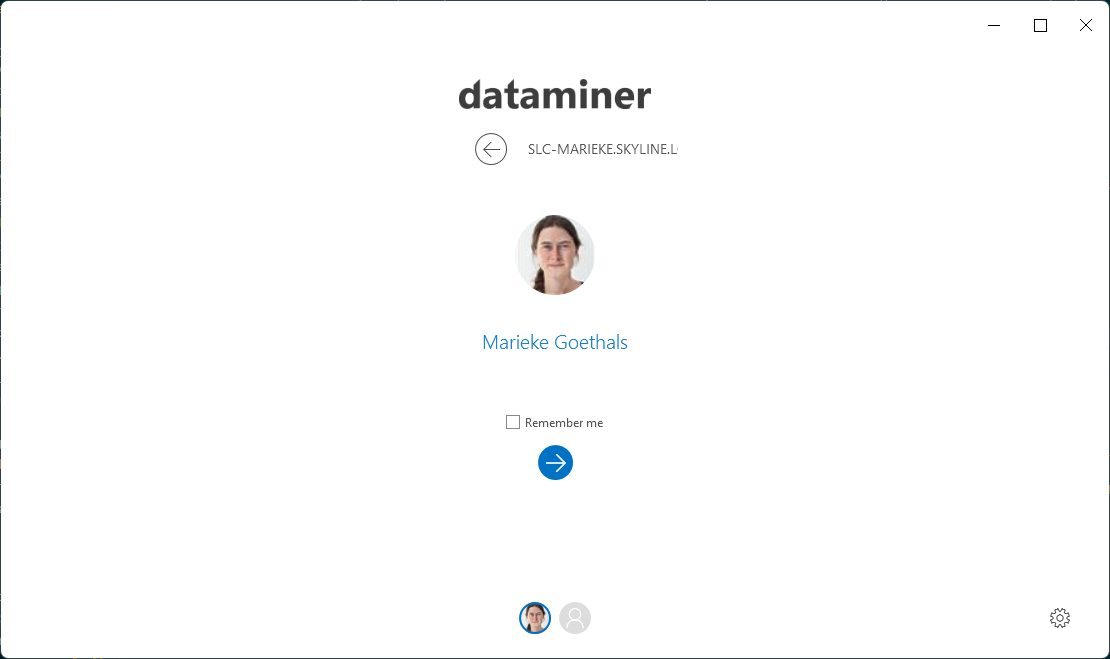
Logon screen for DataMiner Cube 10.5.12
To log on to DataMiner Cube:
Check if the IP or name that is displayed below the DataMiner logo is that of the DMA you want to connect to. If not, click the arrow button to go back to the start window and select a different DMA to connect to.
Specify your credentials if necessary:
To log in with the current Windows user account, no credentials need to be specified.
To log in with a different user account, click the gray user icon at the bottom of the page and then specify the username and password.
Optionally select Remember me in order to log in automatically next time.
Tip
If you do not want to log in automatically, hold the
Shiftkey during DataMiner Cube startup.Click the blue arrow icon below the user information to log on.
Note
- To log out again, in the header bar, click the user icon and select Sign out.
- When you log out of a DMS using DataMiner Cube, you can click the arrow button to go back to the start window and select a different DMA to connect to. Going back to the start window ensures that you do not connect to a DMA with a different software version. However, if for some reason, for example for testing or debugging purposes, you do wish to connect to a different DMS using the current DataMiner version, keep
Ctrl + Alt+ Shiftpressed while the logon screen is open, and you will be able to select a different DMS. Note that this feature should never be used in normal circumstances, as it can cause unexpected behavior.