Alarm storm protection
When an exceptional situation occurs that causes your system to be flooded with alarms, this could potentially block the entire system. To prevent this, alarm storm protection can be configured in Cube. This will ensure that Cube goes in alarm storm mode when there are too many alarms, so that you can keep using the system while you deal with the alarm storm.
Recognizing an alarm storm
When the Cube alarm storm protection is triggered, the following happens:
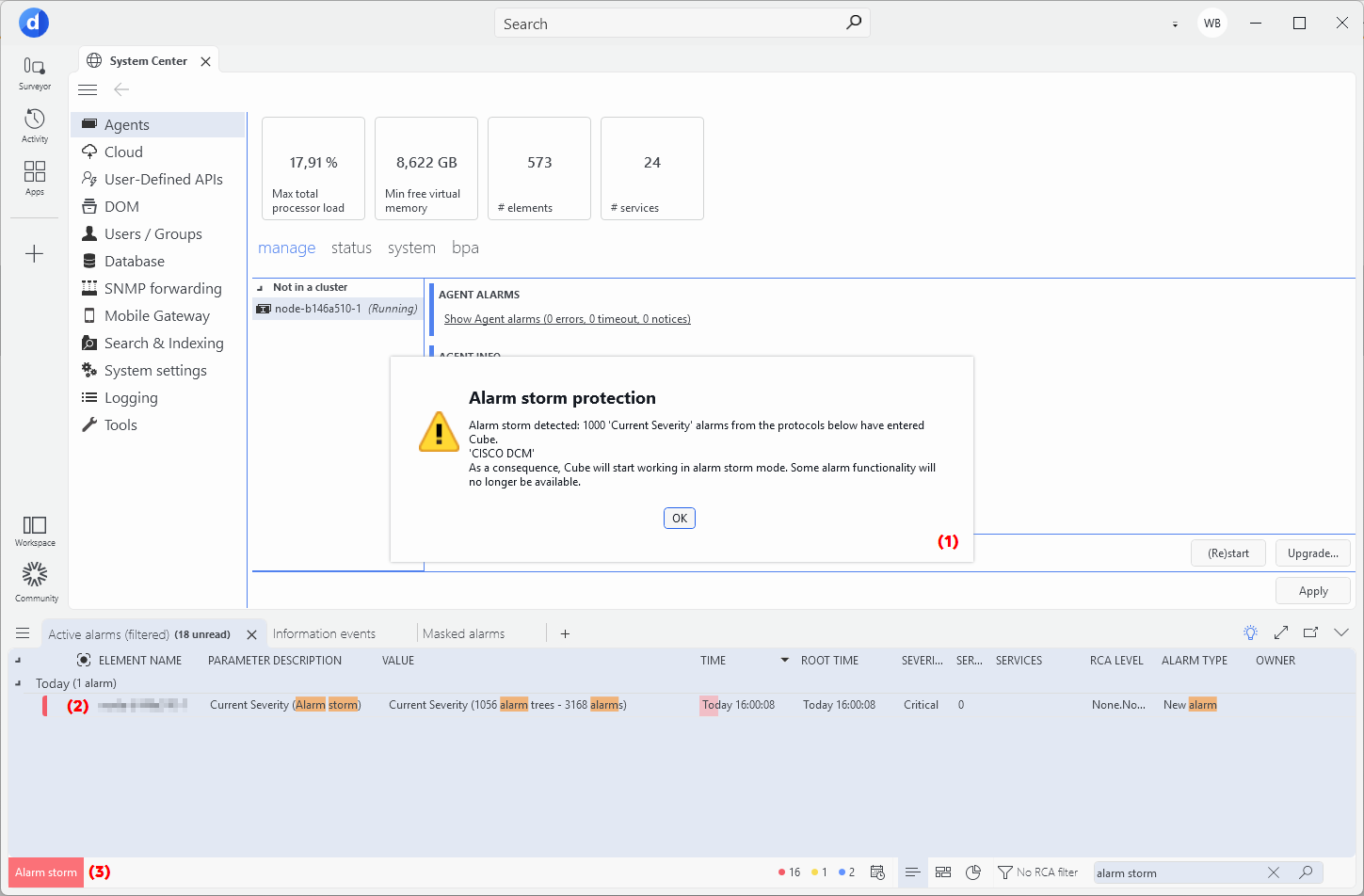
Alarm storm in DataMiner Cube 10.6.5
A pop-up message appears, mentioning that alarm storm mode is activated with some additional information on the alarms coming in ("1" in the image above).
Depending on the enabled type(s) of alarm storm protection, the following happens:
Alarms with the same parameter description that exceed the alarm storm start threshold are grouped into one alarm, similar to a correlated alarm ("2" in the image above). This alarm will mention "Alarm storm" in the Parameter Description column and the number of generated alarms in the Value column.
If more alarm updates enter than the alarm storm start threshold, alarms are delayed for the configured time period. Any alarms that are cleared before this delay has passed will no longer be displayed.
In the alarm bar, a red button labeled "Alarm storm" appears ("3" in the image above).
If alarm storm protection by grouping is activated, you can hover over this notification in order to see an overview of the parameters in alarm storm mode as well as the number of alarms per parameter description.
If alarm storm protection by delaying is activated, you can click this notification to open a new card with a list of the delayed alarms. This card is not updated automatically, but a refresh button is available to update the displayed information.
During an alarm storm, several functionalities are disabled or limited:
Alarm information is no longer displayed in the card footer, nor in element card tree controls.
Alarm blinking and statistics are disabled.
Shapes in Visual Overview will no longer be linked to the alarms that triggered the alarm storm mode.
The alarm card of the alarms triggering the alarm storm will no longer be updated.
Reports, trending, view cards and the time slider will no longer be updated in real time.
When the alarm storm has been resolved, you will be informed of this with another pop-up message, and all functionality will return to normal.
Dealing with an alarm storm
It is important that an alarm storm gets resolved so that the system can return to its normal functionality. In order to deal with the alarm storm, you will need to find out what triggered it:
Right-click the alarm entry in the Alarm Console to open the alarm card. For example:
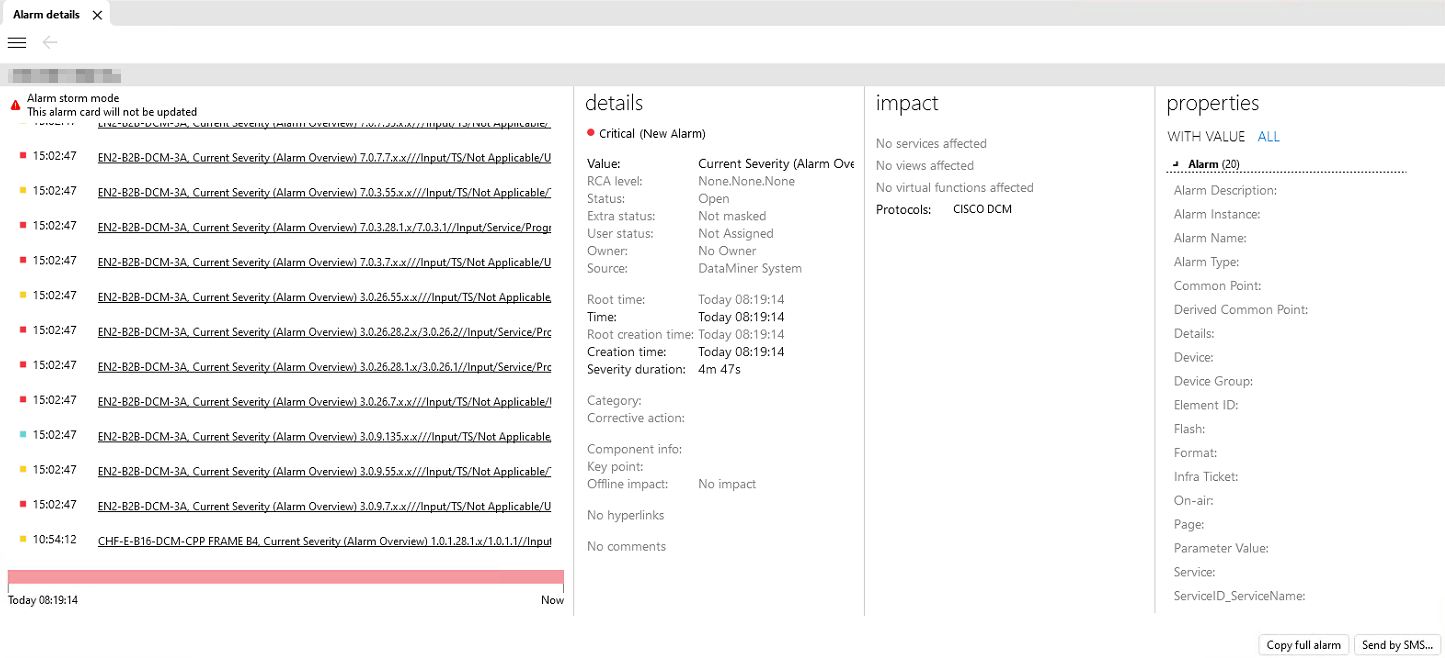
Alarm card for alarm storm in DataMiner Cube 10.6.1Based on the details on the alarm card, try to answer the following questions to gain insight in the situation:
- Which alarm events recur most often?
- Over which period of time have the alarms accumulated?
- Short time period: The cause is most likely a specific action. For example, if a new Agent with an incorrect server configuration is added, this may generate a large number of sync notices, causing an alarm storm.
- Extended time period: The cause is most likely a configuration problem. For example, it can occur that alarms never get cleared, making them stack up and cause an alarm storm. This could be because of badly written table logic in a connector or because the AutoClear option is set to false in MaintenanceSettings.xml.
In the example screenshot shown above, you can see that the issue is related to Cisco DCM elements, specifically the colums Current Severity in the Alarm Overview table.
Check the alarms listed on the alarm card of the alarm storm for additional details.
For example, in the example illustrated below, there are recurring Properties Changed alarm updates, suggesting that a property keeps getting updated, causing new alarm events. If these updates are not needed for this property, the fix for this example will be to disable the option Update alarms on value changed for the alarm property. (See Changing custom alarm properties).
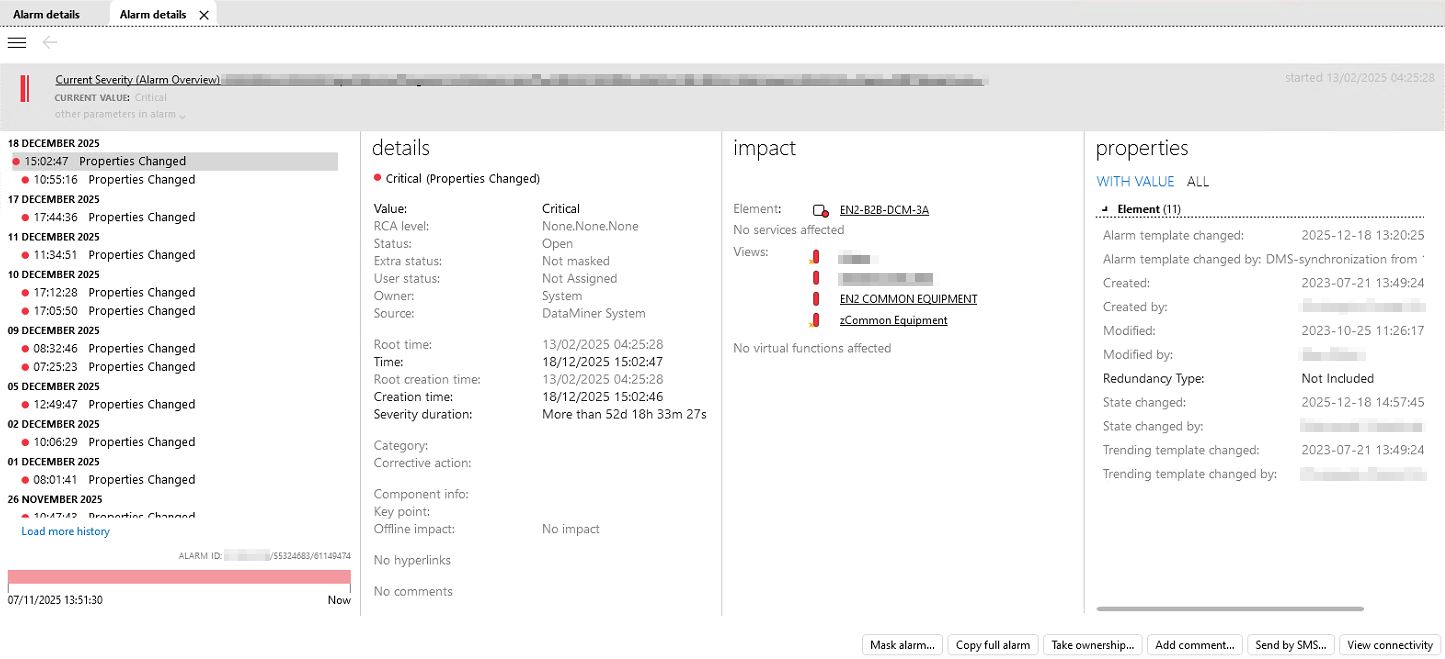
Alarm storm protection types
Two types of alarm storm protection can be configured in the Cube settings:
By grouping alarms with the same parameter description.
When this functionality is enabled, an "alarm storm start" threshold is set with the number of alarms with the same parameter description that trigger the alarm storm mode. In addition, an "alarm storm stop" threshold is configured with the number of alarms that end the alarm storm mode.
This way, the alarm storm mode is activated as soon as a batch of alarms with the same parameter description exceeds the "alarm storm start" threshold, and deactivated as soon as the last batch of alarms with the same parameter description drops below the "alarm storm end" threshold.
By applying a delay on alarms.
When this functionality is enabled, an "alarm storm start" threshold is set with the number of alarm updates in a particular time range that trigger the alarm storm mode. In addition, an "alarm storm stop" threshold is configured with the number of alarm updates that end the alarm storm mode.
This way, new alarm updates are delayed as soon as the number of alarm updates within a particular time period exceeds the "alarm storm start" threshold, and displayed again as soon as the number of alarms within the configured time period drops below the "alarm storm end" threshold.
Note
Only alarm updates with a higher severity than the current severity of an alarm are taken into account.
These two alarm storm protection types can be combined.
In addition, alarm storm protection can also be configured for notifications and for SNMP forwarding.
Configuring alarm storm protection
To configure the general alarm storm protection settings for Cube:
Go to Settings > [User] > Alarm Console.
Two options are available:
To enable alarm storm protection by grouping alarms with the same parameter description:
Select Enable alarm storm protection by grouping alarms with the same parameter description.
Next to Start grouping above, enter the number of alarms that trigger the start of alarm grouping.
Next to Stop grouping below, enter the number of alarms that trigger the end of alarm grouping.
To enable alarm storm protection by applying a delay on alarms:
Select Enable alarm storm protection by applying a delay on the alarms.
Next to Start delaying above, enter the number of alarm updates that trigger the start of the alarm delay.
Next to Stop delaying below, enter the number of alarm updates that trigger the end of the alarm delay.
Next to Time range in which the chosen number of alarm updates must enter, enter the time range in which these alarm updates must occur.
Next to Delay alarms for, specify how long alarms should be delayed.
Note
Only alarm updates with a higher severity than the current severity of an alarm are taken into account.
To configure alarm storm prevention for notifications, see Configuring alarm storm prevention for notifications.
To configure alarm storm prevention for SNMP forwarding, see Configuring an SNMP manager in DataMiner Cube.
Note
You can also configure alarm storm prevention on group level to change the alarm storm protection depending on the user group. See Configuring a set of user group settings.