Creating a search tab in the Alarm Console
When you are connected to a DMS with self-managed storage with indexing database, the Alarm Console provides an additional option to create a dynamic search tab:
Click the + symbol in the header of the Alarm Console to open a new tab.
At the top of the tab, next to Search for alarms, do the following:
Add one or more search terms in the search box. As soon as you start typing, suggestions will be displayed below the box.
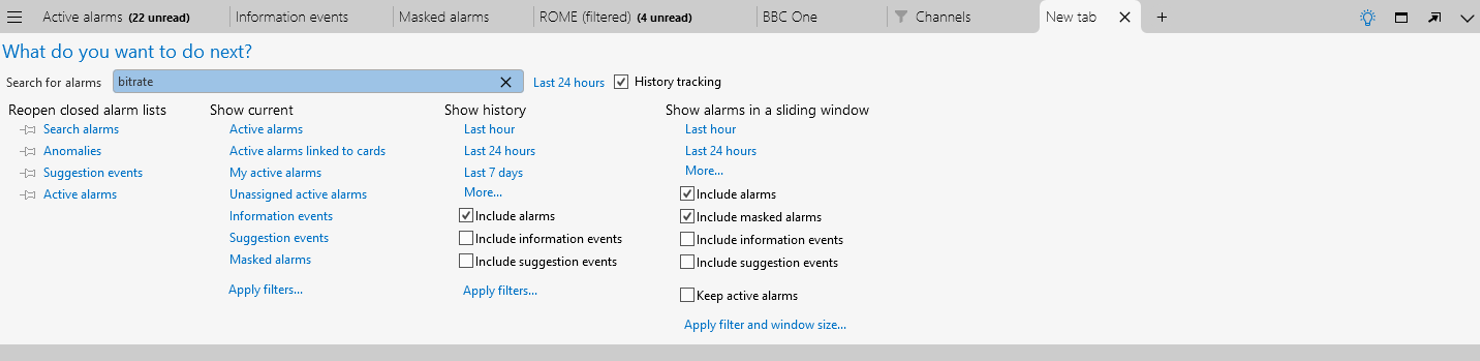
Creating a search tab in DataMiner 10.4.5Next to the search box, indicate the time span in which the alarms should occur. By default, this is set to Last 24 hours.
By default, different instances of the same alarm will be combined in a single alarm tree in the results. If you want them to be displayed separately instead, disable the History tracking checkbox.
Press Enter or select a suggestion to begin the search. The alarms matching your search phrase will then be retrieved in batches of 50. If there are more than 50 alarms matching the search phrase, a More results button will be displayed at the bottom of the list.
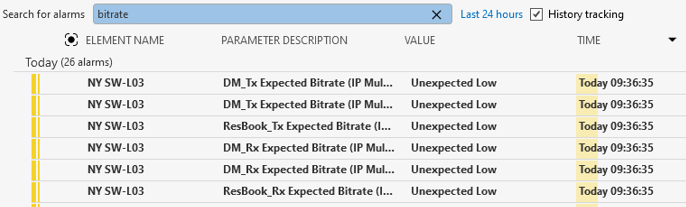
Search tab in DataMiner 10.4.5
Once the first 50 alarms have been retrieved, a graphical representation of the alarm distribution will be displayed at the bottom of the tab.
Special keywords in the search tab
In the search box, you can use the following special keywords, followed by a colon (":") and a search phrase:
Severity
Description
Parameter_description
Owner
Value
Time of arrival
Status
Elementname
Viewnames
Parentviews
Protocolname
ElementProperty_<propertyName>
Viewproperty_<PropertyName>
ServiceProperty_<PropertyName>
For example, if you want to search alarms associated with elements of which the name resembles "probe", then you can enter "Elementname:probe".