Configuring dynamic alarm thresholds
Instead of defining alarm thresholds as a fixed value, you can set them as a dynamic threshold that is compared to a certain "normal" value. This value will automatically be determined at runtime, or via a normalization procedure for each separate element.
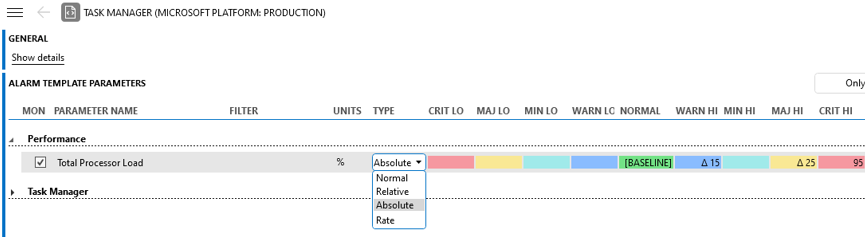
Alarm template in DataMiner 10.6.5
Note
This feature will not work on paginated table columns (a.k.a. partial table columns).
Alarm threshold type selection
The different types of alarm thresholds can be selected in the dropdown list in the Type column:
Normal: The normal value and the different alarm thresholds are fixed by the operator. This option is selected by default.
Relative: Alarm thresholds are set as a percentage, which represents the delta with the baseline value.
Absolute: Alarm thresholds are set as an absolute value, which represents the delta with the baseline value.
Rate: The alarm threshold value is the delta with the current value and the previously measured value.
Note
In case the type has been defined in the protocol, it will not be possible to modify this in DataMiner Cube.
Baseline configuration
Both for absolute and relative alarm thresholds, the "normal" value has to be set to a baseline value:
In the Normal column, click [BASELINE].
In the Baseline editor, you can choose either a fixed baseline, or a smart baseline:
Set a fixed baseline value by entering this value in the table at the top of the editor. For discrete parameters, you will be able to select the value in a dropdown list.
Note
- With the right-click menu in the baseline editor you can copy or export lines from the table. You can also select one or more lines and then select the options Use current value as baseline value, Set baseline value to current value if the baseline value is not defined or Set baseline value to current value if the baseline value is defined.
- From DataMiner 10.1.9/10.1.0 [CU8] onwards, if a baseline value has been defined in a protocol, it can be edited in the baseline editor.
Set a smart baseline by selecting Automatically update the baseline values.
Note
- You can only use a smart baseline if trending has been enabled for the parameter. If it is not, you will receive a warning message, and a warning icon will be shown in the Baseline editor.
- Smart baselines are incompatible with history sets.
If you chose a smart baseline, select one of the following options:
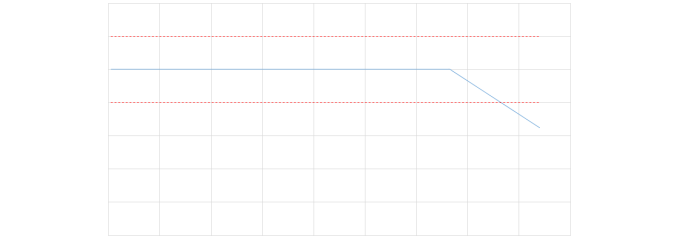
To detect a continuous degradation. This type of baseline is used in order to detect a deviation from a typically stable signal or fixed value. The median value of the average trend points during the selected trend window is calculated and used as the baseline. The median is recalculated every day around midnight.
Example of continuous degradation of a signal:
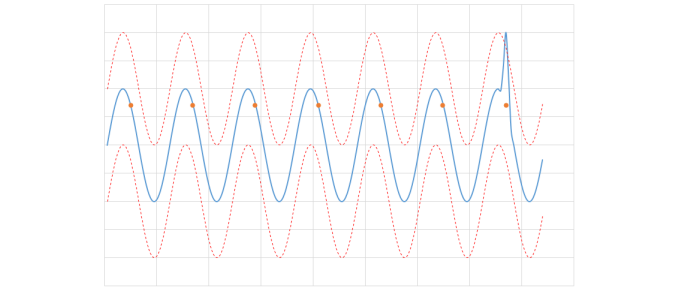
To detect a deviation in the expected daily pattern. This type of baseline is designed to identify changes in signals that follow a day/night pattern. The day is divided into 288 time intervals of 5 minutes, namely 0h until 0h05, 0h05 until 0h10, and so on, up to 23h55 until 0h. If the trend window is for example set to 7 days, then for each day the value of the parameter is stored during the interval 0h until 0h05, obtaining 7 points. The same is done for every time interval, obtaining 7 data points for each of the 288 time ranges. The median value is calculated for each interval, resulting in 288 median values. Instead of storing all these values, they are summarized using a smooth curve that approximates the daily pattern. By default, every 15 minutes, the value of the curve at the current time is calculated and used as the baseline.
Note
- If a range is defined in the protocol, the baseline value is capped to ensure it stays within the specified minimum and maximum limits.
- The typical daily behavior of the signal is recalculated every day around midnight.
Example of a deviation in the expected daily pattern for a signal:
Optionally, if you chose a smart baseline:
Enter a new value next to Trend window to set the trend window to a different number of days.
Select Skip the last ... hours in the configured trend window and specify a particular interval to exclude the most recent occurrence of this interval in the configured window. By default, this interval is set to 24 hours, but you can change the number of hours as required. You can use this option to avoid that your alarm thresholds degrade along with your signal.
If the smart baseline is set to detect a deviation in the expected daily pattern, select Handle weekend days separately if you want average values for weekdays not to be taken into account for weekend days and vice versa.
Note
- If you want to overrule the dynamic behavior for a certain limit and specify a fixed value instead, in the template editor, select the Fixed option for that limit.
- If normalization is triggered from the protocol, rather than from the template, baseline values are available as a read-only list.
Smart baselines and history sets
Smart baselines are incompatible with history sets. Smart baselines operate in real time. As a result, values from history sets, although linked to a point in the past, are always compared against the baseline of the current moment ("Now"). This can lead to unexpected history alarms and may also affect trend lines. The root cause of this is that state changes are always evaluated live, while value changes may originate from the past. Consequently, historical values can appear to be validated in the present.
In use cases where history sets are used for backpolling and alarms are not required during that process, you can work around this limitation by ensuring that monitoring is inactive while backpolling is in progress. You can achieve this through conditional monitoring or by using custom alarm templates.
From DataMiner 10.4.0 [CU14]/10.5.0 [CU2]/10.5.5 onwards, you will receive a warning message when attempting to enable smart baselines for a parameter with history sets enabled.