DxM MSI installation or startup failures
A DataMiner DxM MSI installation can fail when an application started during installation cannot find a .NET runtime version it requires. The same runtime mismatch can also prevent an affected DxM service from starting.
This issue can affect CloudGateway and BrokerGateway, and this can cause DataMiner installation issues:
- If BrokerGateway cannot be downloaded or installed, this can cause a DataMiner 10.6.0 installation to fail.
- If required DxMs are missing, DataMiner may not start correctly after installation.
The issue can also block a BrokerGateway NATS migration.
Tip
Symptoms
One or more of the following may occur:
A DataMiner upgrade or DxM installation fails or completes only partially.
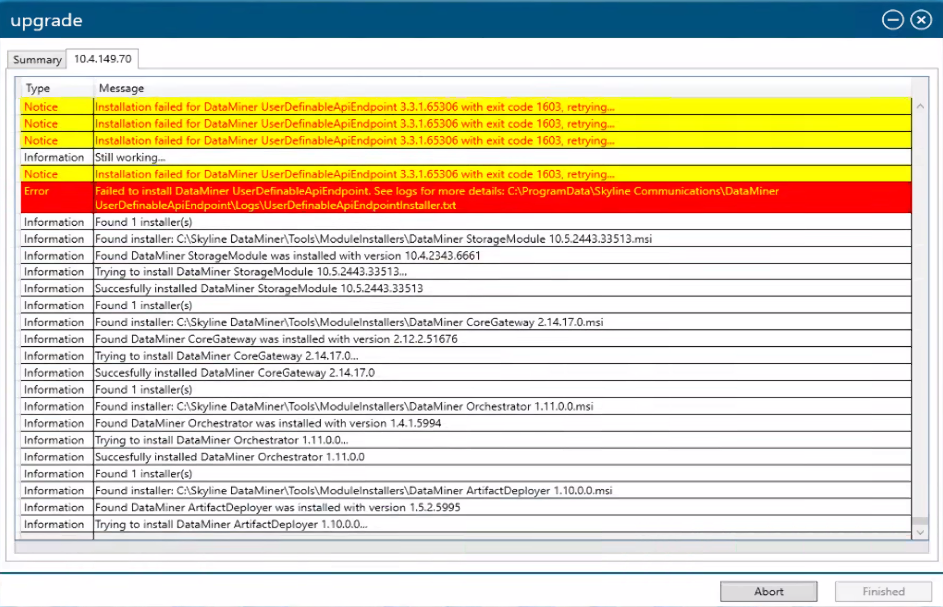
The DataMiner 10.6 Installer fails while downloading or installing BrokerGateway.
A DxM installer fails when launched from the ModuleInstallers folder. The installer mistakenly reports a permissions-related error:
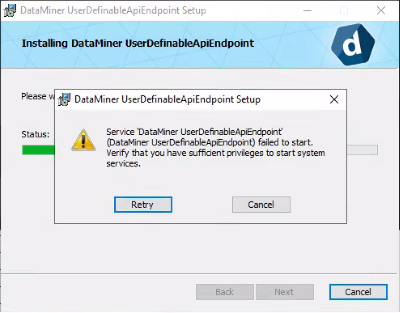
A DxM service does not start.
A .NET Runtime event appears in Windows Event Viewer, for example:
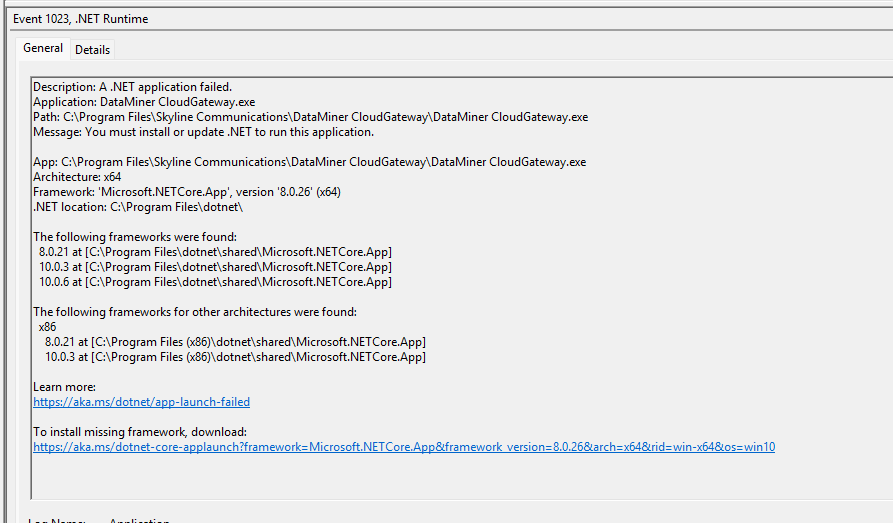
Application: DataMiner CloudGateway.exe
You must install or update .NET to run this application.

Architecture: x64
Framework: 'Microsoft.NETCore.App', version '8.0.26' (x64)
The following frameworks were found:
  8.0.21
  10.0.3
  10.0.6
Cause
The .NET host could not resolve a framework version required to start the affected DxM application.
In the example shown above, the application requested Microsoft.NETCore.App 8.0.26 (x64), but only 8.0.21 was installed in the .NET 8 branch. The server also had Microsoft.AspNetCore.App 8.0.26 installed.
ASP.NET Core applications can depend on both Microsoft.AspNetCore.App and Microsoft.NETCore.App. In this configuration, selecting Microsoft.AspNetCore.App 8.0.26 requires a corresponding Microsoft.NETCore.App version. A lower patch version, such as 8.0.21, does not satisfy a request for 8.0.26.
A .NET 10 runtime does not replace a required .NET 8 runtime under the default runtime-selection policy.
Verification
Check Windows Event Viewer
Open Event Viewer.
Go to Windows Logs > Application.
Look for .NET Runtime events from around the time of the failure.
Check the event names for DataMiner CloudGateway.exe, BrokerGateway, or another affected DxM executable.
Read the event description, and note the requested framework and version, architecture, and frameworks listed as available.
Tip
An installer may report a permissions-related error even when the underlying cause is a .NET runtime failure. Before changing permissions, check Event Viewer for a matching .NET Runtime event naming CloudGateway, BrokerGateway, or another affected DxM. If you find one, investigate the requested framework and version first. If not, continue troubleshooting the permissions error.
Check the installed runtimes
Open PowerShell and run the following command:
dotnet --list-runtimes
The command lists the runtimes visible to the dotnet host being used.
Compare the Microsoft.AspNetCore.App and Microsoft.NETCore.App entries with the framework and version requested in the event.
For example, the following output shows that ASP.NET Core 8.0.26 is installed but .NET 8.0.26 is not:
Microsoft.AspNetCore.App 8.0.21
Microsoft.AspNetCore.App 8.0.26
Microsoft.NETCore.App 8.0.21
Make sure the listed runtimes are for the same architecture as the one shown in the .NET Runtime event. In the Event Viewer example above, the event reports Architecture: x64, so in that case the x64 runtimes must be checked.
Run the DxM installer directly
Go to
C:\Skyline DataMiner\Tools\ModuleInstallers.Run the affected DxM MSI installer manually.
If it fails, check Event Viewer for a corresponding .NET Runtime event.
Resolution
By way of example, the following version numbers will be used below to illustrate a possible mismatch: Microsoft.AspNetCore.App 8.0.26 is installed, Microsoft.NETCore.App 8.0.21 is installed, and 8.0.31 is a later 8.0.x version.
Option 1 (recommended): Install or update the Hosting Bundle
Install the latest supported Hosting Bundle for the affected .NET major and minor version. For the example above, this would be a .NET 8 Hosting Bundle.
To find the .NET versions required for your DataMiner release, see DataMiner compute requirements – Microsoft .NET. Use the latest version supported for your DataMiner release.
The Hosting Bundle installs .NET and ASP.NET Core runtime components together. Make sure the installation options do not exclude either runtime.
Installing the .NET 8.0.31 Hosting Bundle resolved this issue without removing existing runtime components. Version 8.0.31 is an example; use the latest supported version for your DataMiner release. Hosting Bundle installers are available from Download .NET.
Option 2: Install the missing .NET runtime
Install the missing Microsoft.NETCore.App runtime for the architecture shown in the event. Always give preference to the latest supported version.
In the example, this means you need to install a supported .NET 8 runtime at version 8.0.26 or a later compatible 8.0.x version.
Option 3: Remove the unmatched ASP.NET Core runtime
If updating the runtimes is not possible, uninstall the relevant ASP.NET Core runtime package through Programs and Features. Do not delete its files manually. In the example, removing Microsoft.AspNetCore.App 8.0.26 resolves the issue.
Caution
Before removing a runtime, check whether other applications on the server depend on it.
Validation
After applying a resolution:
Run
dotnet --list-runtimesand check the runtimes installed for the affected architecture.Run the affected DxM MSI installer or DataMiner upgrade again.
Verify that the affected DxM service is running.
If the service is not running, check Event Viewer and the DxM logs for startup errors.