Investigating dataminer.services login issues
Check whether the time is set correctly on your device
Login timeouts can occur when the date and time on the device you are using to log in does not match with the current time for the time zone configured on the device. Even small differences can prevent authentication tokens from being validated properly.
When this happens, you may see the following message: Seems like your sign-in attempt timed out. Please try again.
The best way to avoid this is to enable automatic time and time zone synchronization, which ensures that your device consistently uses accurate time information. If automatic synchronization is unavailable, you can manually adjust your device's date, time, and/or time zone so that these match as closely as possible.
Make sure admin approval has been granted
When you want to log in using your existing corporate Microsoft account, the following notification may be shown:
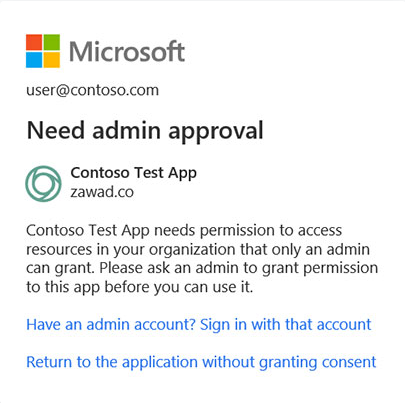
If you see this, you should contact your IT department, so they can approve the access to the required resources. They will only have to give consent once. When this is done, this message will no longer be shown.
There are two options for your IT department to give consent:
They can go to dataminer.services and go through the normal process of registering an account.
They can use use the following link to directly give consent to our application:
https://login.microsoftonline.com/{tenant-id}/adminconsent?client_id=2e25a456-a261-44cf-beb8-06da7f5199f5In this link,
{tenant-id}is your organization's tenant ID or any verified domain name.
In both cases, it is important to select the checkbox Consent on behalf of your organization. Selecting this also automatically allows access for regular users in the organization.
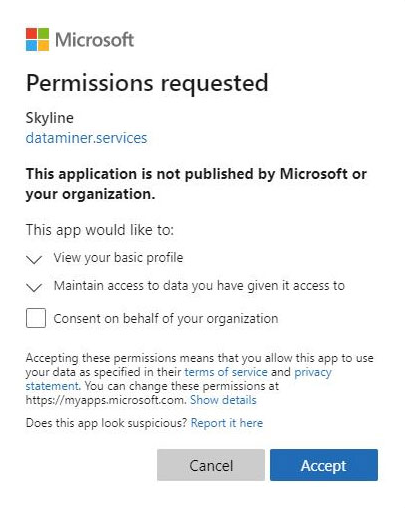
If the window shown above is not displayed, make sure an account is used that has the Global Administrator role in Azure.
These are the only things to which access is needed:
openid - https://graph.microsoft.com/openidAllows users to sign in to the app with their work or school accounts, and allows the app to see basic user profile information.
offline_access - https://graph.microsoft.com/offline_accessAllows the app to see and update the data you gave it access to, even when users are not currently using the app. This does not give the app any additional permissions.
Tip
For more information, refer to the following Microsoft documentation pages:
Contact support
If you have tried the procedures above, but the issues still persist, contact DataMiner Support.