Triggering a test run
Important
This section includes information that is only applicable to Skyline employees.
In this tutorial, you will learn how to trigger a QAOps test run.
Expected duration: 15 minutes.
Prerequisites
Access to https://qaops-sandbox.skyline.be. This "QAOps Sandbox Environment" environment should be used for every QAOps tutorial.
Note
Please contact support.boost@skyline.be to receive a username and password for access to the Sandbox system.
dotnet 8.0 SDK is required, even if a higher SDK version is already installed.
Overview
Step 1: Download, install, and verify the QAOps tool
Open a Command Prompt, Bash, or PowerShell window.
Check if you have
nuget.orgas a known NuGet source:dotnet nuget list sourceVerify that the output contains
nuget.org [Enabled].Note
The first time you run a
dotnetcommand on a computer, you will see a welcome message. The output of your command is displayed below that message.If your sources do not contain
nuget.org, add it with the following command. Otherwise, skip this step.dotnet nuget add source https://api.nuget.org/v3/index.json -n "nuget.org"Install the QAOps tool:
dotnet tool install skyline.dataminer.qaops --globalVerify that the tool is available:
dataminer-qaops --helpThe command output will display a description of the tool and the available commands.
Note
If you see the exception "Unable to load the service index for source ...", one of your configured NuGet sources may be unreachable or may have expired credentials.
To continue this tutorial, you can temporarily remove the failing source and add it again later when needed:
dotnet nuget remove source "NameOfSource"
Step 2: Find the unique test and configuration identifiers
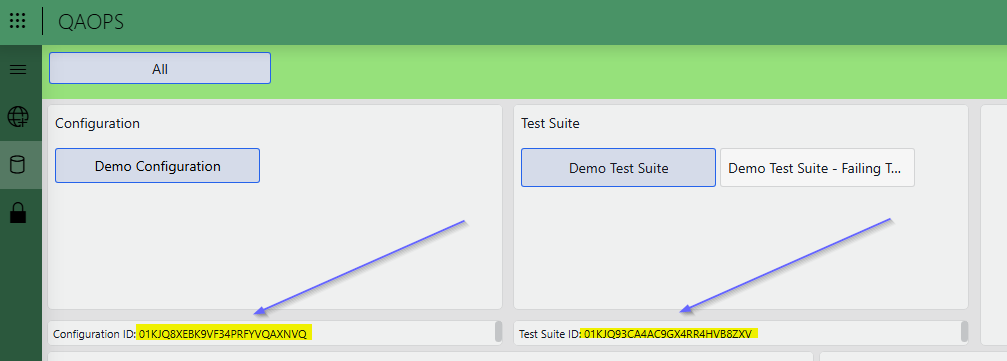
In the QAOps User app (i.e., the green QAOps app), go to the Configurations page.
Select Demo Configuration and Demo Test Suite.
Copy the configuration ID and save it in a text file.
Copy the test suite ID and save it in a text file.
Step 3: Create a token
In the QAOps User app, go to the Tokens page.
In the upper-left corner, click Create Token.
Tip
The green Create Default AI Token button next to it creates a preconfigured short-lived token in one click. That is the quickest option for agent-driven test runs, but in this tutorial you create a custom token so you learn how scopes work.
Enter a name for the token.
Select the scope that matches the ".execute" scope for your chosen configuration.
Click Generate Token.
Wait until the token value is shown.
Copy the token value and save it in a text file.
For production environments, use a key vault solution.
Step 4: Trigger the test run
Open a Command Prompt, Bash, or PowerShell window.
Run the following command, after replacing the placeholders as indicated below, making sure to keep the double quotes around the TOKEN value:
dataminer-qaops test-run --token "TOKEN" -t TESTSUITE -c CONFIGURATION -tags MYNAME -san saqaopssandboxTOKEN: The token value you copied earlier. Make sure this value is enclosed in double quotes.TESTSUITE: The test suite ID you copied earlier.CONFIGURATION: The configuration ID you copied earlier.MYNAME: Your name, nickname, or another identifier that helps you find your request.
Note
For production systems, leave out the -san argument. This argument indicates to which QAOps System you want to send commands, in this case the QAOps Sandbox system. The default is the production QAOps system.
Step 5: Verify that the request was received
In the QAOps User app, go to the Overview page.
This page shows the QAOps Nebula live topology explorer.
In the search box at the top, enter the tag you used in your request, or click the Active runs filter button to only show active test runs.
Locate your run in the graph. It appears as an active-run node connected to your configuration.
Select the node to inspect its details in the Inspector panel on the right.
Track the test run lifecycle.
To view and interpret the test results, follow the tutorial Viewing test results tutorial.