Configuring contracts
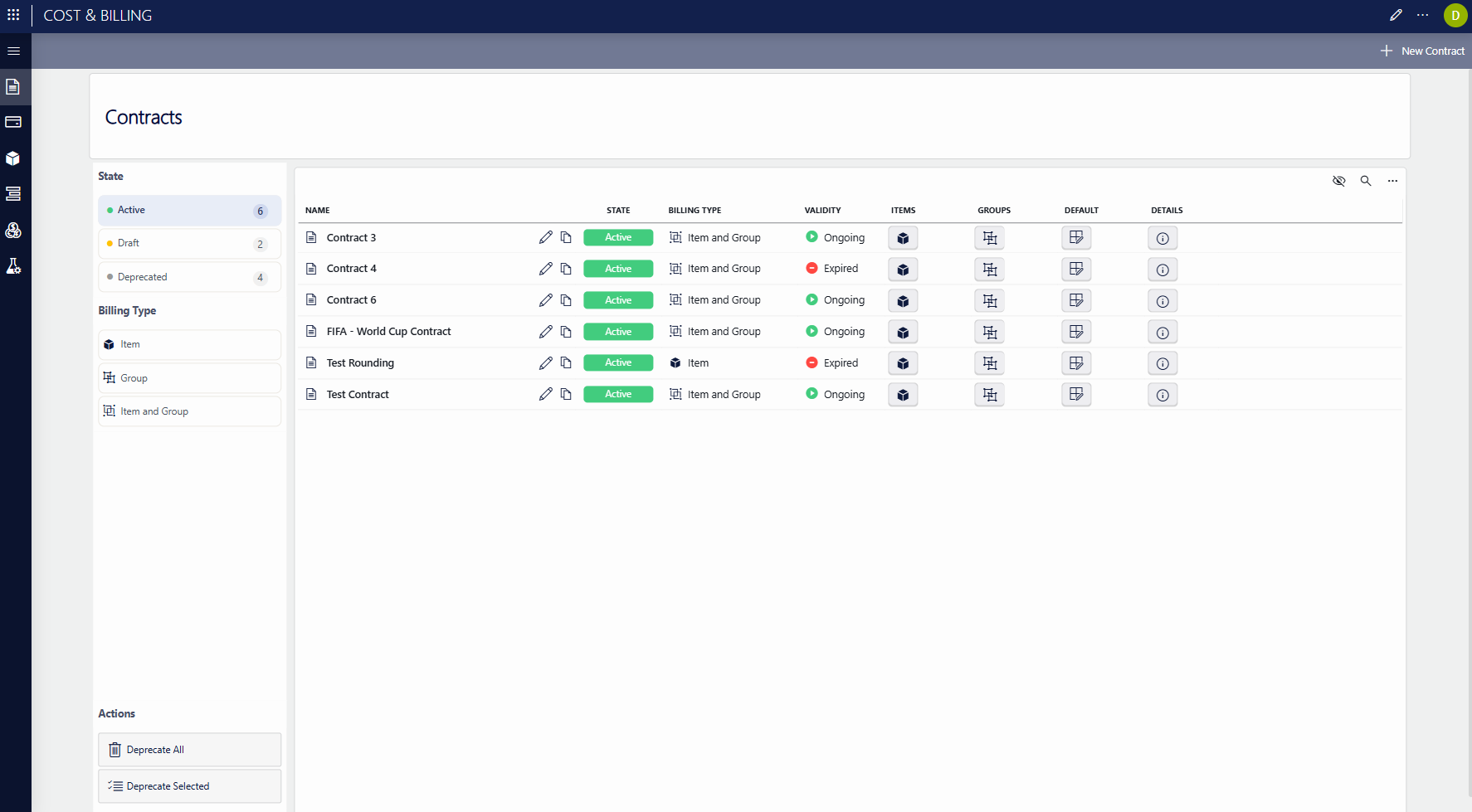
On the Contracts page of the Cost & Billing app, you can view all available contracts, create new contracts, and edit existing ones.
Creating a contract
To create a contract, click + New Contract, configure the settings below, and then click Save:
General section:
- Name: The name of the contract.
- State: The initial state of the contract (Draft or Active).
- Valid From / Valid Until: The validity period of the contract.
Billing section:
- Billing Type: Defines how the billing calculation is performed for this contract: based on items, on groups, or on items and groups. For example, if you select Item, only the items involved in a billable event are billed; with Group, only the groups; with Item and Group, both are included in the billing calculation.
- Uplift %: A percentage added on top of the calculated billing total.
- Discount %: A percentage subtracted from the calculated billing total.
- Total Override: When you enable this option, you can specify a fixed amount that overrides the calculated billing total.
- Value unit: The currency in which the contract is expressed. Only value units defined on the Value Units page are available.
Rounding section:
- Decimal Precision: The number of decimals to which calculated amounts are rounded.
- Rounding Mode: How amounts are rounded (only applicable when no decimal precision is selected).
Assigning billing rate cards
For each contract, it is possible to assign the billing rate cards to be used in the calculation.
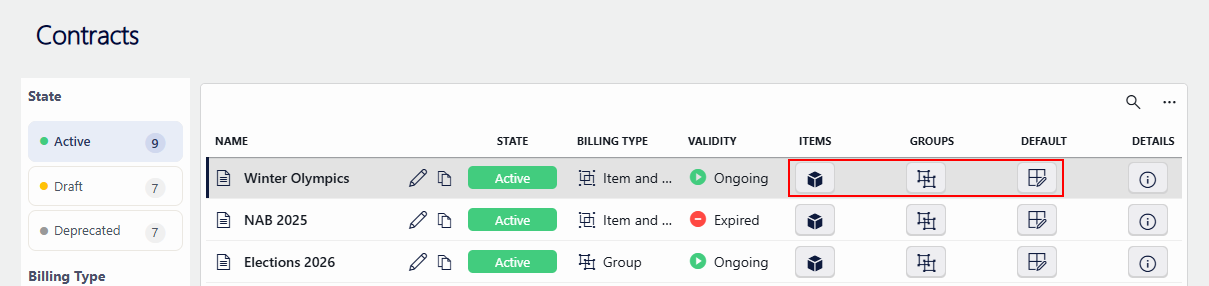
Assignments can be made at different levels using the buttons in the Contracts table:
- Item level: A billing rate card assigned to a specific item.
- Group level: A billing rate card assigned to a specific group.
- Category level: Every item and group has a category assigned. Categories can be used to define default billing rate cards per category, which apply to all items or groups of that category that do not have a specific assignment.
Contract states
A contract always follows the same state flow: Draft → Active → Deprecated.
- Draft: The contract is being prepared and is not officially ready to be used.
- Active: The contract can be used.
- Deprecated: The contract is retired. Once a contract is deprecated, it can no longer be edited or set back to the Active or Draft state.
Editing contracts
As long as they are not deprecated, contracts can be edited using the pencil icons in the Contracts table.
To deprecate contracts, you can either edit them one at a time and select a different value in the State field, or you can change them in bulk using the Deprecate All and Deprecate Selected buttons on the Contracts page.