Configuring rate cards
About rate cards
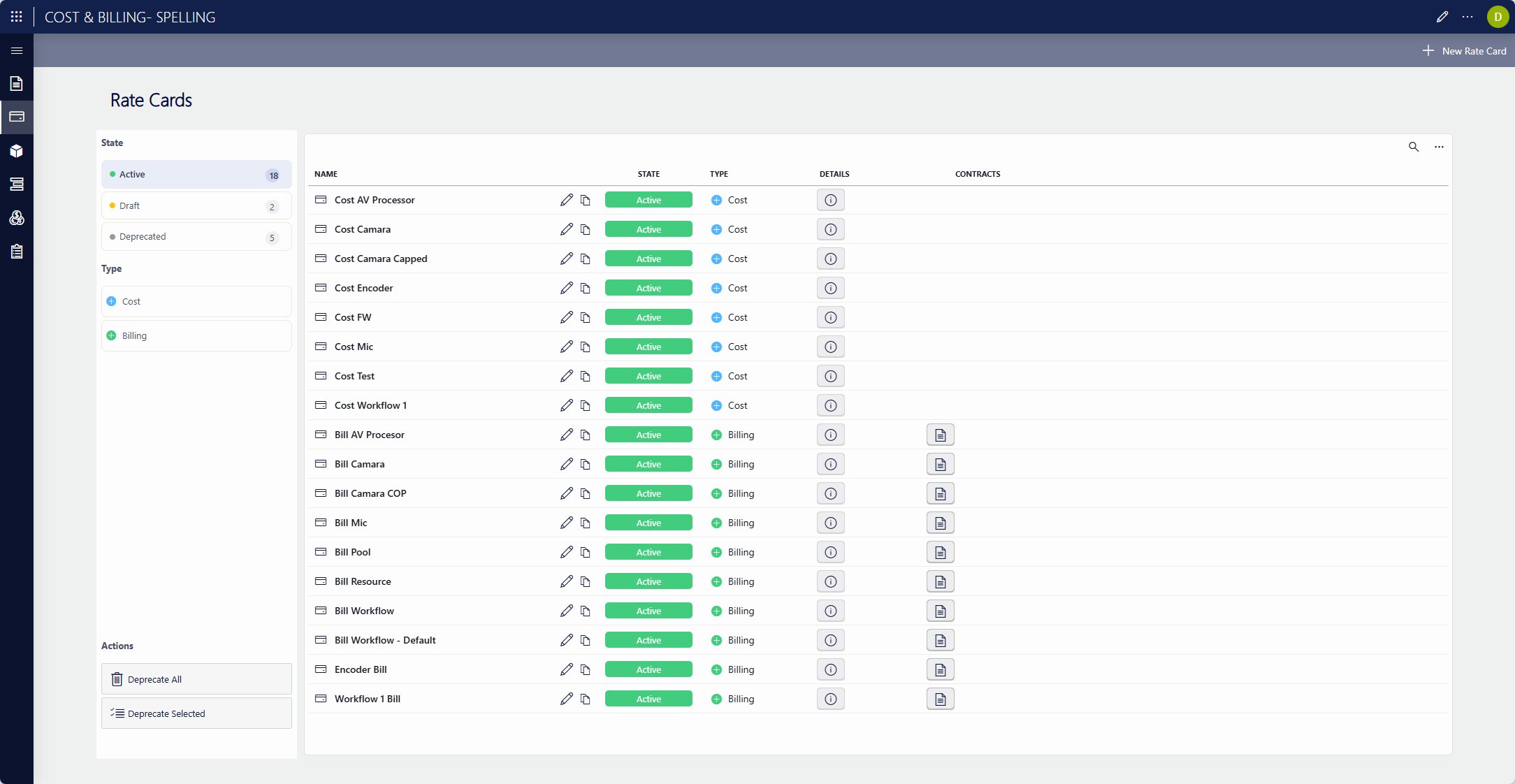
Rate cards define the rates used by the calculation. They can be managed on the Rate cards page of the Cost & Billing app.
There are two kinds of rate cards, each with a different purpose:
- Cost rate cards: Define the internal cost of an item, i.e., what it costs your organization.
- Billing rate cards: Define the customer-facing rates, and are assigned to contracts.
Creating a rate card
To create a rate card, click + New Rate Card, configure the settings below, and then click Save:
General section:
- Name: The name of the rate card.
- Rate card Type: Whether this is a Cost or a Billing rate card.
- State: The initial state of the rate card. Create it as Draft if it is not yet officially ready to be used, or directly as Active.
- Value Unit: The value unit in which the rates of this rate card are expressed. Only value units defined on the Value Units page are available.
Rules section:
- Minimum Time Interval: The minimum duration that will be charged. If the actual usage is shorter than this interval, the minimum is charged instead.
- Minimum Time Increment: The increment in which usage time is charged. Usage is rounded up to the next multiple of this increment.
- Capped Rate: When enabled, the total amount calculated with this rate card is capped at the given maximum value.
Rates section:
Each rate card holds one or more rates, each expressed against a unit: per minute, per hour, per day, or per use. Fill in the rate value and select the corresponding unit, and use + Add Rate to add additional rate lines. A rate line can be removed with the X button.
Rate card states
A rate card always follows the same state flow: Draft → Active → Deprecated.
- Draft: The rate card is being prepared and is not officially ready to be used.
- Active: The rate card can be used.
- Deprecated: The rate card is retired. Once a rate card is deprecated, it can no longer be edited or set back to the Active or Draft state.
Editing rate cards
As long as they are not deprecated, rate cards can be edited using the pencil icons in the Rate Cards table.
To deprecate rate cards, you can either edit them one at a time and select a different value in the State field, or you can change them in bulk using the Deprecate All and Deprecate Selected buttons on the Rate cards page.