Configuring value units
About value units
A value unit is a unit of value in which rates and amounts are expressed, typically a currency such as USD or EUR. All value units used across the Cost & Billing Solution are managed centrally on the Value Units page of the app.
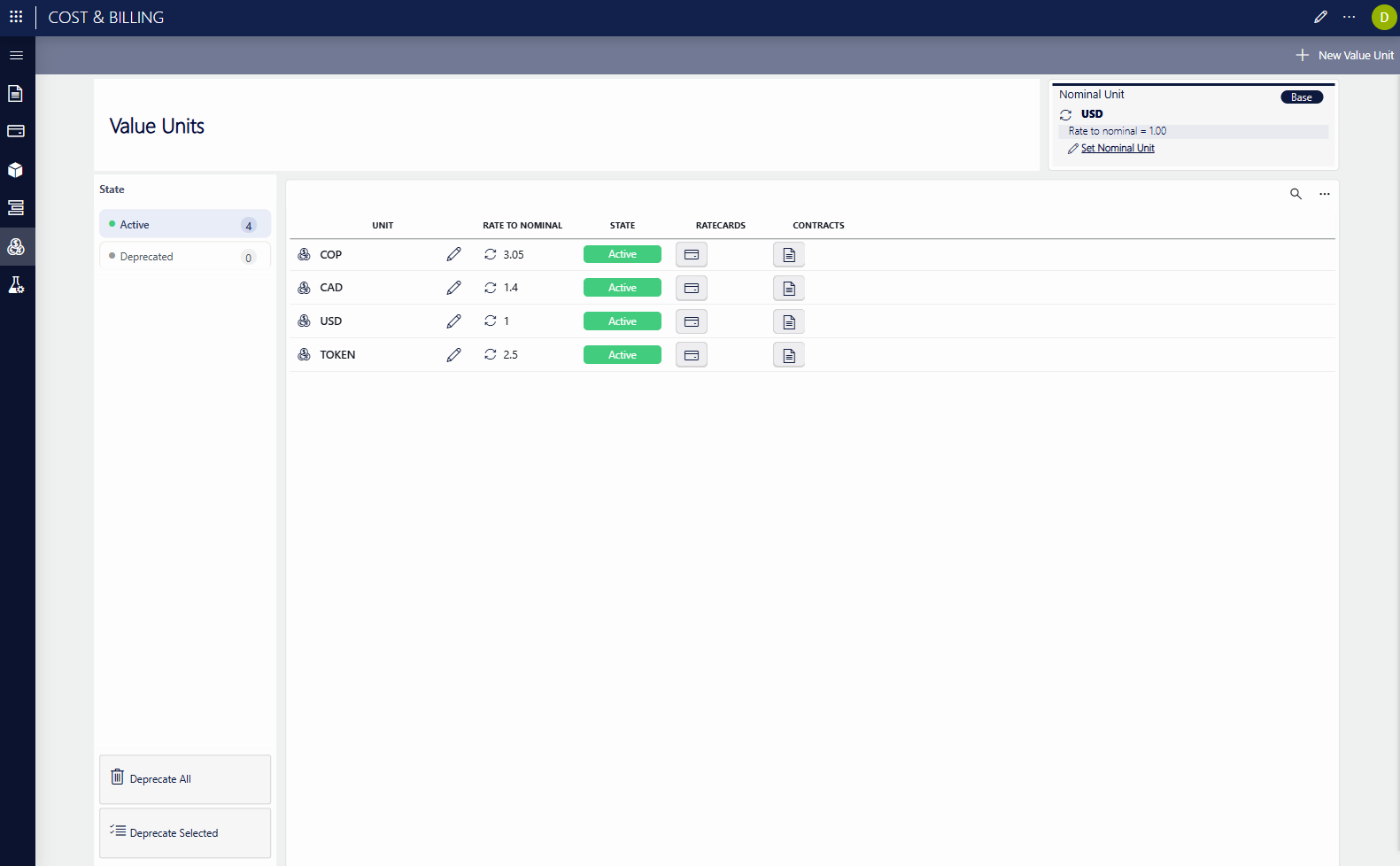
Setting the nominal value unit
When you have installed the Cost & Billing Solution, usually the first thing to configure is the nominal value unit. This is the unit in which the final cost and billing calculation results will be given.
To set the nominal value unit:
- On the Value Units page, click Set Nominal Unit.
- In the pop-up window, select the nominal unit in the drop-down menu, and click Save.
Defining currency exchange rates
Rate cards and contracts in the application can be defined in different value units. However, since the final calculations are always expressed in the nominal value unit, exchange rates must be defined for every other value unit you want to use.
Only the units listed in the Value Units table will be available for selection when a rate card or contract is created.
To create a value unit conversion:
In the upper-right corner of the Value Units page, click + New Value Unit.
In the pop-up window, configure the following settings:
- Unit: The name of the value unit.
- Rate to Nominal: The exchange rate from this unit to the nominal value unit: X Value Unit = 1 Nominal Value Unit.
The State field is by default set to Active when a value unit is created.
Click Save.
All value unit conversion rates are shown on the Value Units page.
Editing and deprecating value units
You can edit each of the value units in the app using the pencil icons in the Value Units table.
A value unit can also be deprecated, in which case it can no longer be used when new contracts or rate cards are created or when calculations are performed.
To deprecate a single value unit, edit the unit and select Deprecated in the State box.
To deprecate value units in bulk, use the Deprecate All or Deprecate Selected buttons.