Rack View
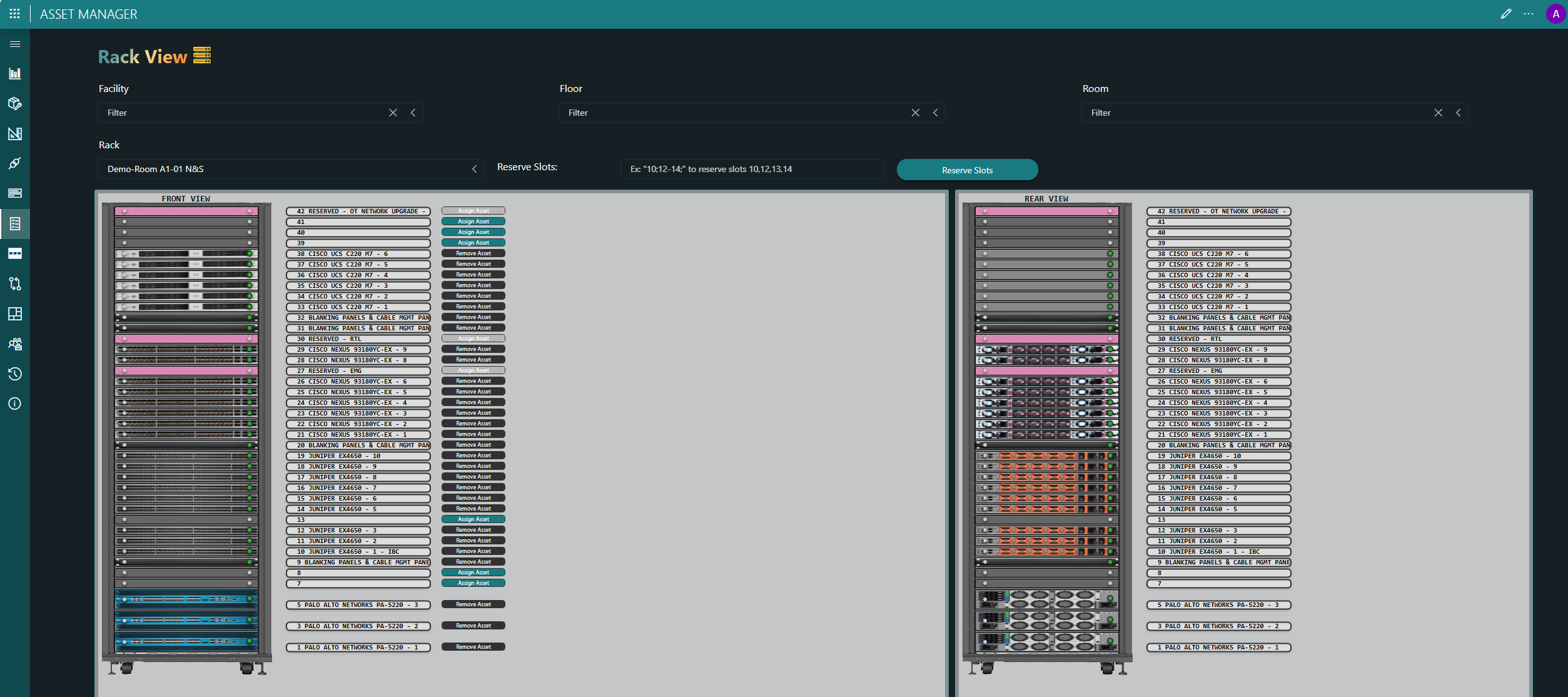
The Rack View page shows a realistic view of your physical racks.
By clicking the Assign Asset button for a specific slot, you can assign assets to slots directly from this overview.
With the Reserve Slots button, you can reserve one or more slots. To do so, you will first need to specify the slots in the adjacent text box. You can either add separate slot numbers using a semicolon as separator, or a range indicated with a hyphen, or a combination of both.
A slot reservation is usually linked to a job. As such, when you reserve one or more slots, you will be asked to link the slot reservation to a new job or to an existing job from the Plan and Build app. Alternatively, you can select Don't link and add a description for the reservation, which will then be displayed on the rack.
Slots that have been reserved are displayed in pink.