Managing transponder bookings
You can book transponder capacity in two ways:
Directly in the Satellite Scheduling app.
From the MediaOps Plan Scheduling app, by adding a transponder resource pool to a job.
Both methods create a MediaOps job with a booked transponder resource.
Creating a booking from Satellite Scheduling
To book transponder capacity directly in Satellite Scheduling:
Switch to Edit mode.
On the timeline, click an available slot at the time when you want the booking to start.
The Create Job dialog opens.
Optionally, enter a custom Job Name.
If you leave this field empty, the system generates a default name.
Adjust the Start Date Time and End Date Time if needed.
Click Create Job.
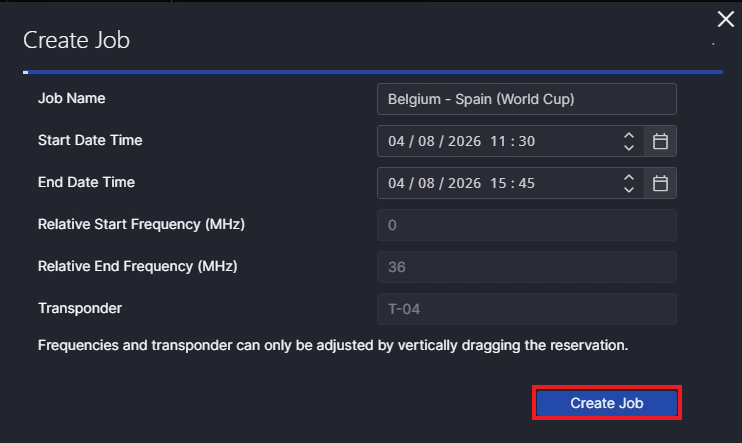
A MediaOps job is created with the transponder resource already booked.
Creating a booking from MediaOps Plan Scheduling
To book transponder capacity from the MediaOps Plan Scheduling app:
In the Scheduling app, create a new job.
Specify the Start Date Time, End Date Time, and (optionally) a Job Name.
Tip
Set the job status to Tentative to immediately confirm the booking.
On the Edit Job panel, scroll down to the Nodes section and click Add Node.
Add a Transponders resource pool.
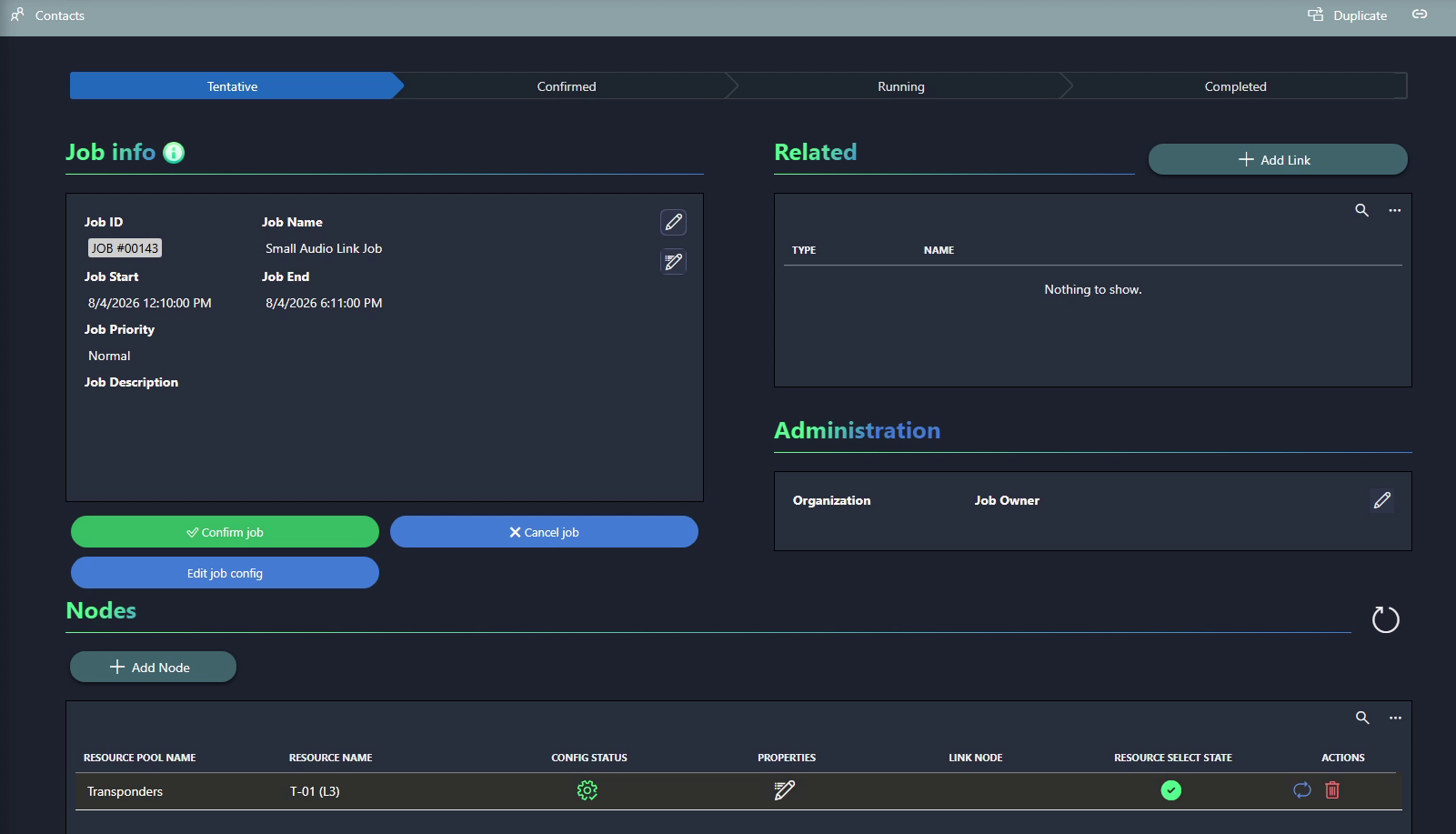
In the Config Status column, click the configuration icon for the resource pool.
The Select Configuration dialog opens.
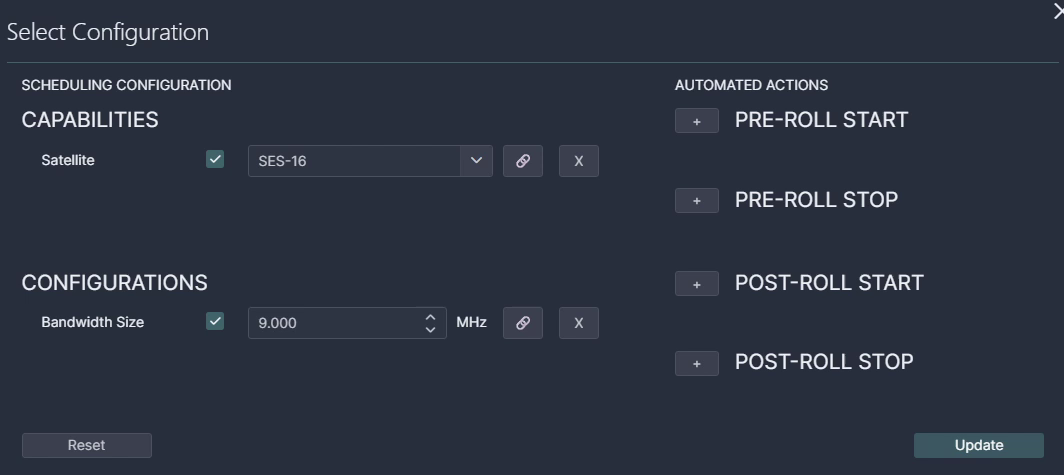
Under Capabilities, select a satellite. Optionally, select a bandwidth size to further restrict the transponder slots that are offered.
Click Update.
In the Resource Select column, click the
 icon to select a slot.
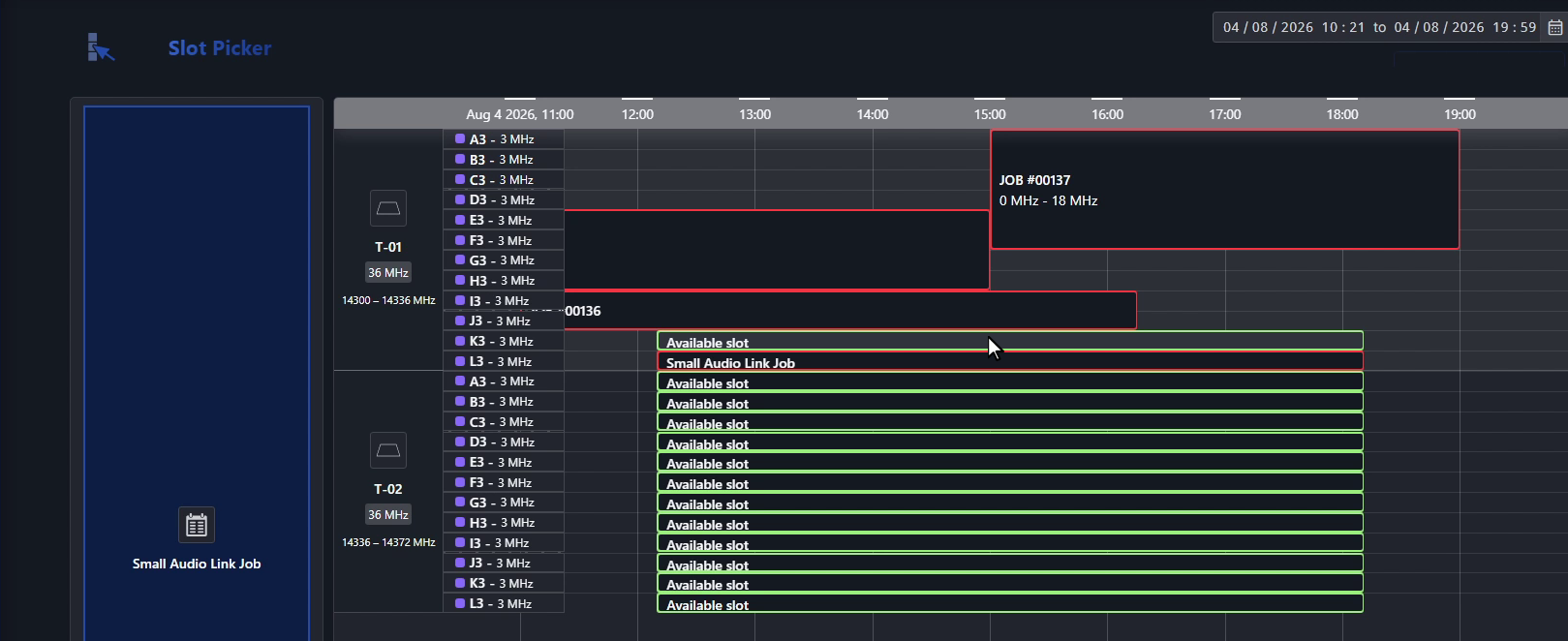
Because the resource pool contains transponders, the Slot Picker page opens in Satellite Scheduling. This page shows the available transponder slots that match the selected capabilities.
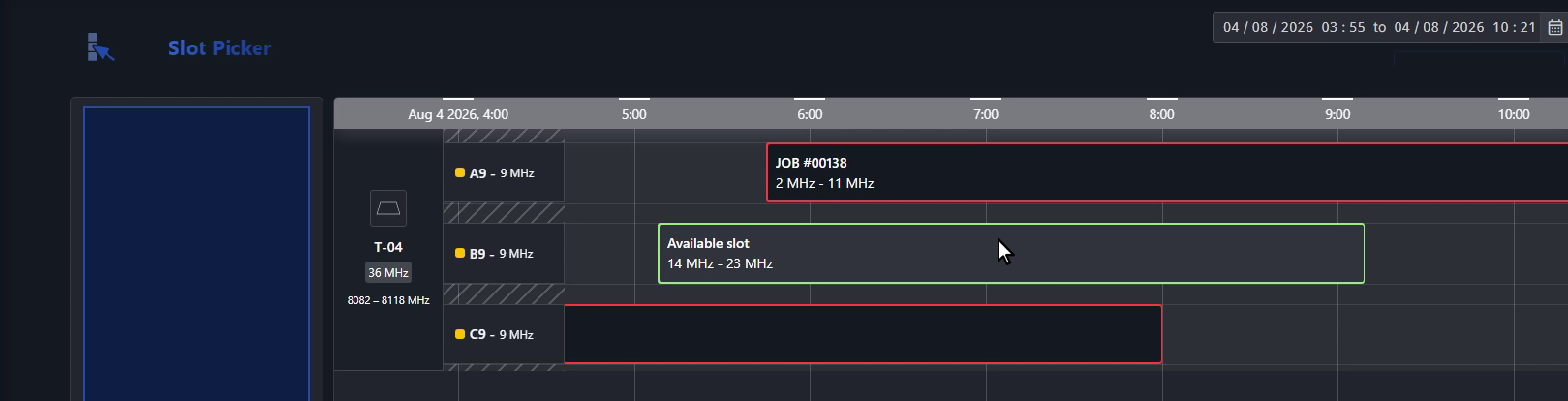
Click an available slot, indicated by a green outline.
The booking is confirmed and the job now has a transponder resource assigned.
Return to the Scheduling app and confirm the job.
Draft and tentative bookings
The initial state a new booking gets depends on when it is scheduled relative to the current time, which is indicated by the Now line on the timeline:
A booking scheduled in the future is created as Tentative.
A booking scheduled entirely in the past is created as Draft.
A tentative booking reserves transponder capacity and appears on the timeline immediately. You can then confirm the job to advance it to the next stage of its lifecycle.
A draft booking does not reserve transponder capacity and does not appear on the timeline. However, the underlying job is still created.
Tip
To book new capacity, position the Now line toward the left side of the timeline so that the visible time range includes sufficient time in the future. Capacity booked to the right of the Now line is reserved as tentative and appears immediately.
Moving a booking
In edit mode, you can drag and drop an existing booking to change it:
Drag the booking horizontally to change its scheduled time.
Drag the booking vertically to change its frequency or move it to another transponder.
The frequencies and transponder of a booking can only be changed by dragging it vertically, not by typing values in the dialog.
Bookings cannot overlap. If moving a booking would cause an overlap, the system prevents the move.
Opening and deleting a booking
Click a booking on the timeline to open it. You can then view the details of the associated job or delete the booking.
Swapping a transponder resource
To move a booking to a different slot, you can swap its transponder resource.
In the Slot Picker, the currently booked slot has a red outline, while the other available slots have a green outline. Click a different available slot to assign it to the booking.
To help you identify a slot, its name is shown between brackets next to the transponder name.