Mapping users and contacts
If the People & Organizations app is installed, it is possible to assign a ticket to a user when you create or edit it. As a user, you can then use the My Tickets filter on the Tickets page to view all tickets that have been assigned to you.
This functionality depends on the identical email relationship between the DataMiner user account on the one hand, and the People & Organizations contact or team on the other. A correct configuration ensures that users can easily select and view their assigned tickets.
This means that to ensure that users can see their assigned tickets:
- A corresponding contact must exist in the People & Organizations module.
- This contact must use the same email address as the DataMiner user account.
For example:
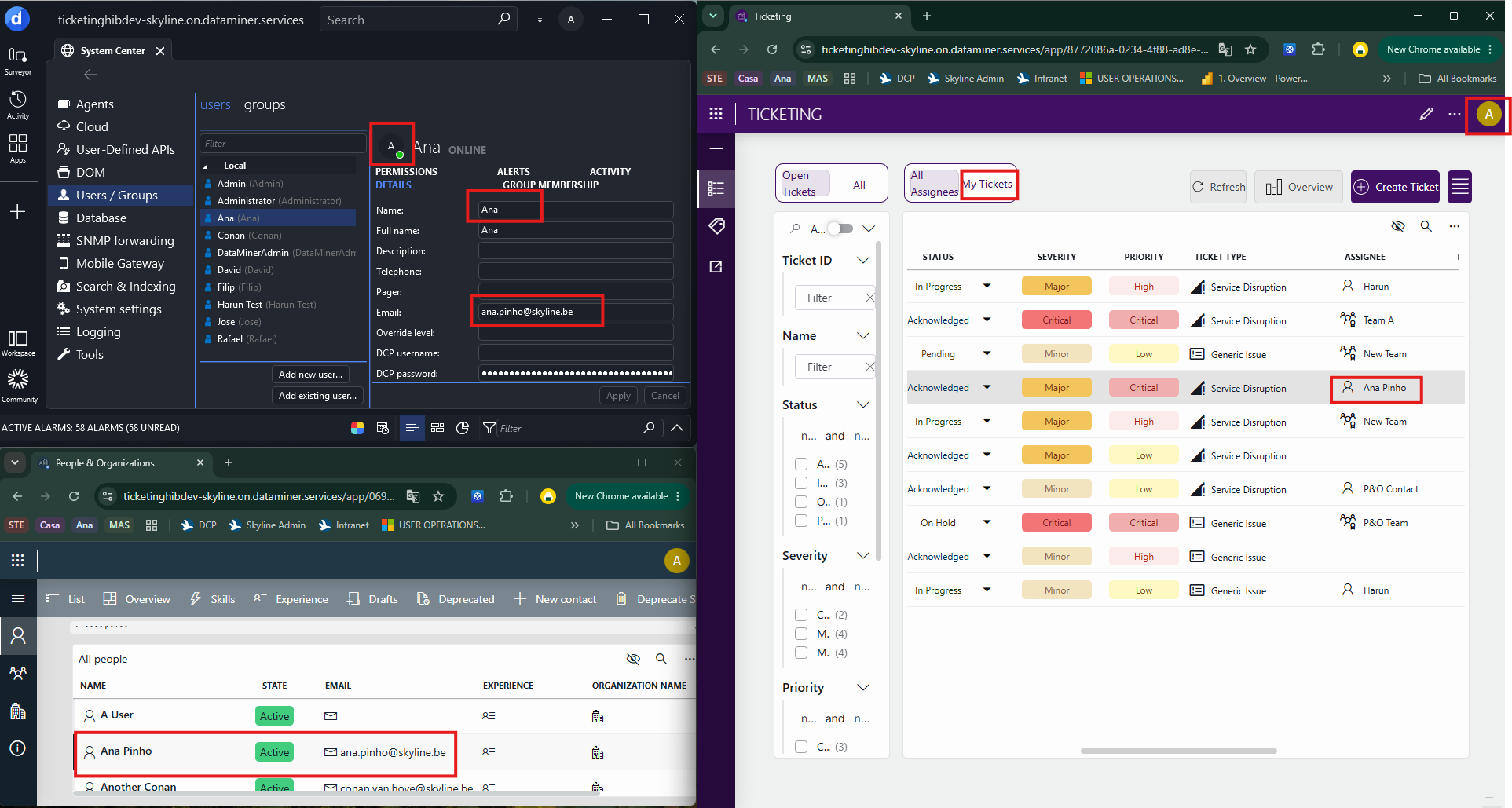
MyTickets functionality with an identical email in the People & Organizations app and in Cube 10.6.5
Configuration steps
- Identify the DataMiner user account in the Users / Group module of the DataMiner Cube System Center.
- Create or update a corresponding contact in the People & Organizations app.
- Ensure that the email address matches that of the DataMiner user account.
Best Practices
- Maintain consistent email addresses between DataMiner users and contacts.
- Ensure that each user has a corresponding contact entry.
- Avoid duplicate contacts with the same email address.
- Validate the configuration during onboarding of new users.