Migrating elements within a cluster
In DataMiner clusters where Swarming is not enabled, you can migrate elements from one node to another. When you do so, DELT (DataMiner Element Location Transparency) will be used to export the elements from the first node and then import them on the other node.
Note
If Swarming is enabled, elements can be swarmed instead. Swarming is a much more robust way of moving elements between DataMiner nodes, as the element configuration remains in the shared database and the element is simply unloaded from one node and loaded onto another. With element migration there is a greater risk of problems; for example, if the export works and the element is deleted in the original location, but the import fails for some reason, the element will end up missing.
To migrate elements:
In Cube, go to Apps > System Center > Agents.
Go to the Status tab.
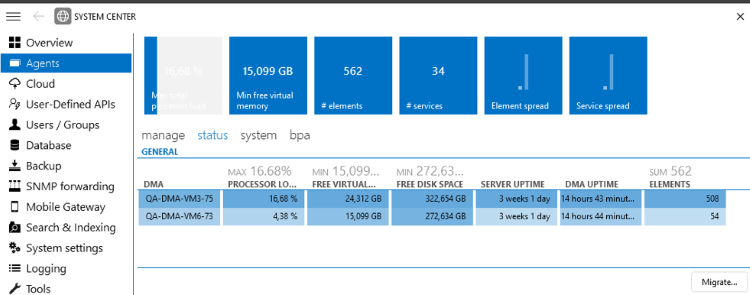
System Center > Agents > Status in DataMiner 10.6.5In the Status tab, you can see an overview of the nodes in the cluster, with the number of elements per node and several other parameters such as the processor load and the free disk space of each node.
In the lower-right corner of the Status tab, click the Migrate button.
This will open the Element migration window, which lists the available elements in a table on the left and the possible destination nodes on the right.
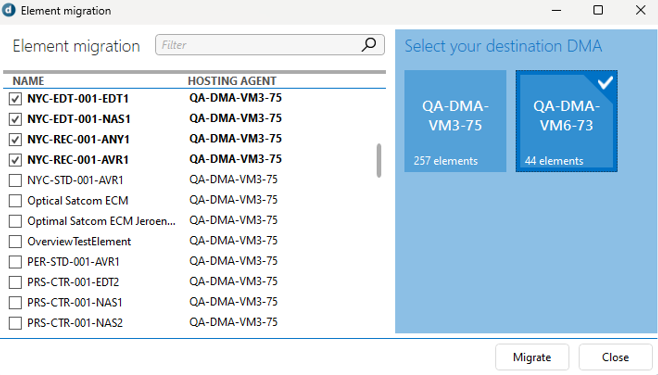
Element migration window in DataMiner 10.4.5Note
- If you want to estimate the impact of an element on a node in order to decided whether it should be migrated or not, you can use the DataMiner Size tool.
- Not all elements are included in the migration window:
- If you do not have permission to access and edit certain elements, these elements will not be included.
- Spectrum elements, SLAs, DVE elements, and virtual elements in redundancy groups are never included.
In the Element migration window, in the list on the left, select the elements you want to migrate from one node to another.
In the pane on the right, select the node to which you want to migrate these elements.
Click the Migrate button at the bottom of the window.
After you confirm the migration in a confirmation box, the progress of the migration process will be indicated. When the migration is complete, a pop-up message will indicate if it was successful.
Note
- You need to have the permissions Elements > Access, Elements > Edit, Elements > Export DELT and Elements > Import DELT. In addition, only elements that you have the right to access will be displayed in the Element migration window.
- It is not possible to migrate spectrum analyzer elements, SLA elements or separate DVE child elements.
- Element connections are not migrated. Before migration, back up
C:\Skyline DataMiner\Elements\ElementConnections.xmlon the source DataMiner Agent or note the current configuration in Cube's Element Connections module so that you can reconfigure the connections after migration.