Creating a dashboard based on an example
Instead of creating a dashboard from scratch, you can instead first import an example dashboard and then edit this dashboard.
Note
Importing example dashboards is only possible if such dashboards have been placed in the folder C:\Skyline DataMiner\ImportDashboards on the server.
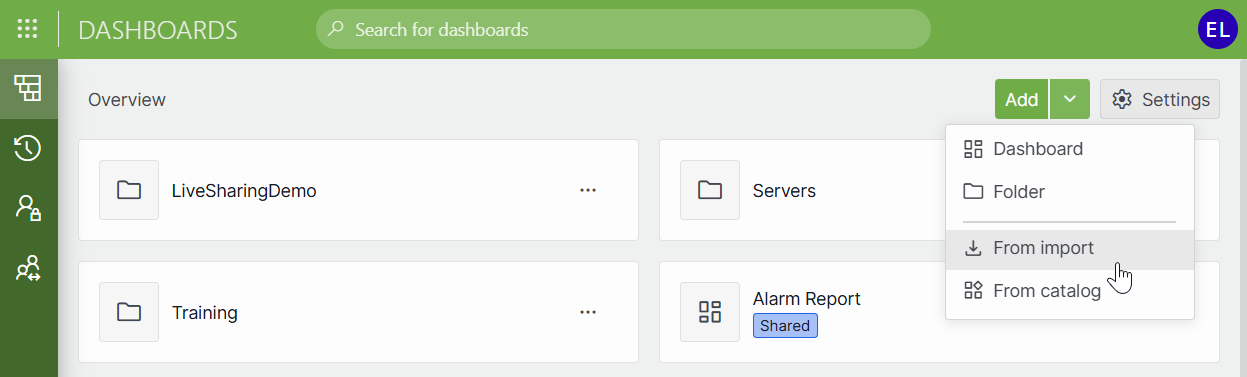
On the home page of the app, in the upper-right corner, click the downward arrow button next to Add and select From import. Prior to DataMiner 10.5.0 [CU11]/10.6.2, select Start with an example dashboard.
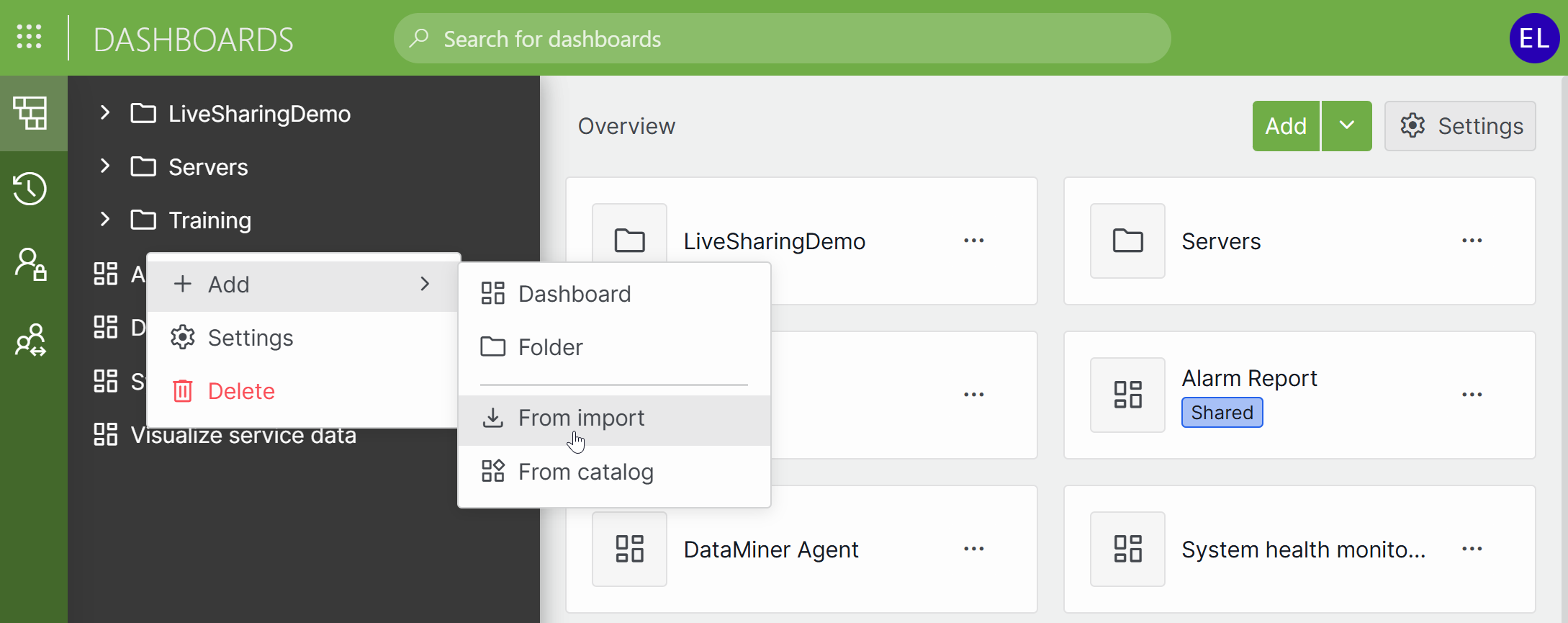
Dashboards app in DataMiner 10.6.3Alternatively, you can also right-click the list of dashboards in the navigation pane on the left and select Add > From import. Prior to DataMiner 10.5.0 [CU11]/10.6.2, you can click the ellipsis button in the upper-right corner of the dashboard list and select Import dashboard.
Dashboards app in DataMiner 10.6.3In the pop-up window, next to the dashboard you want to import, click the Import button.
Optionally, change the name of the dashboard.
If you wish to place the dashboard in a particular folder in the list of dashboards, specify the folder name in the Location box, or click the box and select the folder in the tree view below it.
If you right-clicked a particular folder at the start of this procedure, this folder will automatically be selected.
In the Security box, select whether other users should be able to view and edit the dashboard.
Note
- Once the dashboard has been created, you can further refine which users have which level of access in the dashboard options. See Configuring security for a dashboard.
- The built-in Administrator account always has full access to all dashboards.
Click OK.
Click the pencil icon in the upper-right corner to start editing the example dashboard.
Optionally, fine-tune the dashboard settings. See Changing dashboard settings.
Optionally, fine-tune the dashboard layout. See Configuring the dashboard layout.
Configure the necessary components. See Configuring components.
When the dashboard is ready, in the upper-right corner of the screen, click the “x” icon.
Note
The following characters are not allowed in the name of a dashboard or dashboard folder: / \ : ; * ? < > | °
If you do specify a backslash (“\”) in a folder name, this will not become part of the folder name. Instead a subfolder will be created, with the characters after the backslash as its name.