Overview of the Low-Code Apps UI
Low-code apps can vary greatly in appearance depending on their configuration, for example in terms of the number of pages, app name, color, and whether a page header bar is enabled. However, the Low-Code Apps module generally consists of the following main components:
Header bar (1)
Sidebar (2)
Details pane (3)
Note that the sidebar may be absent if the app consists of only one page.
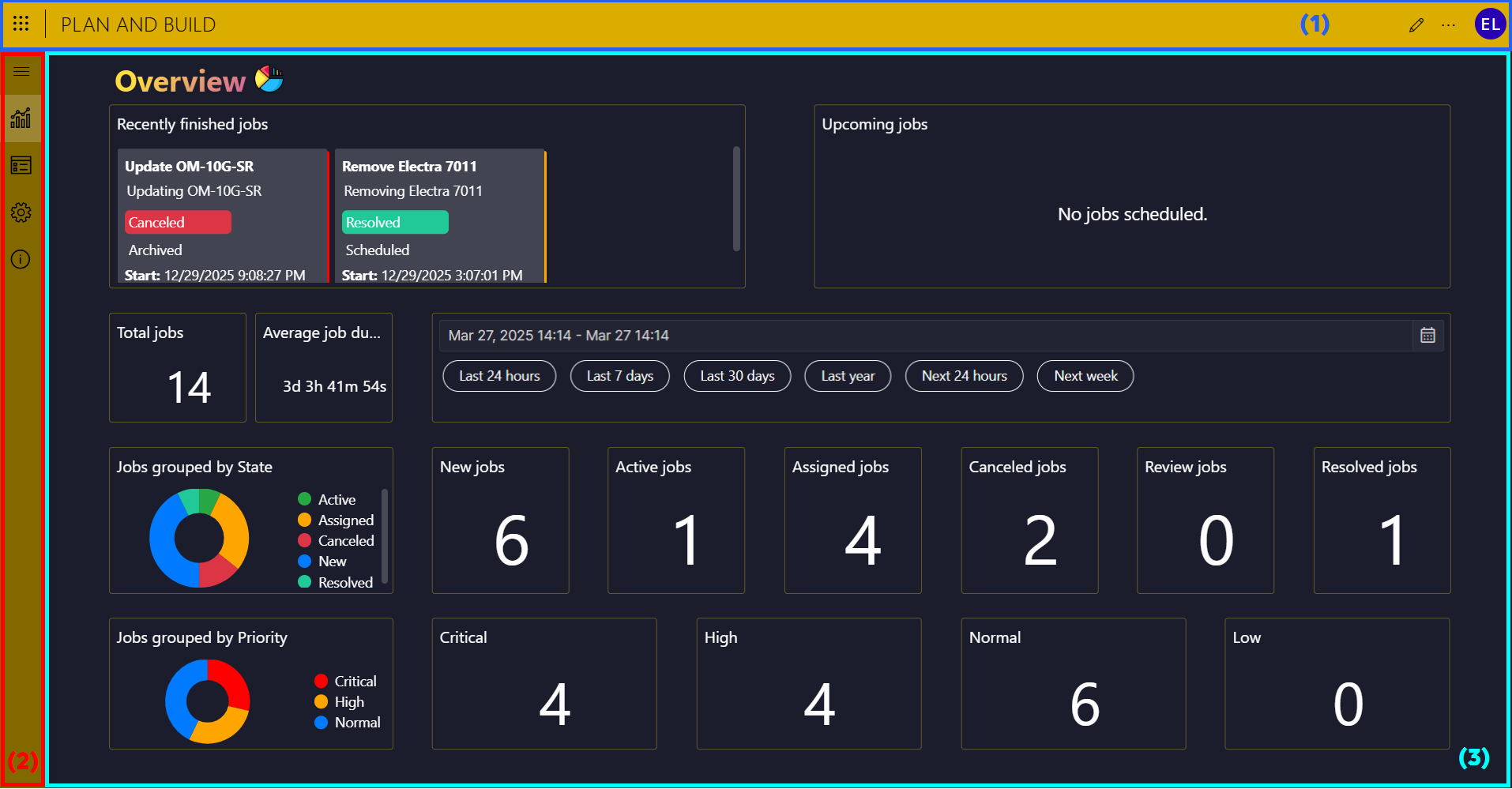
Low-Code Apps module in DataMiner 10.6.4
The Low-Code Apps header bar

Low-Code Apps header bar in DataMiner 10.6.4
The header bar contains the following items, from left to right:
Apps button: The button in the upper-left corner provides quick access to other DataMiner web apps.
App name: The name of the app. Clicking this name will remove any arguments from the app URL.
Pencil icon: Click this button to access the app's edit mode. See Editing an app.
Ellipsis button: Click this button to open a context menu that provides access to the following options:
Versions: Allows you to retrieve an earlier app version.
Permissions / Settings: Allows you to configure app security, determining which users and groups are allowed to view and/or edit the app.
Duplicate app: Allows you to create a copy of the currently opened low-code app. After clicking this option, the newly created app will automatically be opened in a new browser tab.
User button: A button with the initials or an image of the current user is displayed in the upper-right corner. Click this button to open a menu that provides access to the following options:
(User) Settings: Available from DataMiner 10.4.0 [CU21]/10.5.0 [CU9]/10.5.12 onwards. Provides access to the following user-specific configuration options:
Theme: Only available when the showAdvancedSettings=true argument has been added to the URL. Select one of the available themes:
Light (Default)
Dark
System
Time zone: Available from DataMiner 10.5.0 [CU15]/10.6.0 [CU3]/10.6.6 onwards. This option is only configurable when no default time zone has been configured for the DataMiner web apps.
The following options are available:
From client OS: Use the time zone configured in the client operating system.
Custom: Select a custom time zone from the dropdown list.
Password: Allows users to change their password from within an app, without needing to access Cube.
Note
This setting is only available if the following conditions are met:
- In System Center > Users, the user's User cannot change password setting must be disabled.
- The user must have the Modules > System configuration > Security > Specific > Limited administrator permission.
- The user must not be logged in with external or delegated authentication.
About: Displays information about the app.
Sign out: Logs you out of the app and returns you to the logon screen.
The Low-Code Apps sidebar
The sidebar allows you to navigate between the pages in a low-code app. It is only shown when the app contains more than one page.
The sidebar contains a button for each app page, identified by the custom icon configured for that page. See Customizing the icon and color of an app.
At the top of the sidebar, a hamburger button allows you to expand or collapse the sidebar. When expanded, the names of the app pages are shown next to the icons.
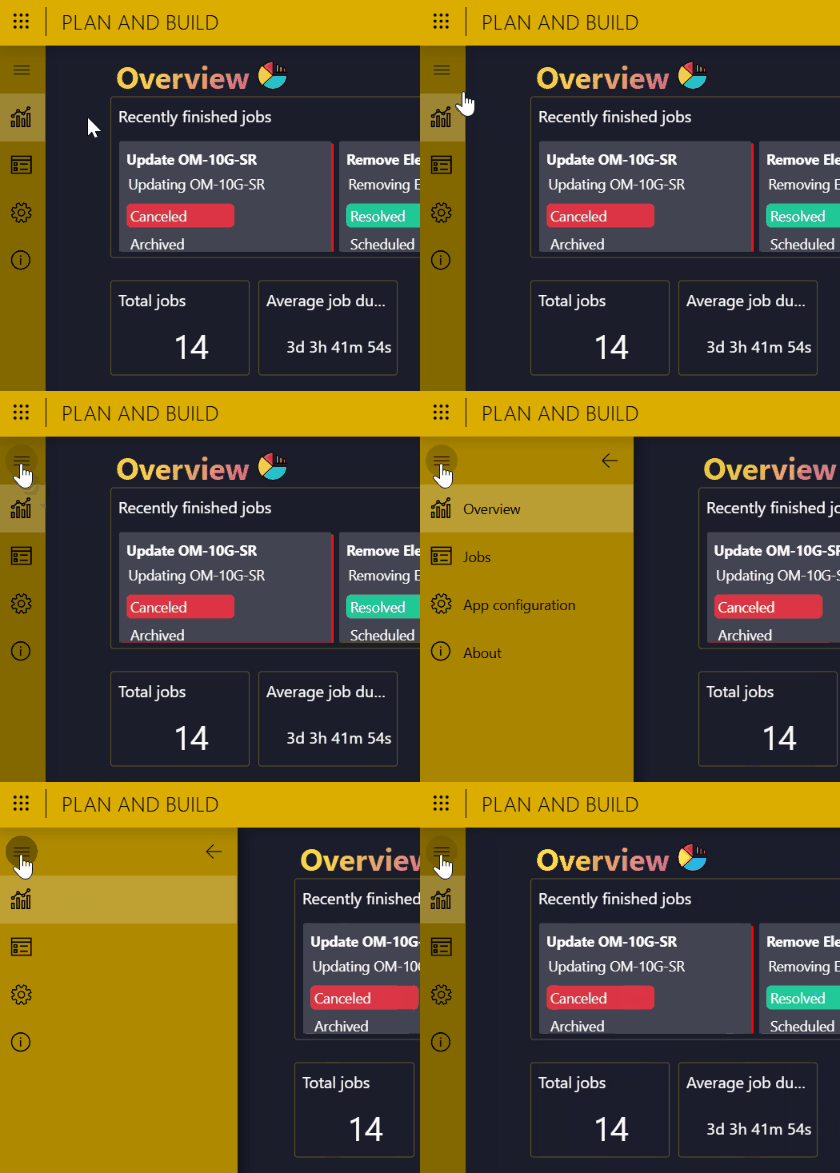
Low-Code Apps sidebar in DataMiner 10.6.4
The Low-Code Apps details pane
The details pane is the main content area of a low-code app. It displays all components configured for the currently selected page.
Depending on how the app has been set up, this area can contain a wide range of components, such as tables, charts, forms, graphs, and images. As a result, the exact appearance and functionality of the details pane can differ from one app to another.
If a page header bar has been enabled, it is shown at the top of the details pane, directly below the main Low-Code Apps header bar. This page header bar can contain buttons that provide quick access to page-specific actions, such as running an automation script, opening a panel, or navigating to a hidden page. Some buttons may execute an action directly, while others may open a dropdown menu with additional actions.
In the example below, the page header bar has been enabled.
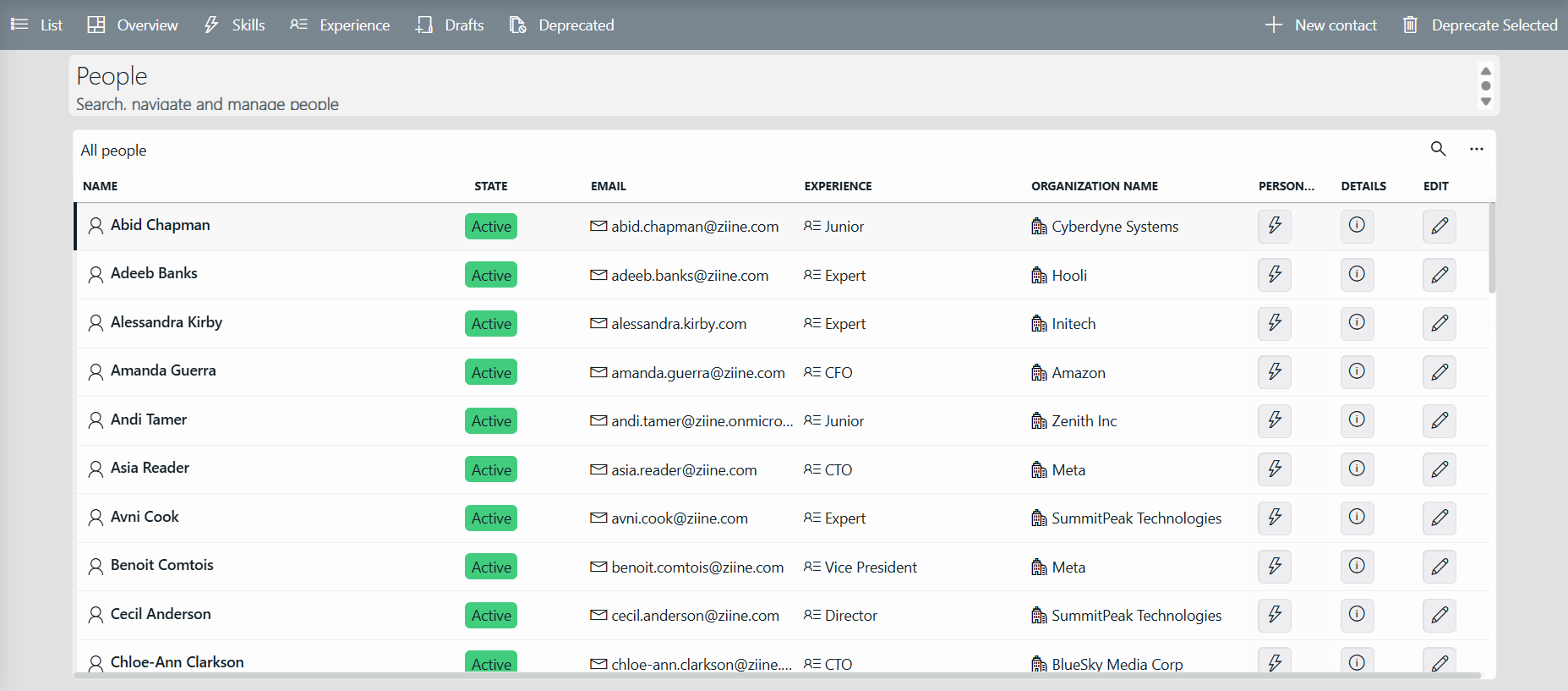
Low-Code Apps details pane in DataMiner 10.6.4