Skills
You can extend the Assistant's capabilities by adding custom skills. These are modular capabilities that package instructions, metadata, and optional resources (e.g., scripts, templates, and reference files). They let the Assistant reuse domain-specific workflows and best practices across conversations instead of relying only on one-off prompt instructions.
Why use skills
Skills are typically used for the following purposes:
- Specialize the Assistant for domain-specific tasks and internal processes.
- Reduce repetition by authoring guidance once and reusing it automatically.
- Compose multiple skills to support more complex end-to-end workflows.
How skills work
Each skill corresponds with a folder containing a SKILL.md file and optional resource files. The assistant loads this information progressively:
- Metadata is always available for discovery.
- Instructions are loaded when a skill is triggered.
- Extra text-based resources are only read and passed along to the Assistant when needed.
This progressive loading model keeps context usage efficient, because only relevant content is brought into the active context window.
Skill components
A skill consists of the following components:
Name: A unique, human-readable name that identifies the skill. It must meet the following restrictions:
- Must be lowercase and may only contain letters, digits, and hyphens.
- Cannot start or end with a hyphen.
- Maximum 64 characters.
Description: A short summary of what the skill does and when it should be used. Maximum 1,024 characters.
Tip
The Description field is critical for skill discovery. It should be written as a clear trigger condition so the agent knows exactly when to activate the skill. For example: "Use whenever questions arise around roadmap items, products, releases, teams, backlog, upcoming work, or completed work."
Context: The full skill instructions in Markdown format. This is the content that gets loaded into the agent's context window when the skill is triggered. It typically contains workflow steps, rules, constraints, and references to companion resources.
Companion resource files: Optional additional text-based resources that can be used by the skill, such as templates or playbooks. Adding or editing these resource files is not supported in the Assistant app and must be done directly in the skill files.
Creating and managing skills
Using the Assistant app
You can create and manage skills on the Skills page of the Assistant app. This page displays all available skills in a searchable list.
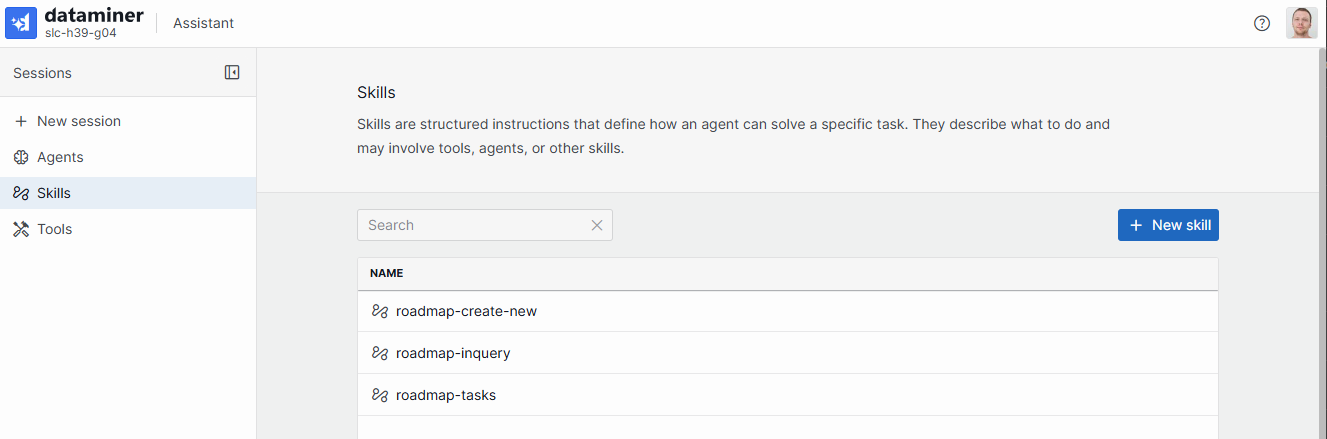
From this page, you can:
Search for existing skills by name using the search bar.
Create a new skill by clicking the + New skill button. You will then have to configure the necessary agent components.
Edit a skill by clicking the pencil button next to the skill in the list.
Duplicate or delete a skill by clicking the ellipsis button (...) next to a skill in the list. Selecting Duplicate creates a copy of the skill, pre-filled with all the original data and an automatically generated unique name. Selecting Delete removes the skill entirely.
Note
While no specific permissions are required to view existing skills, creating or editing skills requires the Modules > System configuration > Tools > Admin tools user permission.
Using skill files
To define custom skills, you can add SKILL.md files in skill folders on the DataMiner server, within the following directory: C:\ProgramData\Skyline Communications\DataMiner Assistant\Synced Documents\Context\Custom\Skills. These folders are automatically discovered, validated, cached, and synchronized across clusters.
Companion resource files
Inside each skill folder, additional text-based resources can be added. They can be in the same folder or in nested subfolders. You can organize these resources in any way that makes sense for the skill (e.g., by topic or by type).
Please note:
- Resources are always scoped to the skill they belong to. There is no shared or global resource folder; each skill is self-contained.
- Resource files are not discovered automatically. To make a resource available to the Assistant, reference its path explicitly in the skill's
SKILL.mdfile. Write the path relative to the skill folder. For a resource in a nested subfolder, include every folder in the path, such astemplates/rollout-checklist.mdorplaybooks/risk-evaluation.md. - Different specialized agents can reference the same skill. This means an agent can indirectly reuse a skill's resources by using that skill.
Folder structure example:
Skills/
|-- my-custom-skill/
|   |-- SKILL.md
|   |-- additional-context.md
|   `-- templates/
|       |-- template01.txt
|       |-- template02.txt
|   `-- playbooks/
|       |-- playbook01.md
|       |-- playbook02.md
SKILL.md format
Each SKILL.md file must include:
- YAML front matter with required fields:
nameanddescription. - Markdown body containing the context of the skill.
Validation rules:
name: Required. Maximum 64 characters. Must be lowercase and may only contain letters, digits, and hyphens. Cannot start or end with a hyphen, and cannot contain consecutive hyphens (--).description: Required. Maximum 1,024 characters.- Folder name must match the skill name.
These rules are enforced whether you create or update skills through the API or by adding files directly. If a field exceeds its limit or violates a naming rule, a descriptive error is returned indicating what is invalid.
Example:
---
name: change-request-review
description: Reviews a proposed change request for completeness, risk, and rollout readiness using internal checklists and templates.
---

# Change Request Review

Use this skill when a user asks to review, validate, or improve a software change request before implementation.

## When To Use

- A change request needs a structured quality review.
- A user asks for risk analysis, missing details, or rollout validation.
- The request must follow internal release and testing standards.

## Inputs To Collect

- Change summary and business goal.
- Affected components, services, or repositories.
- Proposed rollout plan and rollback plan.
- Known constraints, deadlines, and dependencies.

## Workflow

1. Confirm scope and restate the requested change in one paragraph.
1. Check for missing required fields using `templates/change-request-required-fields.md`.
1. Evaluate risk using `playbooks/risk-evaluation.md` and assign `low`, `medium`, or `high` risk.
1. Validate rollout and rollback quality using `templates/rollout-checklist.md`.
1. Produce a final review with:
  - `Findings` (ordered by severity)
  - `Open Questions`
  - `Recommended Next Actions`

## Output Requirements

- Be specific and actionable.
- Reference concrete gaps instead of generic advice.
- If information is missing, ask targeted follow-up questions.
- Do not approve a request if rollback details are absent.

## Companion Resources

- `templates/change-request-required-fields.md`
- `templates/rollout-checklist.md`
- `playbooks/risk-evaluation.md`