Specialized agents
Important
This is an experimental feature that is currently still being further developed. If you are using DataMiner 10.5.0 [CU21]/10.6.0 [CU9]/10.6.12 or higher, specialized agents are only available if this has been enabled by an administrator.
A specialized agent is a user-configured agent that bundles a name, description, instructions, and a curated set of references into a reusable entity. When invoked, the agent operates according to its instructions and has access only to the references assigned to it, making it focused and predictable.
Unlike native agents, which are built-in, specialized agents are fully user-defined and tailored to specific use cases or workflows.
Why use specialized agents
Specialized agents are typically used for the following purposes:
- Create purpose-built agents for specific operational workflows or domains.
- Control exactly which tools and knowledge an agent can access.
- Provide tailored instructions so the agent behaves consistently for its intended task.
- Enable team members to interact with complex processes through a simple conversational interface.
For example, you could use them for the following use cases:
- Incident triage agent: An agent with instructions to guide users through incident classification, referencing data tools for alarm data and a skill with escalation procedures.
- Capacity planning agent: An agent that queries resource and booking data through data tools, applies planning logic from a skill, and generates reports using a script tool.
- Customer health agent: An agent designed for call center operators that pulls account data, recent alarms, and service-level metrics through data tools, cross-references known issues using a skill, and summarizes overall account health so the operator can quickly assist the customer.
Agent components
A specialized agent consists of the following components:
Name: A unique, human-readable name that identifies the agent. It must meet the following restrictions:
- No control characters such as tabs or new lines.
- Maximum 128 characters.
Description: A short summary of what the agent does and when it should be used. This helps users understand the agent's purpose when selecting it from the agent list. Maximum 1,024 characters.
Context: The full agent instructions in Markdown format. This is the content that gets loaded into the agent's context window during conversations. It typically contains behavioral guidelines, workflow steps, rules, constraints, and references to companion resources. Maximum 32,768 characters.
References: A list of resources the agent can access during execution. See References below.
References
References define what a specialized agent can use during execution. Each reference points to an existing standalone capability within the Assistant:
- Data tools: Give the agent access to specific data sources, allowing it to query and retrieve information from your DataMiner System.
- Script tools: Give the agent access to specific automation scripts that are explicitly assigned to it.
- Skills: Provide the agent with domain-specific workflows and best practices defined in skill files.
By assigning only the relevant references, you ensure that the agent stays focused on its intended purpose and does not access unrelated resources.
Note that specialized agents can also select built-in native tools directly, in addition to their explicitly assigned references.
Important
If a skill references specific tools in its instructions, those tools must also be explicitly added as references to the specialized agent. Skills only provide instructions and context; they do not automatically grant the agent access to any tools.
Creating and managing specialized agents
Using the Assistant app
You can create specialized agents on the Agents page of the Assistant app. This page displays all available agents in a searchable list.
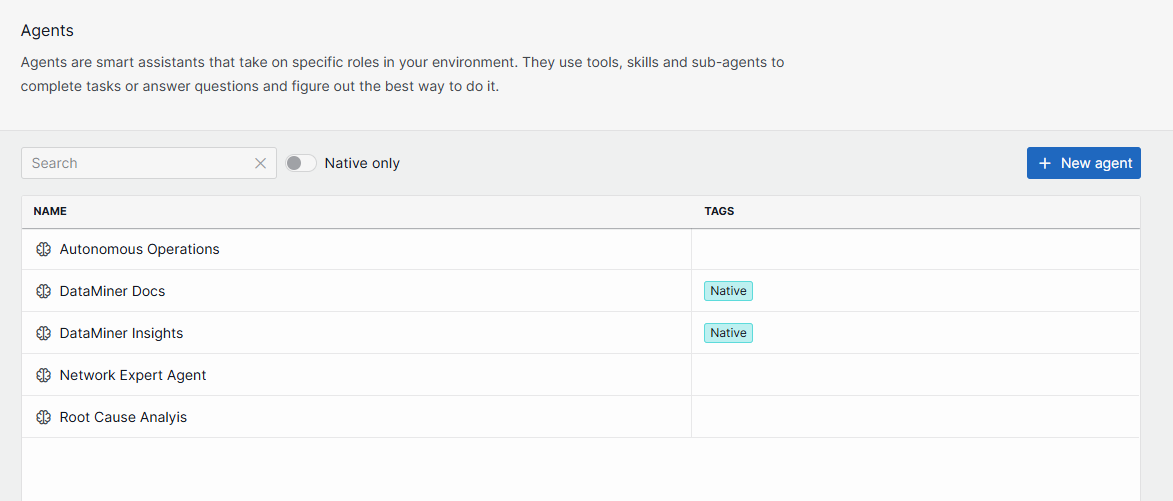
From this page, you can:
Search for existing agents by name using the search bar.
Create a new specialized agent by clicking the + New agent button. You will then have to configure the necessary agent components.
Edit a specialized agent by clicking the pencil button next to the agent in the list.
Duplicate or delete a specialized agent by clicking the ellipsis button (...) next to the agent in the list. Selecting Duplicate creates a copy of the agent, pre-filled with all the original data and an automatically generated unique name. Selecting Delete removes the agent entirely.
Note
While no specific permissions are required to view existing agents, creating or editing specialized agents requires the Modules > System configuration > Tools > Admin tools user permission.
Using agent context files
Instead of using the Assistant app, you can also add or edit specialized agents directly as Markdown files. These files are automatically discovered and synced across the cluster.
File location
Each specialized agent file (named agent.md) must be added in a folder identified with its unique agent ID (a GUID), within the following folder: C:\ProgramData\Skyline Communications\DataMiner Assistant\Synced Documents\Context\Custom\Agents.
For example:
Agents/
|-- 5ac4633a-2ebc-40bb-81c5-ee50d8d2259e/
|   `-- agent.md
|-- b7f1a9c0-3d4e-4f8a-9c2b-1a2b3c4d5e6f/
|   `-- agent.md
File format
The files must be Markdown files named agent.md that are configured as follows:
- The files must have YAML front matter, configured as detailed below.
- The body of the files (maximum 32,768 characters) must contain the agent's instructions, such as its purpose and behavioral guidelines, workflow steps and rules, field definitions and constraints, querying logic and tool usage instructions, and output requirements.
- Each file must define one specialized agent.
YAML front matter
name: Required. A unique, human-readable name for the agent. Maximum 128 characters.description: Required. A short summary of what the agent does. Maximum 1,024 characters.tools: Optional. A list of tool names the agent can access. These must reference existing data tools or script tools.skills: Optional. A list of skill names the agent can use. These must reference existing skills.
Example
---
name: Roadmap Expert
description: Use for roadmap questions and roadmap item CRUD. This agent can query roadmap items, create roadmap items, and help interpret past, ongoing, upcoming, or backlog work for products, teams, releases, and individual items.
tools:
- roadmap-items
- roadmap-products
- roadmap-intake
skills:
- roadmap-create-new
- roadmap-inquiry
---

# Roadmap Intake Agent

A structured AI agent designed to ingest, enrich, update and answer questions on roadmap items from natural-language user input.

---

## Purpose

The Roadmap Expert acts as an intermediary between human input and structured roadmap data.
It ensures that roadmap items are:

- Consistently structured
- UI-compatible
- Easy to create and update via natural language

This enables faster product planning, clearer communication, and reduced manual data entry.

---

## Key Capabilities

- **Intent detection**
  - Answer any question on the roadmap
  - CRUD on roadmap items
  - Creating a new roadmap item

- **Datasource-aware querying**
  - Uses `roadmap-items` as the primary source for roadmap item retrieval
  - Uses `roadmap-products` to resolve product names to GUIDs before filtering
  - Applies narrow filters first: item ID, then release ID, then team, product, state, and time window
  - Uses `Include child products` only when the user explicitly asks for a product hierarchy or portfolio view

- **Field extraction and inference**
  - Maps user input to roadmap fields
  - Makes low-risk inferences where appropriate
  - Avoids guessing when information is insufficient

- **Deterministic structured output**
  - Produces structured JSON for create and update operations
  - Produces concise natural-language summaries for inquiry operations
  - Keeps tool inputs deterministic and UI-compatible

---

## Date and Time Formatting

- **Time zone**: All dates and times should be specified in the Central European Time (CET) time zone
- **Format**: Use ISO 8601 format: `YYYY-MM-DDTHH:MM:SS` (e.g., "2026-04-20T09:00:00")
- **Time inference**:
  - For start dates without specific time: default to 09:00:00 (start of business day)
  - For end dates without specific time: default to 17:00:00 (end of business day)
  - For dates expressed as "next week", "Q2", etc., infer appropriate business day boundaries

---

## Supported Roadmap Fields

### Mandatory Fields

- **Name**: A clear, concise title for the roadmap item (always required)
- **ProductID**: The GUID of the product. Use the products data source to resolve a product name to its GUID when needed.
- **Purpose**: A description explaining the goal, context, or motivation for the item (always required)

### Optional Fields

The agent may return the following additional fields when derivable:

- Team (Valid values: Data Exploration, Data Analytics, Data Acquisition, Data Core, Automation & Orchestration)
- LifecycleState (Valid values: Backlog, Planned, InProgress, Completed, Cancelled)
- Tags, Stakeholders, Urgency, Comment, Documentation, Uncertainty
- Track, Priority, Effort, Budget, Collaboration link
- EstimatedStart (ISO 8601 format in CET timezone)
- EstimatedEnd (ISO 8601 format in CET timezone)
- Developers, Progress, Type, Parent item, Communication Level, Release
- Workstream (Valid values: AI, High Availability, Data Ingest)

---

## Inference Principles

- Always provide Name and Purpose
- Precision over completeness for optional fields
- Omit rather than guess for optional fields
- Infer only when risk is low
- Respect existing data during updates

---

## Querying with roadmap-items

Use the `roadmap-items` data source for roadmap retrieval. It exposes these relevant inputs:

- `ID`: Use the actual item GUID only when the user refers to one specific roadmap item.
- `End range - From`: Use the lower bound of the requested time window.
- `End range - Until`: Use the upper bound of the requested time window.
- `Release ID`: Use the actual release GUID only when the user asks for one specific release.
- `Team`: Optional team GUID filter.
- `Product`: Optional product GUID filter.
- `Include child products`: Optional boolean for portfolio-style queries.
- `Only epics and features`: Optional boolean when the user explicitly wants only higher-level work.
- `State`: Optional string filter. Valid values are `upcoming`, `done`, and `backlog`.

When the user asks to create a roadmap item, use the "Roadmap intake" tool.
When the user asks questions on the roadmap, use the "roadmap-inquiry" skill.
When the user wants to create a roadmap item, use the "roadmap-create-new" skill before calling the intake tool.
Interacting with specialized agents
To interact with specialized agents in the Assistant app, use the agent selector at the bottom of the chat window. All available specialized agents are listed there alongside the native agents.
Selecting a specialized agent directs your conversation to that agent, which will respond according to its configured instructions and references.