Managing Visio files linked to protocols
In DataMiner, each protocol has one or more Visio files linked to it. You can change the Visio files linked to a protocol, so that each element based on that particular protocol displays the same Visual Overview.
This is done in the Protocols & Templates module in DataMiner Cube:
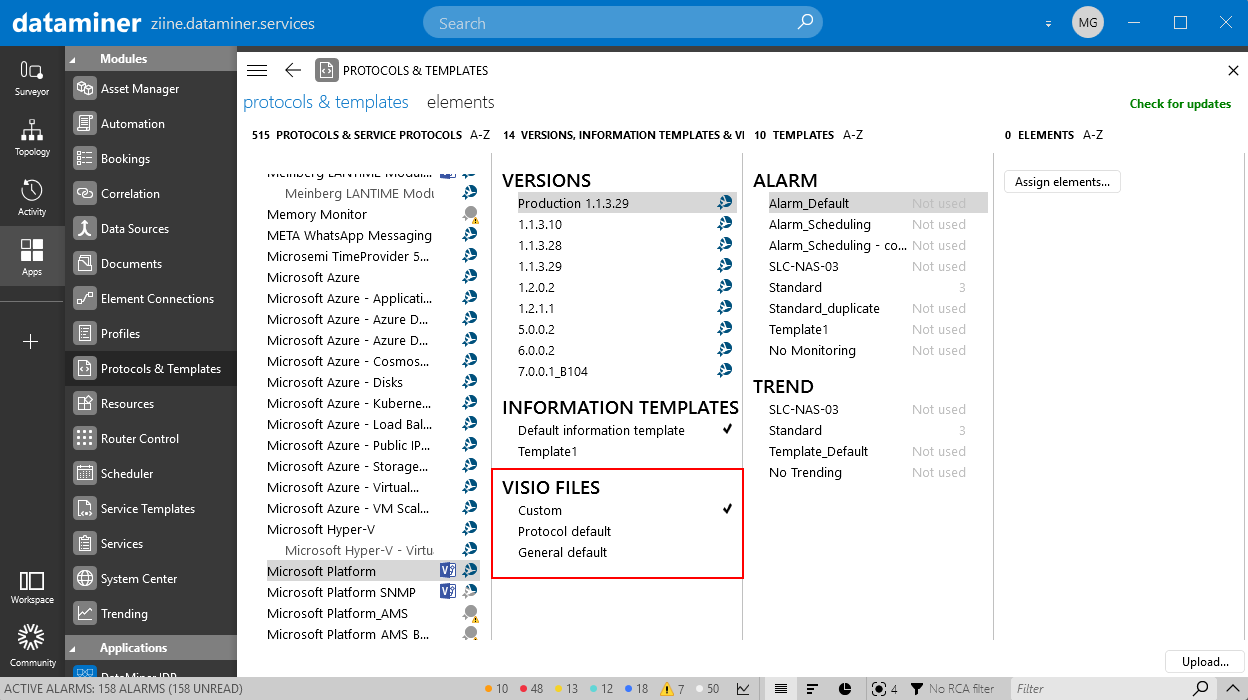
Protocols & Templates module in DataMiner 10.6.3
Note
For elements that have been created by a parent element, it may not be possible to change what Visio file is used, except with an Administrator account or via the parent element.
Switching between different Visio files for elements
In the Protocols & Templates module, for each protocol, any Visio files linked to it are displayed under Visio files in the second column. There can be several different Visio files listed in this section:
Default Visio files shipped with the DataMiner software, called General default.
Protocol-specific Visio files included in certain protocol packages, called Protocol default.
Custom Visio files assigned to a protocol by a user, called Custom.
The currently used Visio file for the protocol is marked with a check icon.
To set a different Visio file as the active file for a particular protocol, right-click the file in the Visio files section, and select Set as active Visio file.
Tip
You can also set the active Visio file via the Visual page of an element card. See Setting the active Visio file for an element, service, or view. This also allows you to assign a Visio file to one element only, without affecting the Visio files available for the protocol.
Assigning a custom Visio file to a protocol
In the Protocols & Templates module, you can upload a custom-made Visio file to assign it to a protocol:
Select the protocol to which you want to assign a Visio file under Protocols.
Under Visio Files, right-click General default and select Upload custom Visio file.
In the Open dialog box, select the desired Visio file (extension: .vdx or .vsdx), and click Open.
Note
- It is not possible to upload Visio files of which the file name contains more than one “%” sign.
- Under Protocols, protocols to which a Visio file has been assigned are marked by a small Visio icon.
Tip
You can also upload a Visio file to a specific element instead of to a protocol. See Setting the active Visio file for an element, service, or view.
Removing a Microsoft Visio file assigned to a protocol
If you no longer want a custom Visio file to be linked to a protocol, you can sever the link between the protocol and the Visio file.
In the Protocols & Templates module, under Protocols, right-click the protocol and select Remove Visio file.
In the confirmation box, click Yes.