Scheduler data storage
Scheduled tasks can be stored in either XML or database storage. Database storage is supported from 10.6.3/10.7.0 onwards, for the following storage setups:
Storing scheduled tasks in the database instead of XML allows the tasks to be swarmed between Agents in the cluster (see Swarming scheduled tasks).
Tip
If you need to troubleshoot scheduled task configuration or swarming, use the SLNetClientTest tool to retrieve information about the configured tasks, including their execution details and the DataMiner Agent responsible for hosting or executing each task. For more information, see Retrieving scheduled task information.
Checking the current storage type
The storage type used for a specific DMA is shown in the Scheduler configuration file C:\Skyline DataMiner\Scheduler\Config.xml. The Storage value will either be set to Xml or Database.
Example configuration:
<Scheduler>
  <Storage>database</Storage>
</Scheduler>
If this configuration file is missing, scheduled tasks default to XML storage. Newly installed DataMiner Agents also by default use XML storage.
Important
If you want to switch from XML to database storage, do not adjust this directly in this file. Instead, use the migration procedure detailed below.
Migrating from XML to database storage
From DataMiner version 10.6.3/10.7.0 onwards, it is possible to migrate your scheduled tasks from Schedule.xml to database storage, provided you are using STaaS or dedicated clustered storage.
To migrate scheduled tasks:
Connect to the DMS using the SLNetClientTest tool:
In the SLNetClientTest tool, go to Connection > Connect.
In the Connect window, under Authentication, select Explicit credentials and specify the credentials of an administrator user.
Click the Connect button.
From the Advanced menu, select Migration.
In the Scheduler XML to database section, click the Start Migration button to launch the migration wizard.
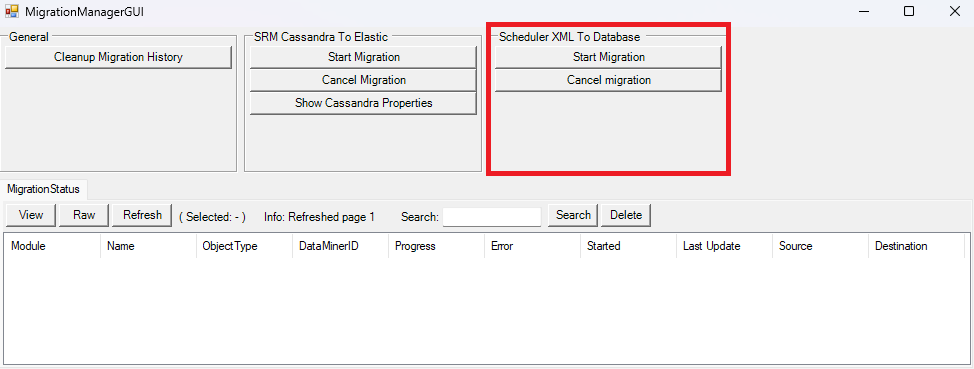
SLNetClientTest tool migration window in DataMiner 10.6.3During migration, no scheduled tasks will be triggered, but tasks that are already running will continue to run. However, we recommend not starting a migration while tasks are still running.
A window will show the migration actions that have been scheduled. If you close this window, the migration will continue in the background.
You can cancel the migration process at any time by clicking the Cancel Migration button.
The progress of the migration will be shown in the MigrationStatus table in SLNetClientTest tool, where a row will be created for each Agent in the cluster where the scheduled tasks will be migrated.
If one of the DataMiner Agents in the cluster cannot be reached for some reason, the migration will be canceled.
Once the migration is complete on all Agents, the storage will automatically switch from XML to database, and incoming messages will be unblocked.
Note
- Scheduler will be restarted during the migration.
- Incoming requests to the Scheduler Manager will be blocked while the migration is in progress.
Warning
Always be extremely careful when using SLNetClientTest tool, as it can have far-reaching consequences on the functionality of your DataMiner System.
Troubleshooting
If the migration fails for any reason, the migration status object in the SLNetClientTest tool window will get a red background color. The SLMigrationManager.txt and SLScheduler.txt log files will contain more information. Scheduler Manager will not switch the configuration, so XML storage will still be used after a failed migration.
If a MigrationStatus is stuck in the InProgress state, you will need to cancel the migration to make all Scheduler Manager instances start or to trigger the migration again. You can do so with the Cancel Migration button in the Scheduler XML to database section of the SLNetClientTest tool window.