Deleting an organization
Often, temporary organizations are created as sandbox environments with a trial DaaS system. However, to keep your organization selector clean and avoid unnecessary clutter, you may want to remove these again.
Caution
Deleting an organization has significant consequences. All users will lose access, all keys associated with the organization will stop working, and any remaining credits will be lost.
Prerequisites
Only users with the Owner role on dataminer.services for an organization can delete it.
To avoid accidental deletion of a production organization, an organization can only be deleted if it does not contain any active systems.
If your organization only contained a trial DaaS system, the system will be automatically decommissioned and removed after one week. Any other systems in the organization must be deleted manually before you can remove the organization.
Procedure
In the Admin app, verify that the correct organization is displayed in the header bar.
If you need to switch organizations, click the organization selector
 in the upper-right corner and select the correct organization.
In the pane on the left, under Organization, open the Settings page.
At the bottom of the page, click the Delete organization button.
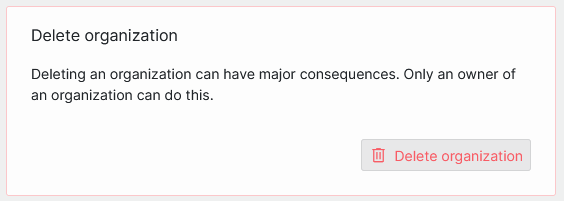
If you are not the Owner, or if the organization still contains systems, this button will not be available. Hover your mouse pointer over the button to see the exact reason. Fix the issue and refresh the page to continue.
Confirm the deletion by typing the organization name exactly as written, including capitalization.
Click Delete to finalize the deletion.