Asset lifecycle
An asset can have the following states:
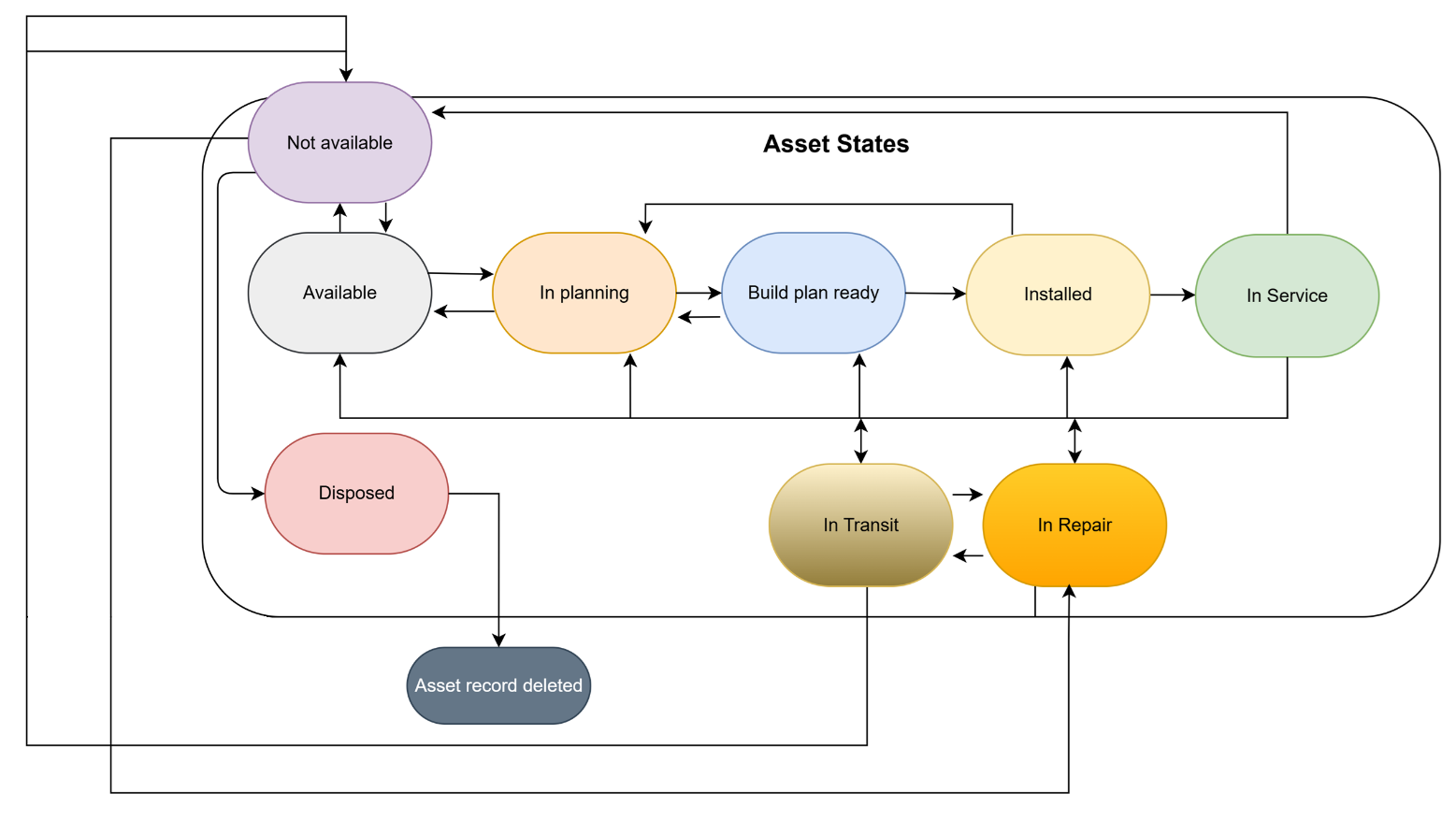
A new asset is created with the state "Not Available". While an asset is in this state, all the information for the asset can still be edited, except for the asset class.
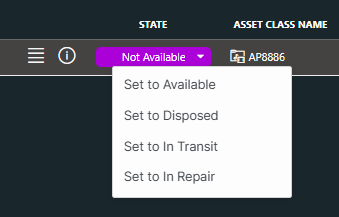
When an asset is "Not available", you can change its state to "Available" via the context menu of the State column. When the asset state changes to "Available", the asset ID will no longer be editable, but you will now be able to define a location for the asset.
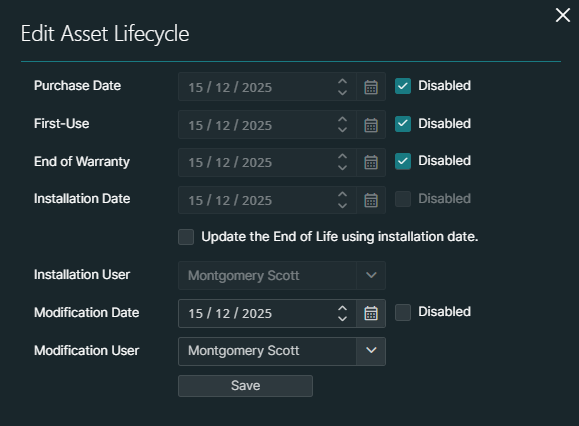
When an asset is "Available", you can change its state to "In Planning", then to "Build Plan Ready", and finally to "Installed". However, before you can change the state to "Installed", you will first need to specify an installation user and date via the Asset details configuration.
Keep in mind that after you change the state to "Installed", you will no longer be able to change the installation user and date in the asset details, and it will also no longer be possible to change the location, even if no location was defined. If you do still want to change the installation user and date or the location, you will have to set the asset back from "Installed" to "In Planning".
When an asset is in use, change the state from "Installed" to "In Service" via the context menu of the Managed Assets table.
When an asset is "In Service", you can set it back to any of the previous states:
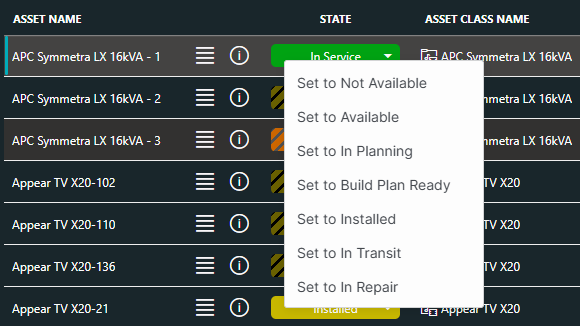
From any state, the asset state can be set to "In Transit" or "In Repair".
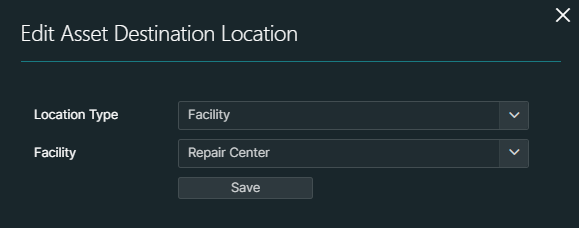
If you set the state to "In Transit", you will be asked to specify the destination location of the asset:
This information will also be displayed in the Asset details pane:
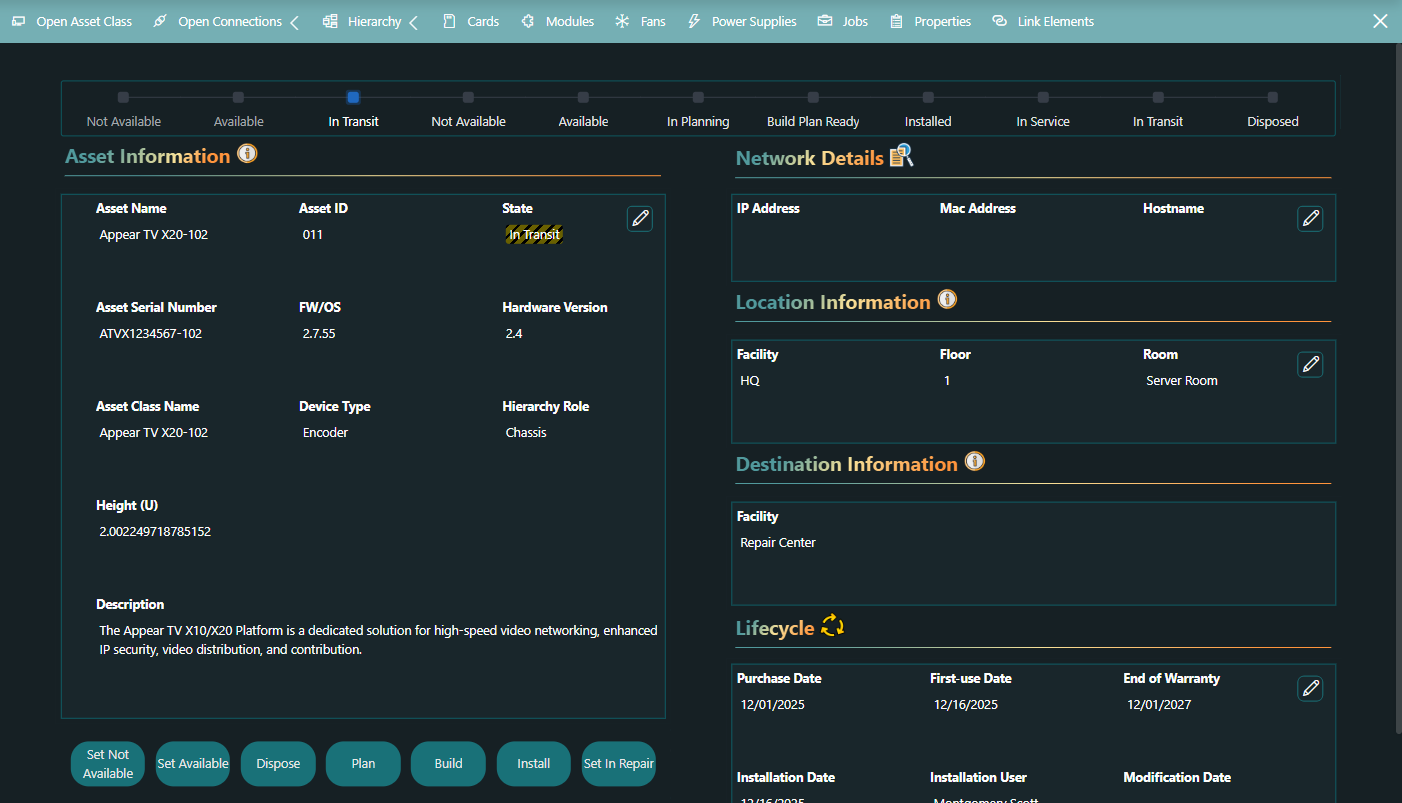
If you then change the state to any other state, the destination location you defined will replace the previous location in the Location Information section.
If an asset is no longer to be used, first revert its state to "Not Available", and then change it to "Disposed". However, keep in mind that this change is irreversible. No further changes will be possible to the asset.