Managed Assets
When the necessary asset classes have been configured in the Asset Designer, you can add assets to the system on the Managed Assets page.
You can either import the assets from CSV or create assets manually.
Via the context menu of an asset on the Managed Assets page, you can change the state of the asset. The states you can assign depend on the current state of the asset. For details, refer to Asset lifecycle.
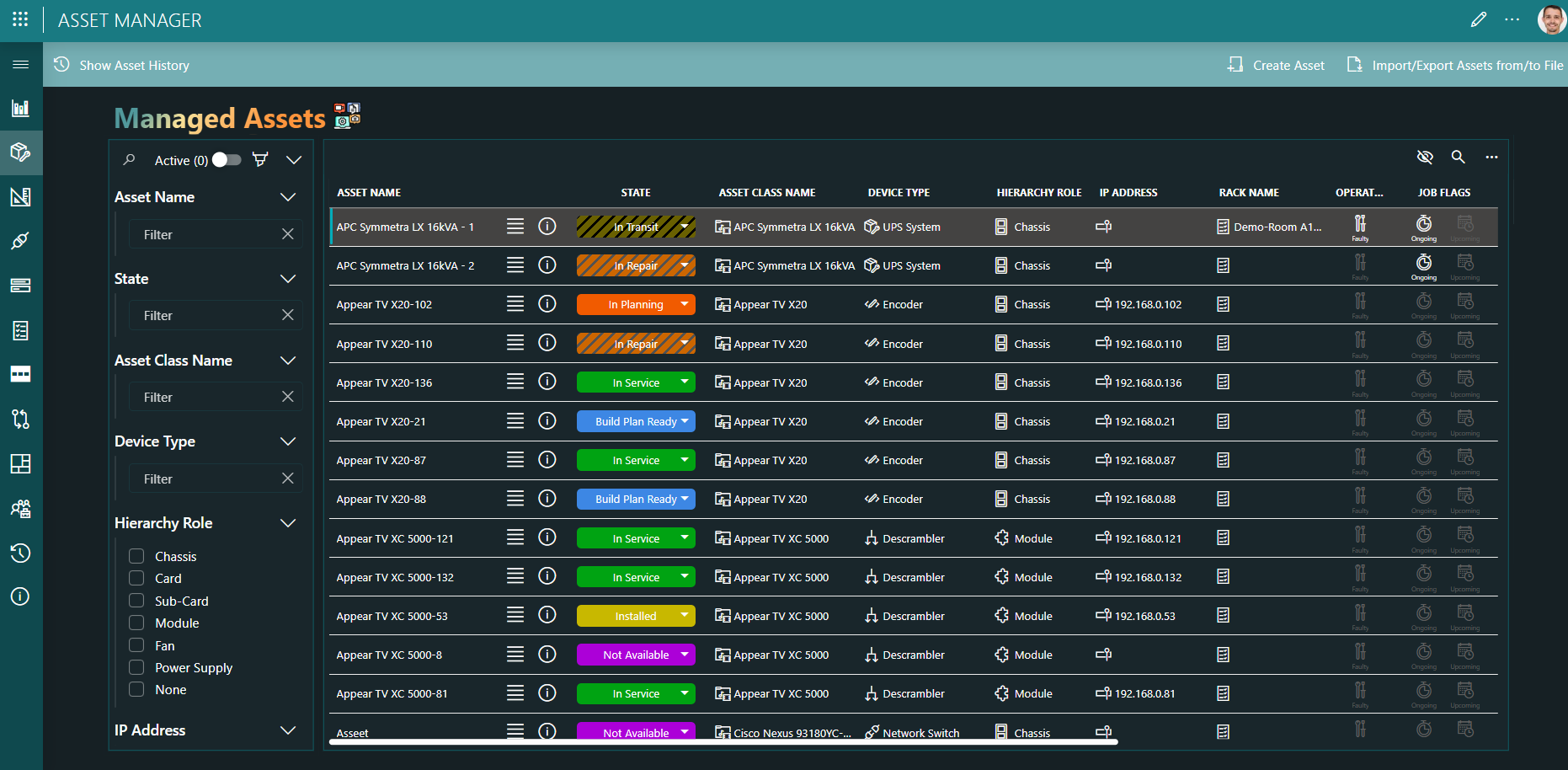
Importing assets from CSV
In the header bar, click Import/export Assets to/from CSV.
In the Option box, keep Import selected.
Next to File to import, click Choose file and select the file you want to import.
Click Upload, and then click Import.
Manually adding an asset
In the header bar, click Create Asset.
Specify a unique ID and name for the asset, and select the asset class.
Click Save.
The newly created asset will inherit the configuration from its asset class.
Configuring asset details
When you have added an asset, you can fine-tune it by clicking the details button (ⓘ) for the asset in the table. This will open the Asset details pane:
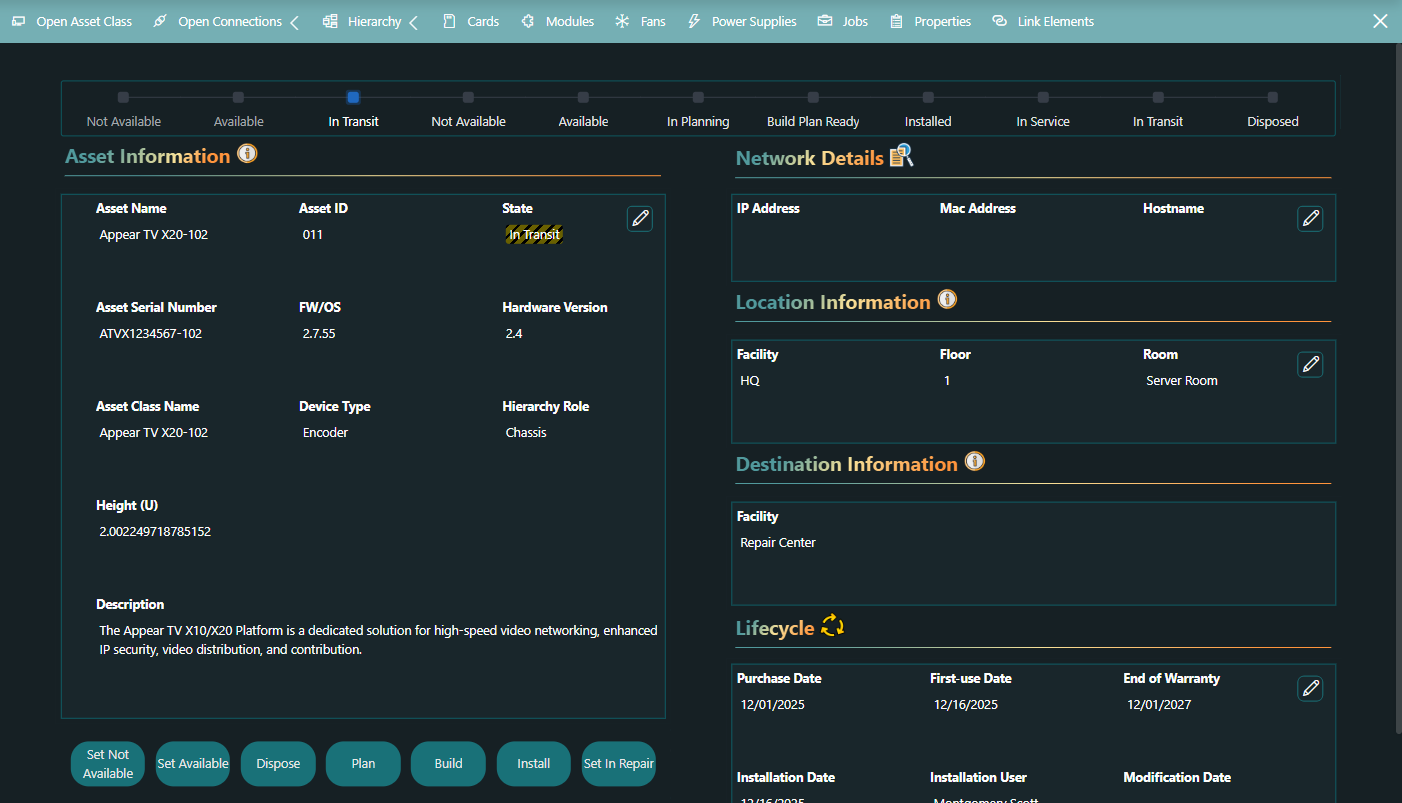
In this pane, you can configure the following details, depending on the asset state (see Asset lifecycle):
The asset information:
- The asset class name.
- The asset ID
- The description.
- The serial number.
- The firmware/OS.
- The hardware version.
- Any relevant notes for the asset.
The network details: IP address, MAC address, and hostname.
Location information: See Configuring the asset location.
Lifecycle information: This can include the purchase date, the first-use date, the end of warranty, the installation date and user, and the modification date and user.
Ownership: The organization, team, and contact person for the asset. The list of possible organizations, teams, and people is retrieved from the People & Organizations app.
Custody details: Similar to the Ownership configuration, but with a From and Till date to indicate the period during which the custody applies.
Via the buttons at the top of the pane, you can also configure the asset hierarchy and connections.