Control Surface app
The Control Surface app is a software-defined button panel that allows you to connect or disconnect sources and destinations defined in the Virtual Signal Groups app. It allows operators to manage connections in the network without having to worry about the specifics of the underlying technology and/or devices.
Scheduled connections created by jobs are also reflected in the Control Surface app, so that operators will not unknowingly overwrite scheduled connections, and they can change scheduled connections ad hoc when needed.
The app shows two main panels, one on the left with all sources defined in the system, and one on the right with the destinations. Once sources and destinations have been correctly configured in the Virtual Signal Groups app and the mediation layer for the DataMiner elements associated with these sources and destinations has been set up, the Control Surface app provides the following functionality:
- Connecting a source to one or multiple destinations
- Disconnecting destinations
- Locking and unlocking destinations
- Filtering sources and destinations
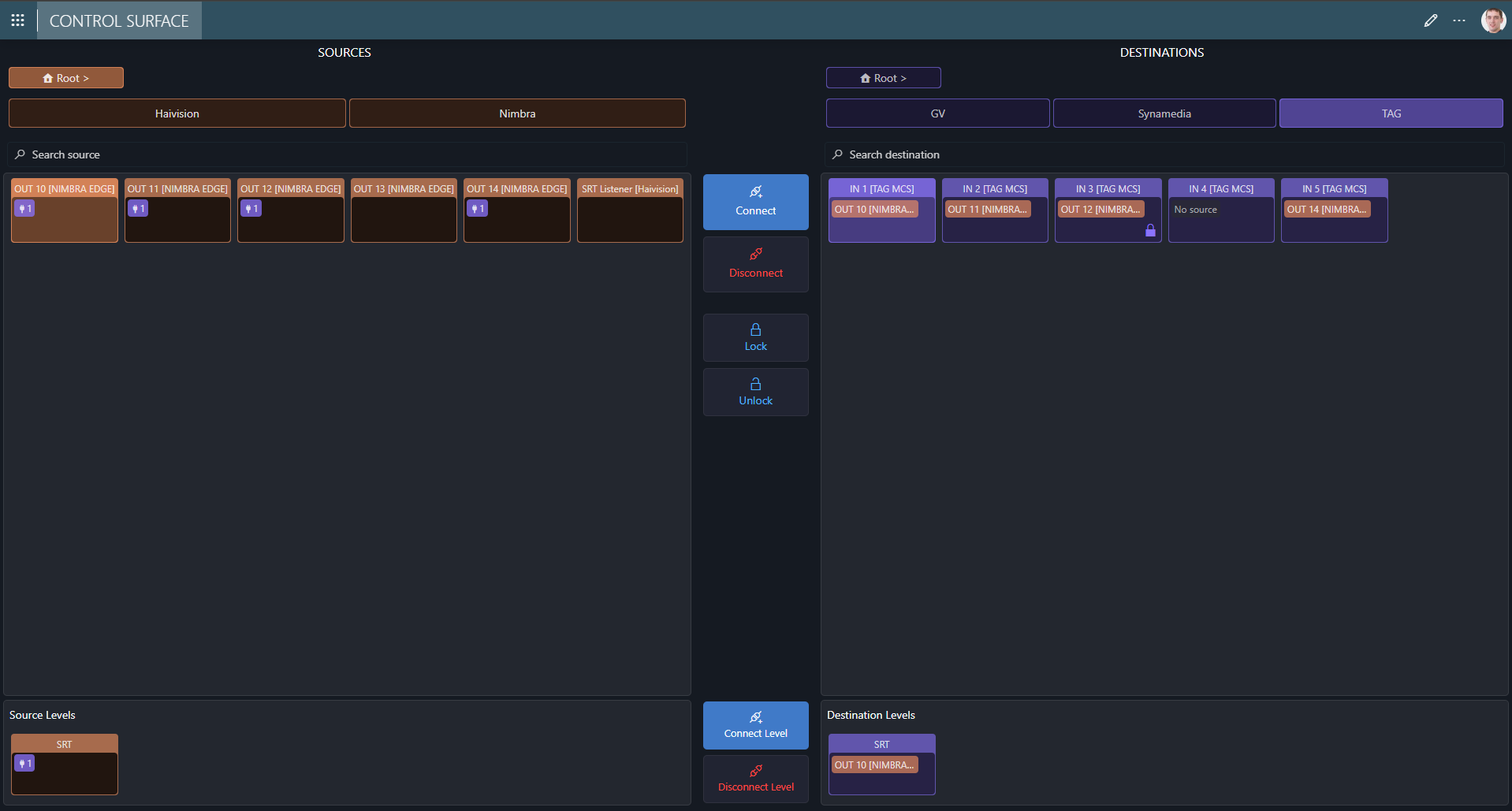
Connecting a source to one or multiple destinations
To create connections between a source and one or more destinations, select the source and destination(s) and click the Connect button.
Tip
To select or clear the selection of more than one item at a time, use CTRL + click.
When the Connect button is clicked, the mediation layer is triggered to connect the selected source to each selected destination.
When the connection is successfully made, the destination button will reflect the connected source. An additional icon will be visible on the button in case multiple sources are connected or when certain levels are shuffled.
You can also connect specific levels of a source to a destination by selecting the individual levels at the bottom of the app and clicking the Connect Level button.
Note
Connecting a subset of a source can only be done to a single destination and also allows you to shuffle a specific level (i.e., while usually the same level is connected, this allows you to connect different levels, such as Audio 1 > Audio 2).
Disconnecting destinations
To disconnect one or more destinations, select the relevant destination(s) and click the Disconnect button. There is no need to select a source, as any source selection is irrelevant for a disconnection.
Similar to when connections are created, clicking the Disconnect button will trigger the mediation layer to handle the disconnect.
You can also disconnect specific levels of a destination by selecting the levels for the selected destination and clicking the Disconnect Level button.
Locking and unlocking destinations
You can lock a destination to prevent anyone from overwriting the destination's connection state. This is possible regardless of whether the destination currently has an active connection.
When locking a destination, you can provide a reason for the lock.
The Control Surface app also allows you to select multiple destinations and locking them all at once (with a single reason).
When a user tries to change the connection state of a locked destination, they will see a pop-up message mentioning that the destination is locked, who locked the destination, and the reason provided for the lock. However, anyone can unlock a locked destination, not only the user who locked it, and then proceed to change the connection state of that destination.
Important
Connections created from a job will ignore (and overwrite) any lock present on a destination and add a reference to the job on the destination lock.
Filtering sources and destinations
The Control Surface app provides a filter control for both the sources and the destinations based on categories.
The filter control at the top of the Control Surface app shows the top-level categories defined for the sources and the destinations. When you click one of the categories, the buttons on the panel will be filtered to only show sources or destinations part of that category or any of its child categories. The filter control will now display the child categories of the selected category, allowing you to further refine the selection of sources or destinations you want to see. This can be used to navigate all the way down the category tree structure.
The filter control always shows the currently selected filter path. At any time, you can return to one of the higher-level categories by clicking it in the filter path. Clicking Root will reset the filter to its default state.