Creating workflows
To create a completely new workflow, use the New button in the header bar of the Workflow Designer app.
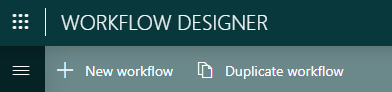
If you want to create a workflow based on an existing workflow, you can create a duplicate by clicking the ... button next to the original workflow on the Home page and selecting Duplicate.
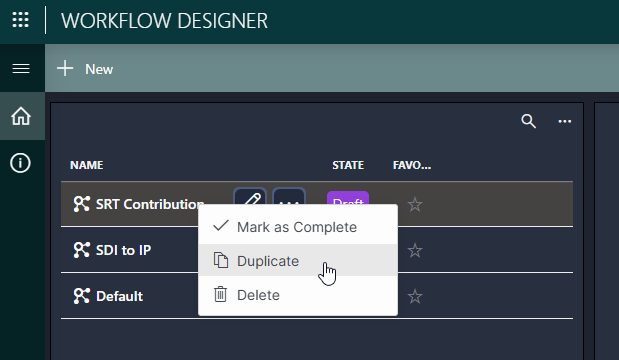
Once a workflow has been created, it will appear in the list of workflows on the Home page in the Draft state.
You can then edit the workflow via the pencil icon to update the workflow settings, specify the resources required, specify how they are linked to each other, and provide default configuration settings.