Filtering table content
From DataMiner 10.2.7/10.3.0 onwards, you can filter the contents of a table component using one of the available four methods: the general filter, the column-based filter, a text string, or a Filter query operator.
General filter
To apply a general filter across the table, a search box is available:
In edit mode, make sure the Show quick filter setting is enabled (from DataMiner 10.3.0 [CU20]/10.4.0 [CU8]/10.4.11 onwards).
In read mode, click the search icon in the upper-right corner of the component.
Specify the filter text in the search box. The search is case-insensitive and matches values as displayed in the table.
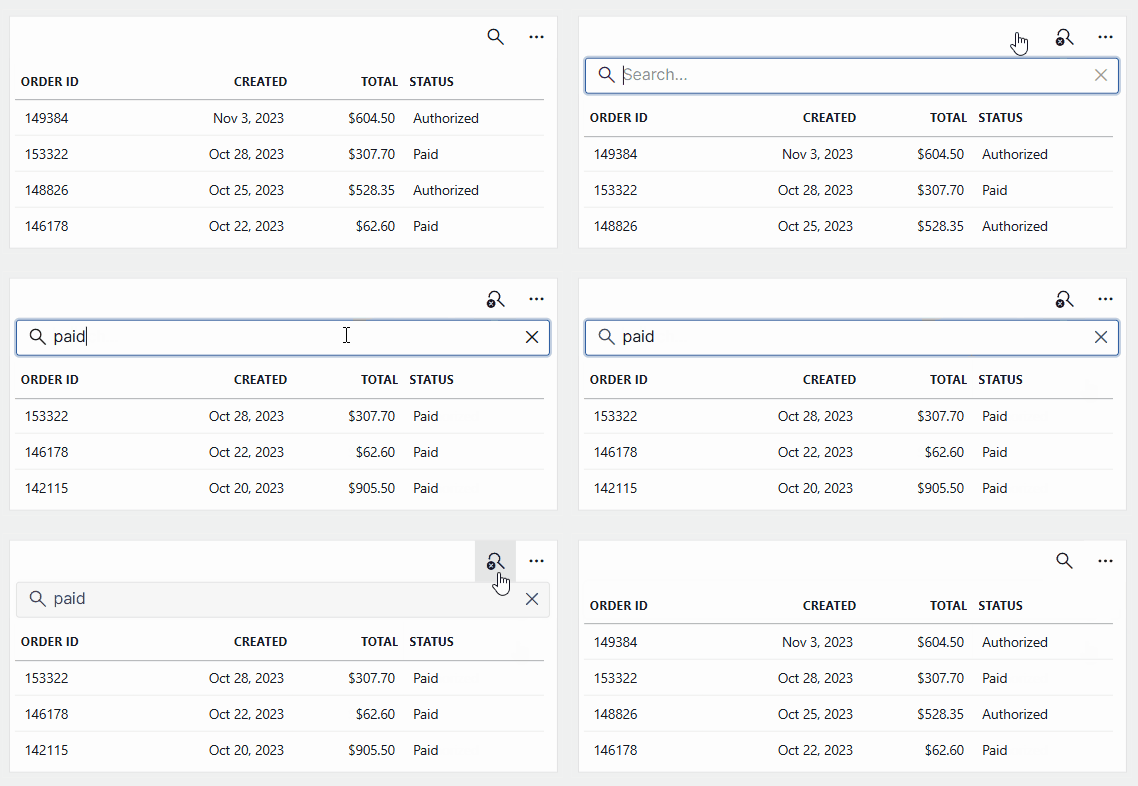
Table component in DataMiner 10.5.6This applies a client-side filter based on the display values shown in the table. For example, if the table shows a value like "2 GB", you can search for "GB" and the value will be matched.
Note
If you want to apply a server-side filter, you need to use a filter operator when you configure the query data source. Server-side filtering is based on the raw data stored in the database, not on what is displayed in the table. For example, if you want to find values in gigabytes using server-side filtering, you may need to search for something like
> 1 000 000 KB, depending on how the data is stored.
Column-based filter
To apply a filter based on a specific column:
Right-click the column header and select Filter.
Configure the different fields of the filter, depending on the type of value in the column.
For string values or GUIDs:
To switch between a positive or negative filter, click does or does not.
To switch to a different type of filter, click the second filter field. This will toggle between contain, equal, and match regex.
In the third field of the filter, specify a filter value.
For numeric or datetime values, specify the range that a value should be in.
For booleans, specify whether the value should be true or false.
For discrete values, from DataMiner 10.2.10/10.3.0 onwards, select the relevant checkboxes.
Note
Prior to DataMiner 10.2.9/10.3.0, it is possible to specify multiple conditions by clicking the + icon. As soon as one of the specified conditions applies, a value will be shown (i.e., conditions are combined using "OR"). DataMiner 10.2.9/10.3.0 switches to more efficient server-side filtering, which greatly improves the filter performance but does not allow multiple conditions in the same filter.
Click Apply filter.
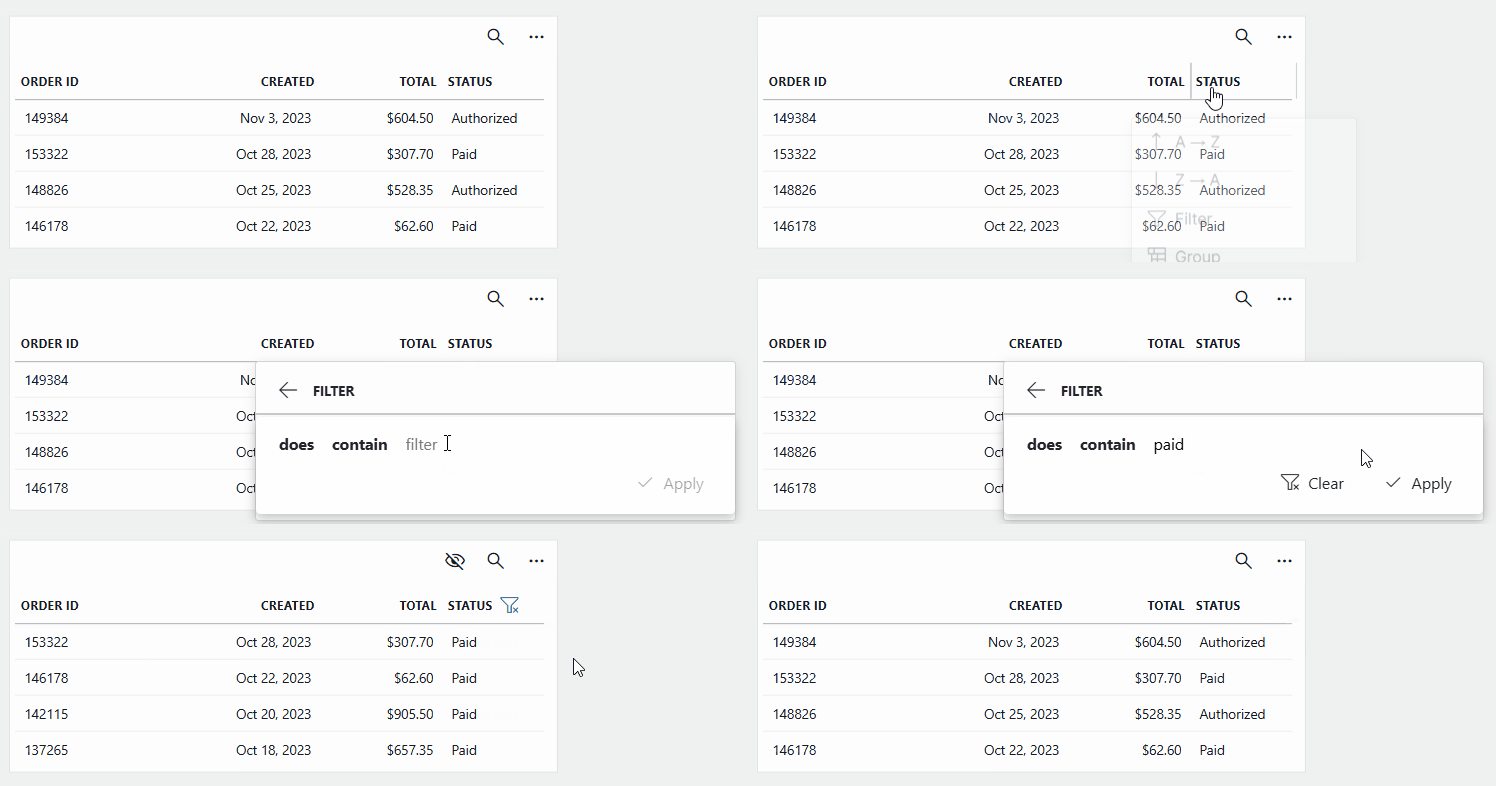
Table component in DataMiner 10.5.6
Note
If you apply several column filters or apply both the general filter and one or more column filters, values will only be shown if they match all filters (i.e., filters are combined using "AND").
Filter based on text string
From DataMiner 10.3.0 [CU20]/10.4.0 [CU8]/10.4.11 onwards, you can filter the table by passing it a text string.
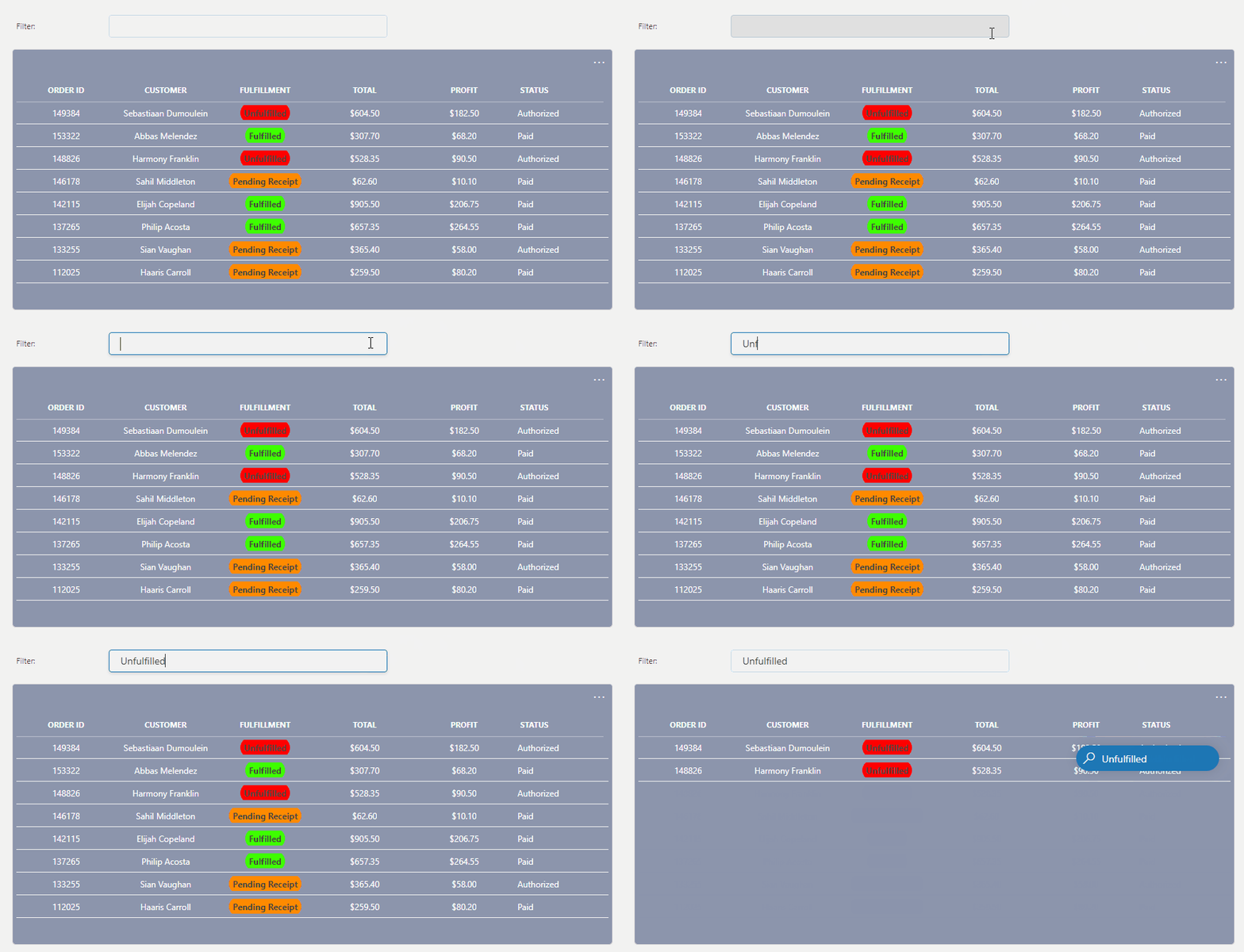
Text input component and table component in DataMiner 10.4.11
This method uses client-side filtering, which applies the filter based on the values currently shown in the table, not on the raw data stored in the database. It offers fast and flexible filtering, but may not be suitable if you need to search based on underlying raw data or large datasets that are not fully loaded in the table.
You can filter based on a text string in several different ways, for example:
Use a text input or search input component:
Add a text input or search input component to your dashboard or app.
From DataMiner 10.5.0 [CU12]/10.6.3 onwards, hover over the table component, click the filter icon, and then add a filter from the All available data > Components > [Page/Panel name] > Text input/Search input > Value > Texts section of the Data pane.
Note that depending on your setup, the exact path may be different. For example, in versions prior to DataMiner [CU21]/10.3.0 [CU9]/10.4.12, component data is found under the Feeds data category.
When you input text in the published version of the dashboard or app, the table component will automatically filter based on this input, and the value will appear in the table's search box.
Note
If you do not want the search box to appear when using text or search input data as a filter, disable the Show quick filter setting in the Layout pane.
Specify a text string in the dashboard or app URL:
Hover over the component, click the filter icon, and then add a filter from the URL > Text section of the Data pane. Prior to DataMiner 10.3.0 [CU21]/10.4.0 [CU9]/10.4.12, add a filter from the Feeds > URL > Strings section of the Data pane.
Pass a string data object within the URL, as explained in Specifying data input in a dashboard or app URL.
This URL will automatically display a filtered version of the table when the dashboard or app is opened.
In the following example, the text string "test" is sent to the component with component ID 1:
https://<dma>/<app-id>?data={"components": [{"cid":1, "select":{"strings": ["test"]}}]
Filter using a query operator
When you add a Filter operator to a GQI query, you can apply a server-side filter whose value is dynamically set, either by a component in your dashboard/app or via the URL.
To use a Filter operator in a GQI query:
Add a Filter operator.
Select the column you want to filter on.
Choose the filter method you want to use
Under Value, click the link icon and select a data source from the dropdown list.
Set Empty data shows to
everything.Drag the configured query onto the table component.
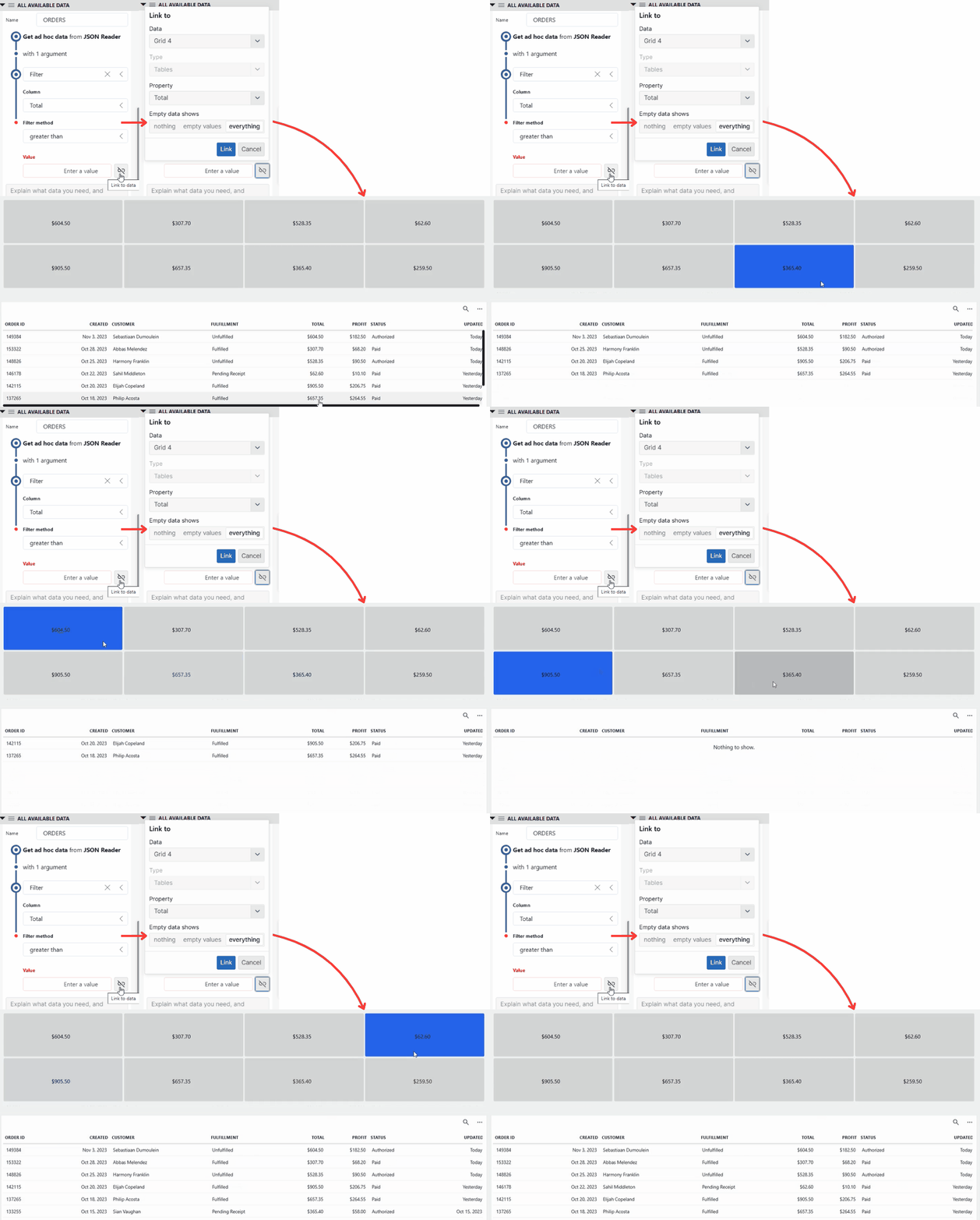
Table component and grid component in DataMiner 10.5.6