Connections
Assets can have two types of connections, data and power connections, depending on how their device type is configured (see Adding a device type):
While all assets can function as a destination for a power connection, they need to have a device type with the tag Power Provider to be able to be a source for a power connection.
To function as the source or destination for a data connection, assets need to have a device type with the tag Accepts Data Connection.
The Connections page of the Asset Manager app provides an overview of all the connections that have been created, with several ways to filter the list of connections.
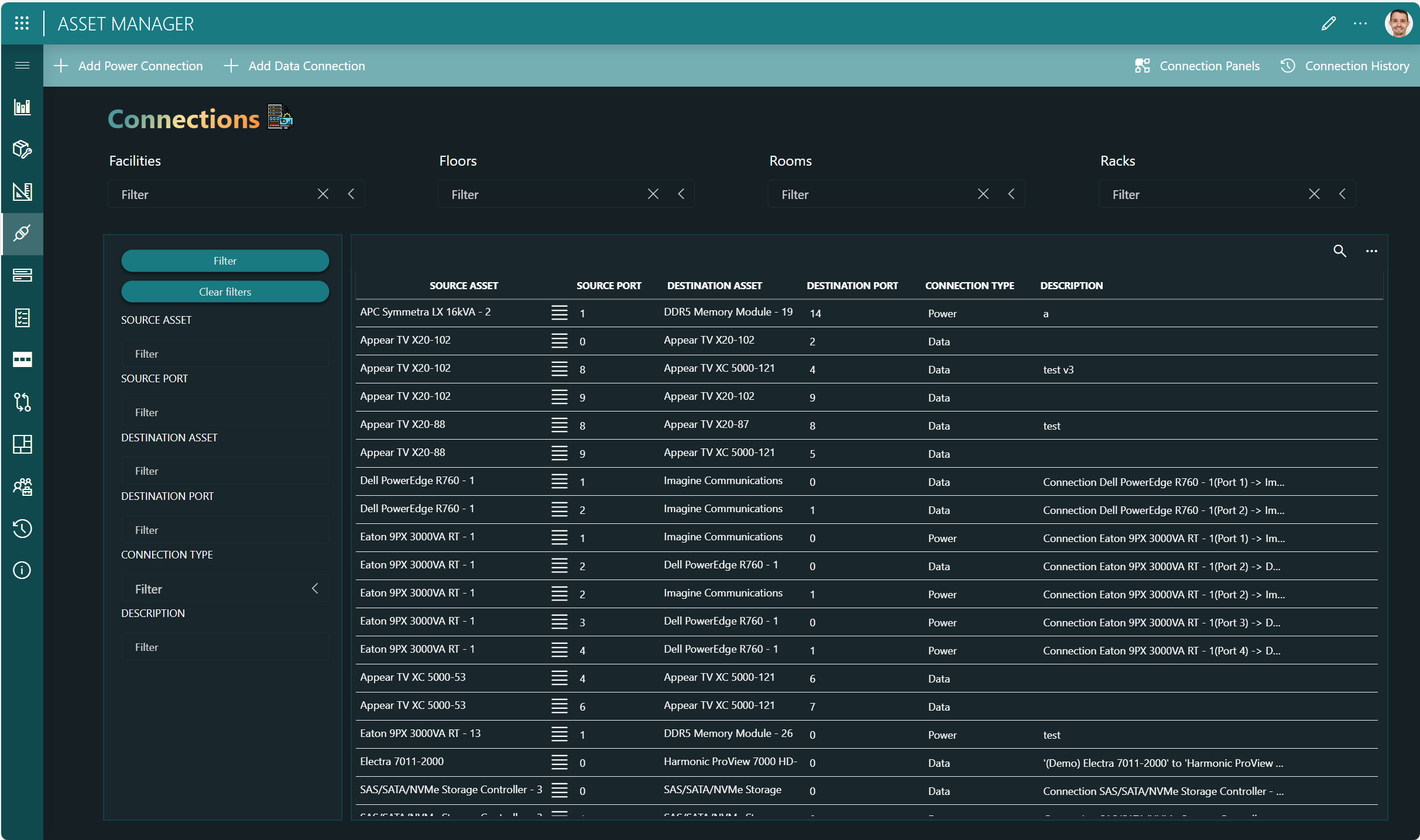
At the top, several buttons are available:
With the Add Power Connection and Add Data Connection buttons at the top, you can create connections in the same way as from the Asset details pane (see Configuring asset connections).
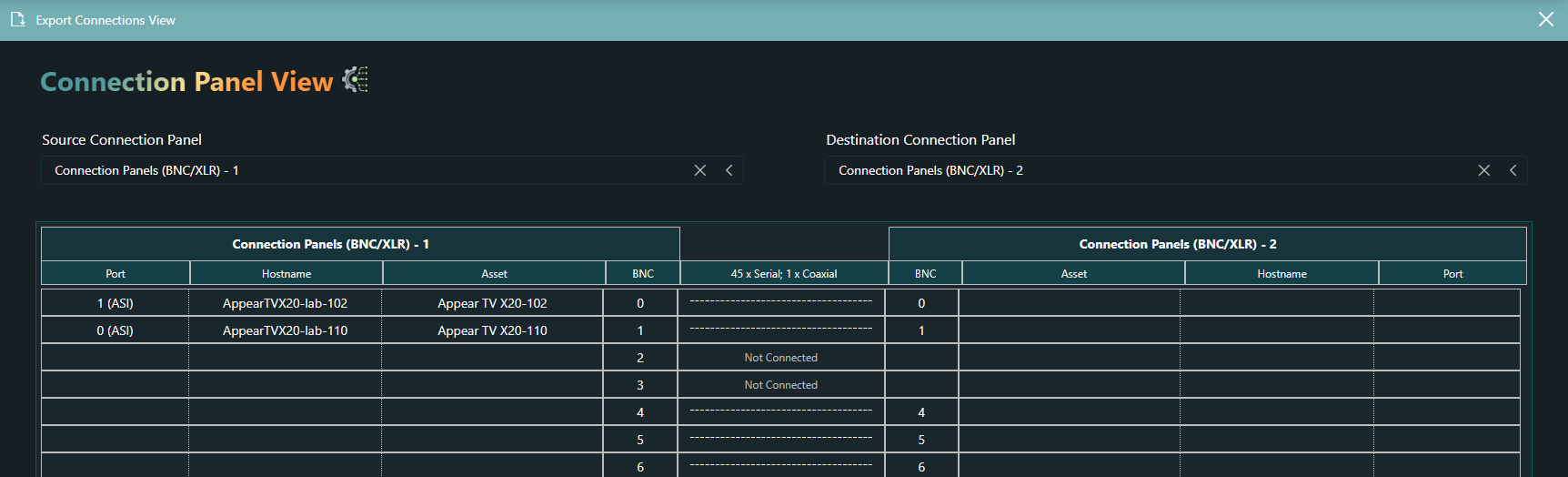
The Connection Panels button in the upper-right corner opens a connection panel view that provides a visual overview of all the connections established between assets with a "connection panel" device type and other assets (see Configuring device types):
If this is enabled in the app settings, the Connection History button shows a list of all the recent changes to connections.