Configuring asset connections
Assets can have two types of connections, data and power connections, depending on how their device type is configured (see Connections).
To configure these connection from the Asset details pane, select Open Connections > Power Connections or Data Connections.
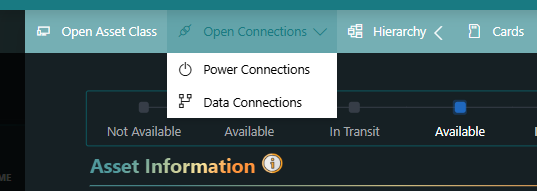
This will open a pane where you can add power or data connections and customize the power ports or data ports of the asset compared to the default configuration from the asset class.
When you click the button to add a connection, you will then need to specify the necessary information. For example, for a data connection, the following window will be displayed:
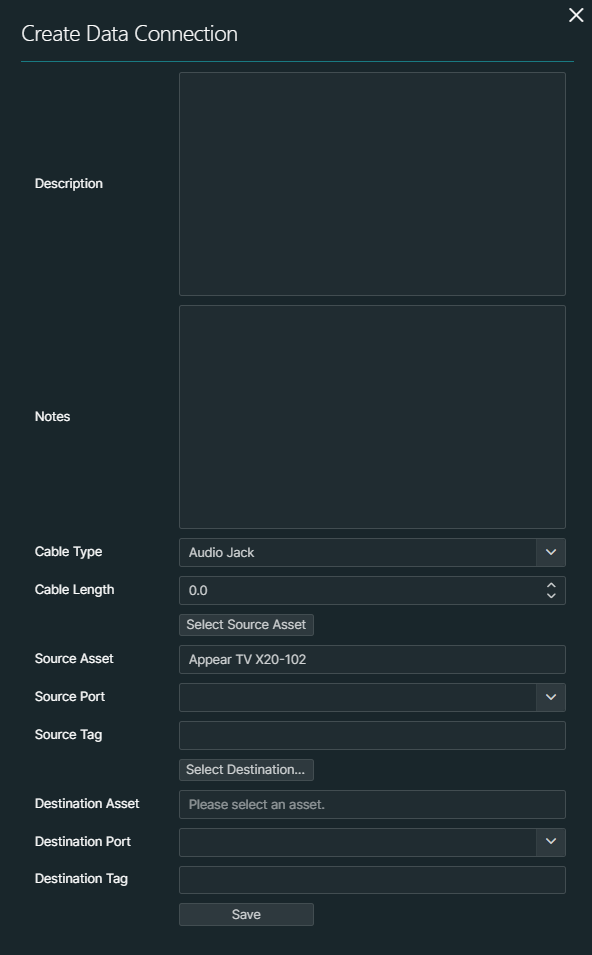
You will have to select at least the source and destination asset as well as the cable type:
- Other fields, such as Cable Length, Source and Destination Tag, and Description, are optional. The value of these fields will be shown when a user views the details for the connection on the Connections page.
- For a power connection, only cable types categorized as "Power" will be shown. For data connections, all cable types except those exclusively categorized as "Power" will be displayed.
- For the source and destination asset, you will only be able to select assets with a port type that has the selected cable type configured as a compatible cable (see Configuring port types).
- To select a source or destination asset, you will first need to filter per asset class, and, if possible, filter further using the name filter. Assets with the state "Not Available" or "Disposed" will not be displayed.
- Once a port has been selected and used for a connection, you will no longer be able to use it for new connections.