Manually provisioning endpoints and virtual signal groups for a Generic Matrix element
In this tutorial, you will learn how to provision endpoints and virtual signal groups (VSGs) for the Generic Matrix connector. These endpoints and VSGs will be used to visualize and manage the connections in the MediaOps Live solution.
There are three ways to create endpoints and VSGs:
- Manually, using the Virtual Signal Groups low-code app, as explained in the current tutorial.
- Through an automation script, using the MediaOps Live API.
- Using the CSV import functionality in the Virtual Signal Groups app.
Expected duration: 25 minutes
Note
The content and screenshots of this tutorial were created using DataMiner 10.6.4 and MediaOps Live 1.0.0.
Prerequisites
The DataMiner System you use for this tutorial must meet the following prerequisites:
- Range 1.0.1.x of the Generic Matrix connector is installed, and an element has been created using this connector.
- MediaOps Live is installed.
Overview
- Step 1: Create level and transport type
- Step 2: Create endpoints
- Step 3: Create virtual signal groups
Step 1: Create level and transport type
First, you need to create a level and transport type in MediaOps Live. In this tutorial, the Video level and SDI transport type will be used. If these already exist in your system, you can skip this step.
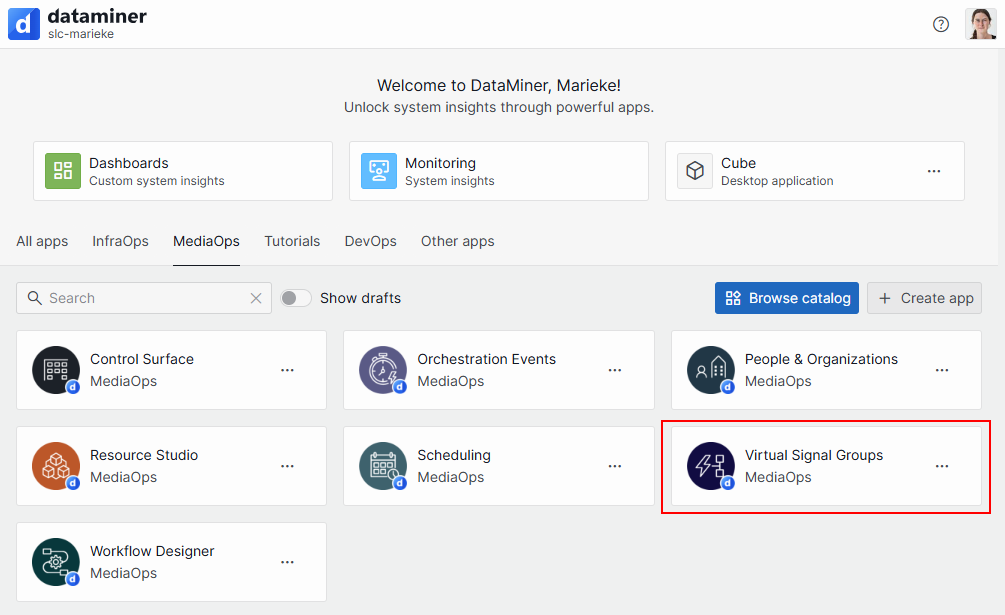
Open the Virtual Signal Groups app.
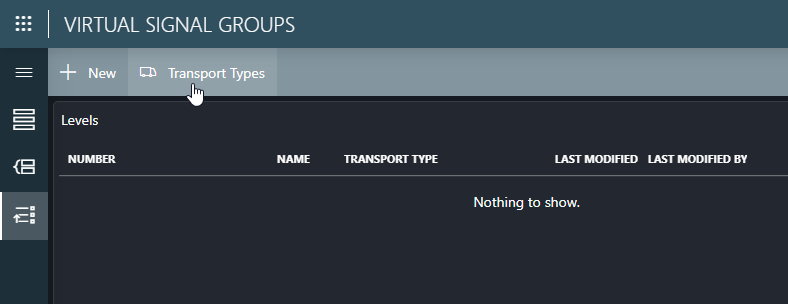
Go to the Levels page, and click the Transport Types button in the header bar.
If the
SDItransport type does not exist yet, create it by clicking the New button and specifying this transport type name.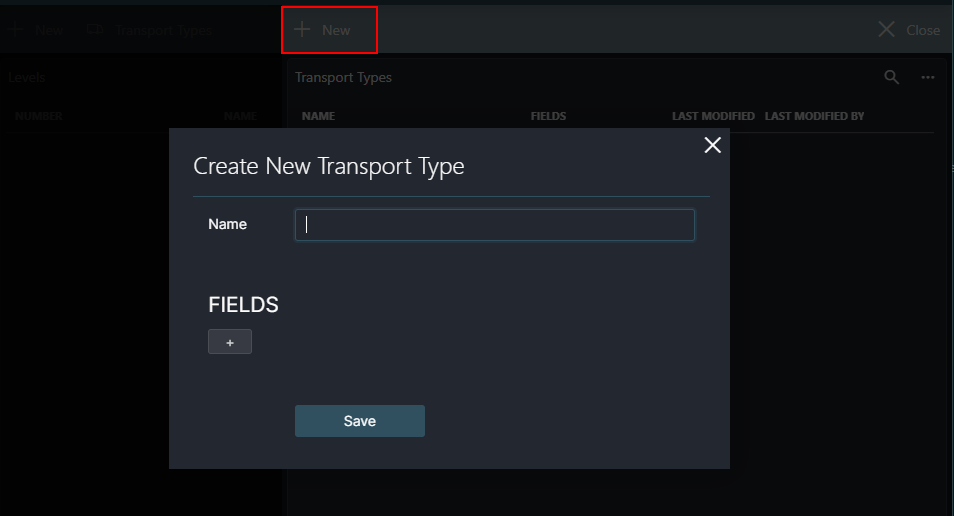
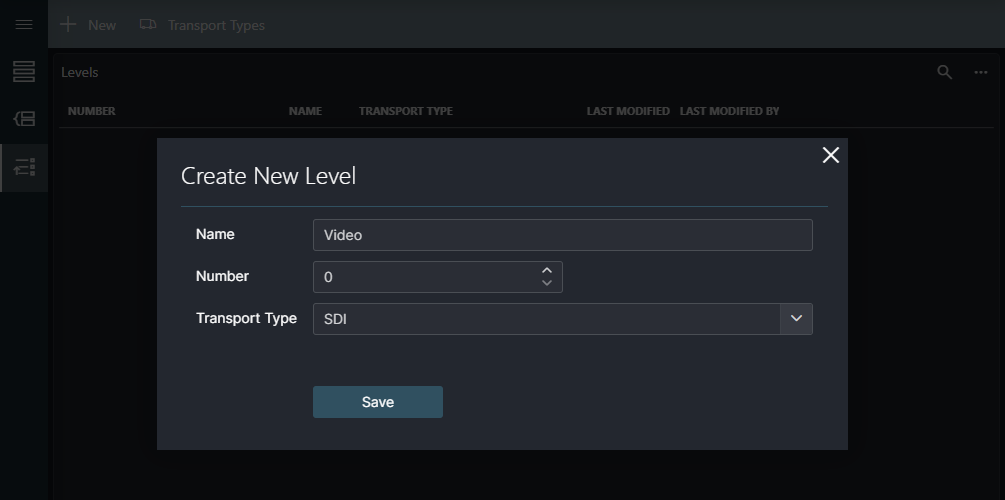
Back on the Levels page, if the
Videolevel does not exist yet, create it by clicking the New button and specifying the following information:- Name:
Video - Number:
0(or the next available number) - Transport Type:
SDI
- Name:
Step 2: Create endpoints
Next, you need to create endpoints for the inputs and outputs of the Generic Matrix connector.
In the Virtual Signal Groups app, go to the Endpoints page.
In the header bar, click the New button to create a new endpoint.
Fill in the following details in the pop-up window, and then click Save:
- Name:
Matrix Input 1(needs to be unique) - Role:
Source - Element: Select the Generic Matrix element from the dropdown
- Identifier:
1(row key in the inputs or outputs table of the Generic Matrix connector). This identifier will be used later to link the endpoint back to the correct input or output in the element. - Control Element: Leave empty.
- Control Element Identifier: Leave empty.
- Transport Type:
SDI
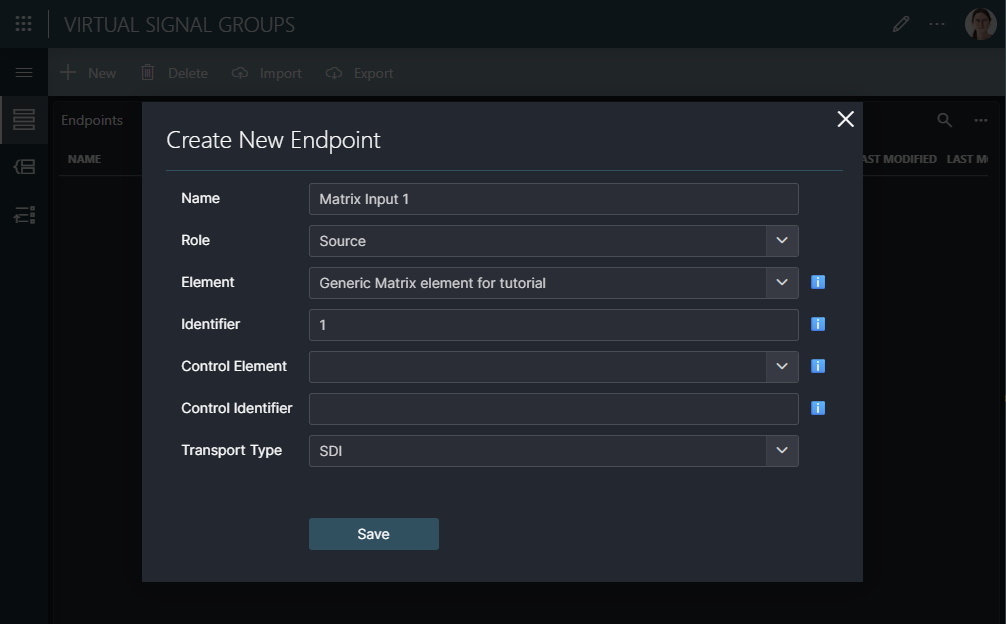
In the Endpoints table, an endpoint should now be added that is linked to row key 1 of the inputs table of the Generic Matrix connector.
- Name:
Repeat these steps to create more endpoints for inputs and outputs as needed. Make sure to also create at least one destination endpoint (with Role =
Destination).
Step 3: Create virtual signal groups
Next, virtual signal groups (VSGs) need to be created. These are logical groupings that allow the creation of connections between multiple endpoints at the same time. In this case, a VSG must be created for each endpoint created in the previous step. The endpoints will be assigned to the VSG on the Video level, but you can adjust this based on your needs.
In the Virtual Signal Groups app, go to the Virtual Signal Groups page.
In the header bar, click the New button to create a new VSG.
Fill in the following details in the pop-up window, and then click Save:
- Name:
Matrix Input 1(needs to be unique) - Description: A meaningful description (optional).
- Role:
Source
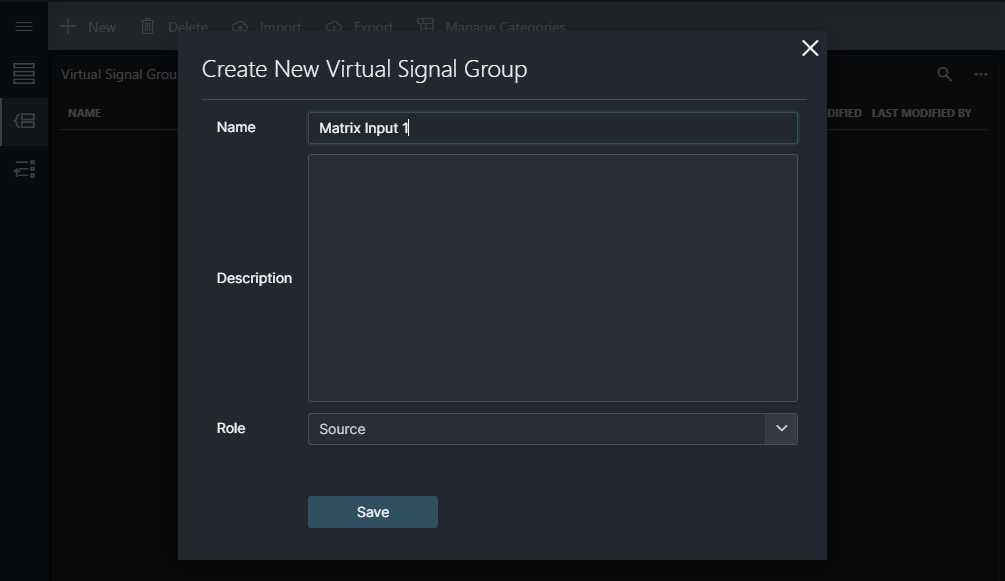
In the table, a record will be added for the VSG.
- Name:
Assign an endpoint to the VSG:
Click the edit endpoints icon in the row of the VSG you have just created.
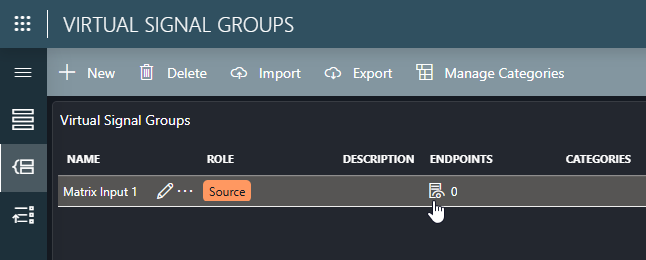
A side panel will open.
In the table at the top, select the Video level.
In the table at the bottom, select the endpoint you created in the previous step (e.g., Matrix Input 1).
Click Assign to assign the endpoint to the VSG.
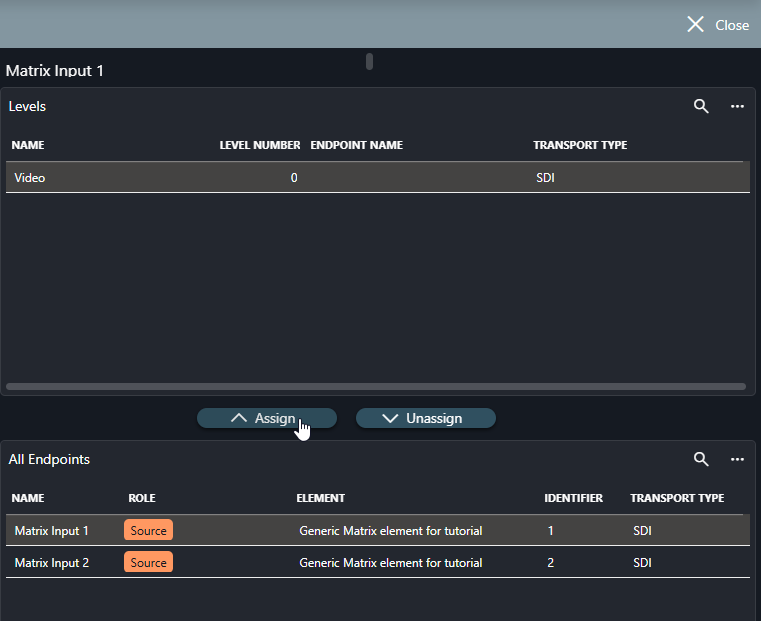
The endpoint will now be assigned on the Video level.
Repeat these steps to create more VSGs for inputs and outputs as needed, using the role Source for input VSGs and the role Destination for output VSGs.
Up next
Now that you have created endpoints and VSGs, you can create a connection handler script by following the tutorial Creating a connection handler script for a Generic Matrix element. Once that is done, you will be able to create connections between the encoders and decoders using the Control Surface app.
Alternatively, you can also explore how to create endpoints and virtual signal groups in a different way, as in many cases there will be too many to do this manually. You can either automate this process using an automation script or create endpoints and VSGs in bulk via CSV import.