Managing beams
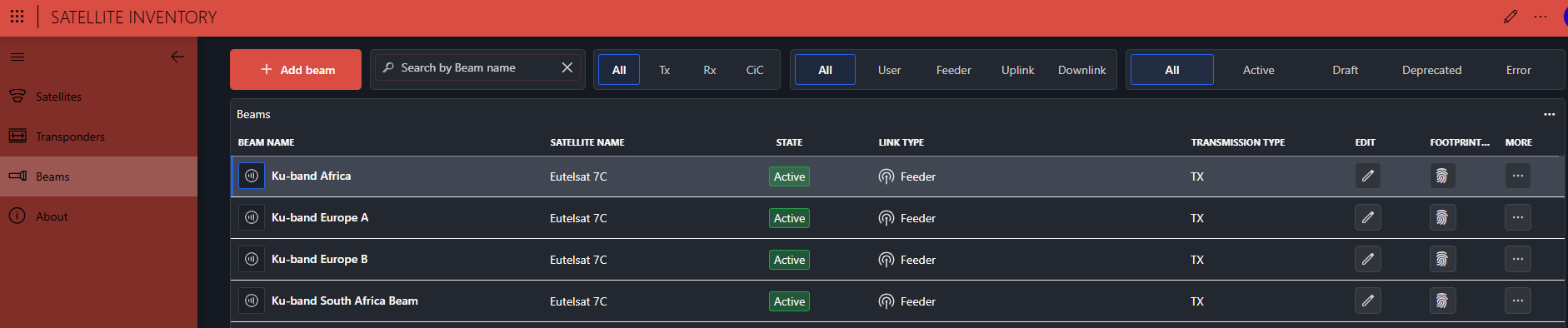
A beam represents a coverage area of a satellite and groups one or more transponders. The Beams page lists the configured beams and lets you manage them.
Filtering the beam list
At the top of the page, you can use four filters to narrow down the list of beams:
Search by beam name.
Filter by transmission type (Tx, Rx, or CiC (carrier-in-carrier)).
Filter by link type (User, Feeder, Uplink, or Downlink).
Filter by state (Active, Draft, Deprecated, or Error).
Adding a beam
To add a beam:
On the Beams page, click Add beam.
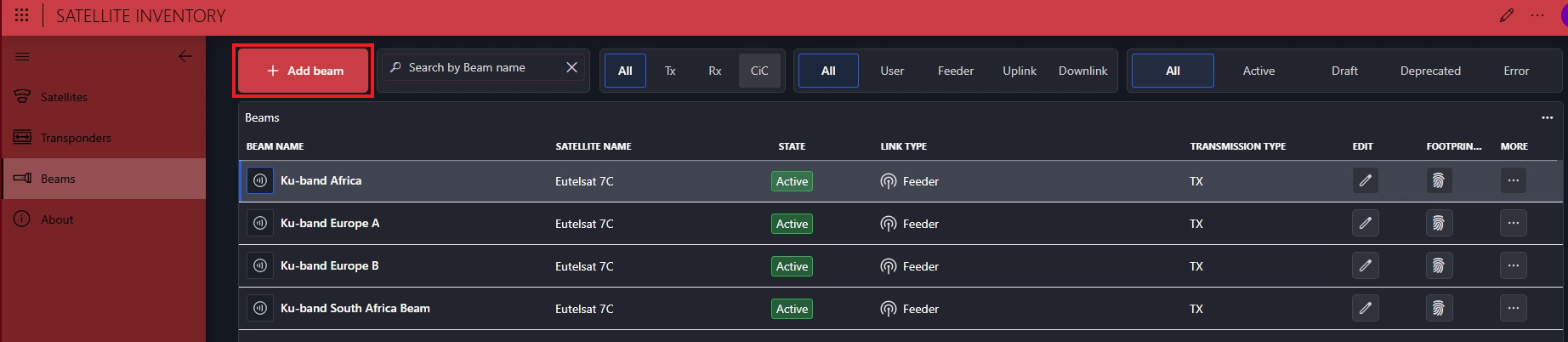
Provide the following information about the beam:
- Beam Name: A descriptive name for the beam.
- Beam Satellite: The satellite to which the beam belongs.
- Link Type: The beam's link type (Feeder, User, Uplink, or Downlink).
- Transmission Type: The beam's transmission type (TX, RX, or Carrier in Carrier).
- Footprint File: A path or URL to the KML file that describes the beam footprint.
Click Create Beam.
Note
Beam footprints are defined using KML files. Support for GeoJSON files is planned for a future release. You can specify a public URL or upload a KML file via the document hub.
Editing a beam
To edit a beam:
Click the
 Edit icon in the beam's row.
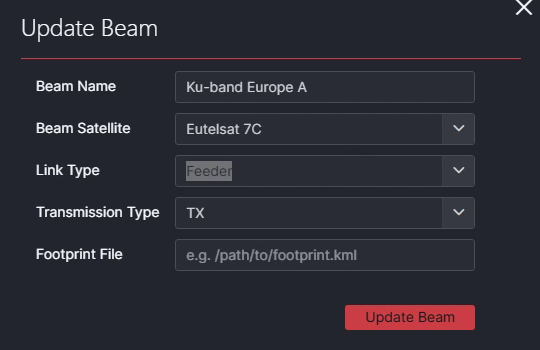
This opens a panel where you can modify the beam properties.
Click Update Beam to save your changes.
Activating a beam
After you create a beam, its state will automatically be set to Draft. You must first activate the beam before it becomes available in the system.
To activate a beam:
Click the
 More icon in the beam's row.
Select Activate.
Viewing a beam footprint
If a beam has a footprint file configured, you can view its coverage area on a map.
To view a beam footprint, click the  Footprint icon in the beam's row. A side panel opens, displaying the beam footprint on a geographical map.
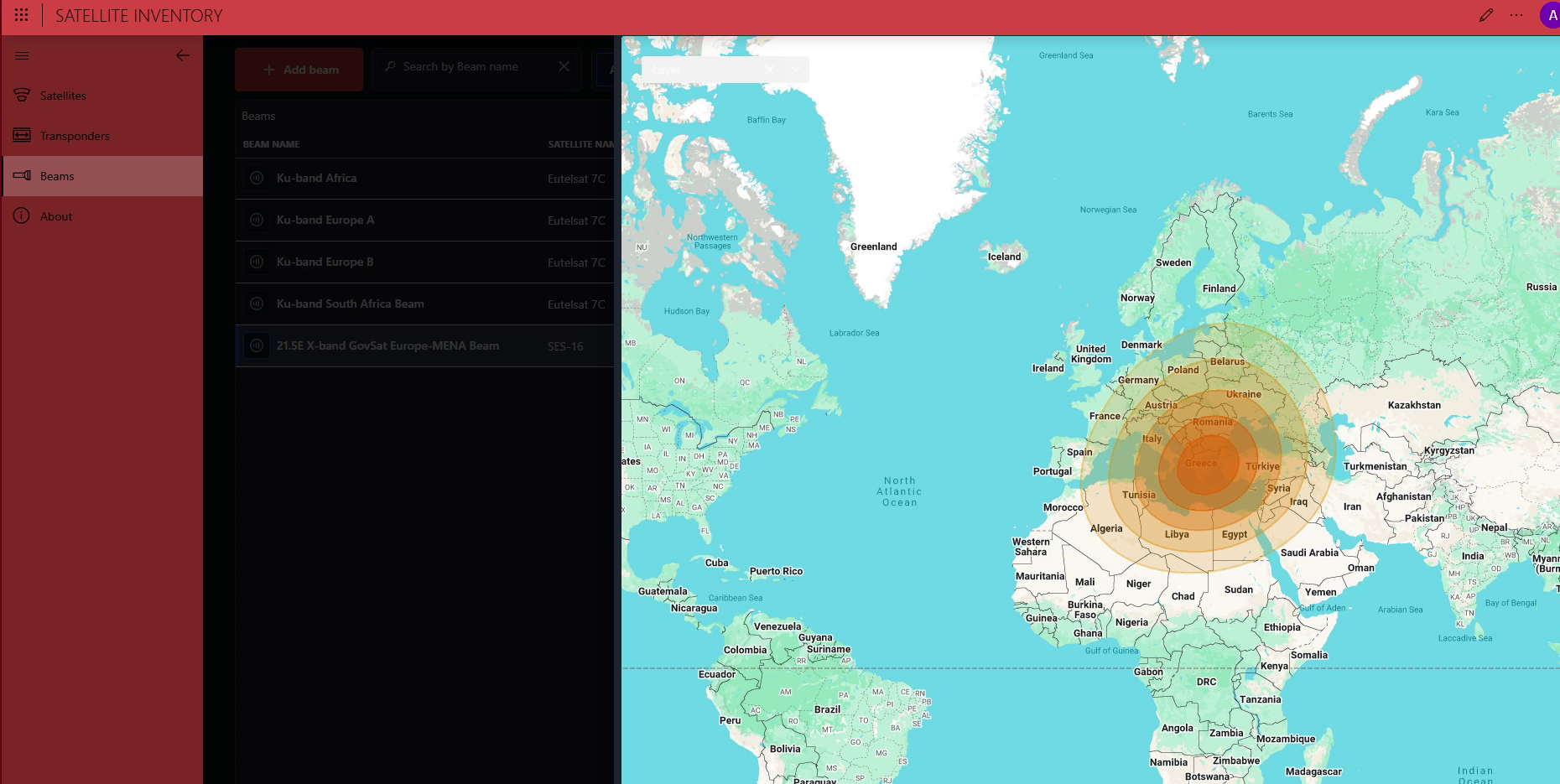
The footprint shown here comes from a KML file created specifically for documentation purposes. Actual beam footprints typically have a more irregular shape that reflects the beam's real signal coverage.
The map opens in a side panel over the beam list, allowing you to keep the context of the beam you are inspecting.
Deprecating a beam
Beams cannot be deleted. To remove a beam from active use, deprecate it instead. This preserves historical inventory data.
To deprecate a beam:
Click the
More icon in the beam's row.Select Deprecate.