Adding and editing transponders
A transponder belongs to a beam and relays signals within that beam. Its bandwidth is divided into bookable slots through transponder plans. The Transponders page lists all configured transponders and allows you to manage them.

Adding a transponder
To add a transponder:
On the Transponders page, click Add transponder.
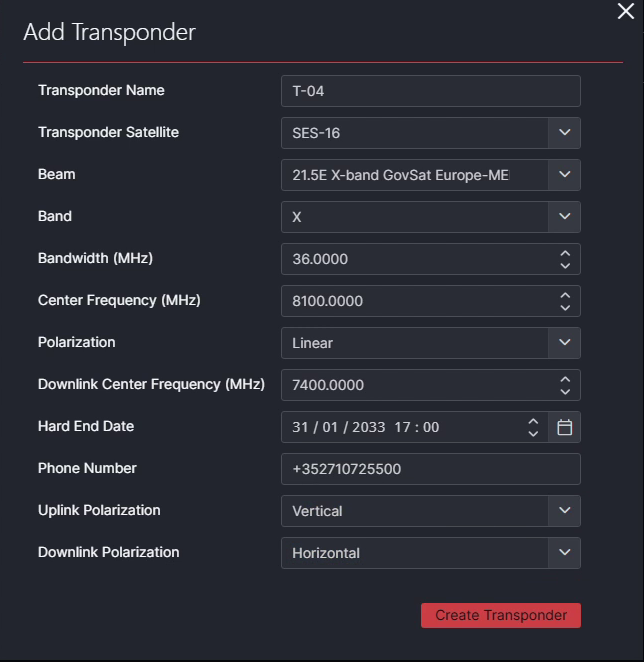
Provide the following information about the transponder:
- Transponder Name: The name of the transponder.
- Transponder Satellite: The satellite the transponder belongs to.
- Beam: The beam the transponder belongs to.
- Band: The frequency band.
- Bandwidth (MHz): The bandwidth of the transponder, expressed in MHz.
- Center Frequency (MHz): The center frequency of the transponder, expressed in MHz.
- Polarization: The polarization type: Linear or Circular.
- Downlink Center Frequency (MHz): The center frequency of the downlink, expressed in MHz.
- Hard End Date: The date on which the transponder is no longer available.
- Phone Number: A contact phone number.
- Uplink Polarization: The uplink polarization within the selected polarization type (e.g., Horizontal or Vertical).
- Downlink Polarization: The downlink polarization within the selected polarization type (e.g., Horizontal or Vertical).
Click Create transponder.
Note
When editing numeric fields such as the Bandwidth or Downlink Center Frequency, position the cursor on the digit you want to modify before typing. This is a known usability limitation that may be addressed in a future release.
Activating a transponder
After a transponder is created, its state is automatically set to Draft. You must first activate the transponder before it becomes available in the system.
To activate a transponder:
Click the
 More icon in the transponder's row.
Select Activate.
Editing a transponder
To edit a transponder:
Click the
 Edit icon in the transponder's row.
This opens a panel where you can modify the transponder properties.
Click Update transponder to save your changes.
Transponder plans and slots
Each transponder's bandwidth is divided into slots by one or more transponder plans.
You can open the Slots panel for a transponder by clicking the  Slots icon in the transponder's row. A side panel will open where you can create transponder plans and generate the slots that can be booked via the Satellite Scheduling app.
Tip
For more information, see Transponder plans and slots.