ServiceNow integration example
This example describes the end-to-end workflow of creating a ticket from DataMiner Cube and automatically generating a corresponding incident in ServiceNow:
- An alarm is generated in DataMiner.
- A ticket is created from Cube with ServiceNow integration enabled.
- A corresponding incident is automatically created in ServiceNow, and the ServiceNow incident ID is stored in the DataMiner ticket.
- Updates in ServiceNow are synchronized back to DataMiner, ensuring that the ticket state in DataMiner reflects the state of the incident on the external system.
Creating a ticket
Create a ticket from the Alarm Console, but also configure the following details in the ticket creation window:
- Select an external ticketing system
- Choose the ServiceNow entry created during the integration configuration.
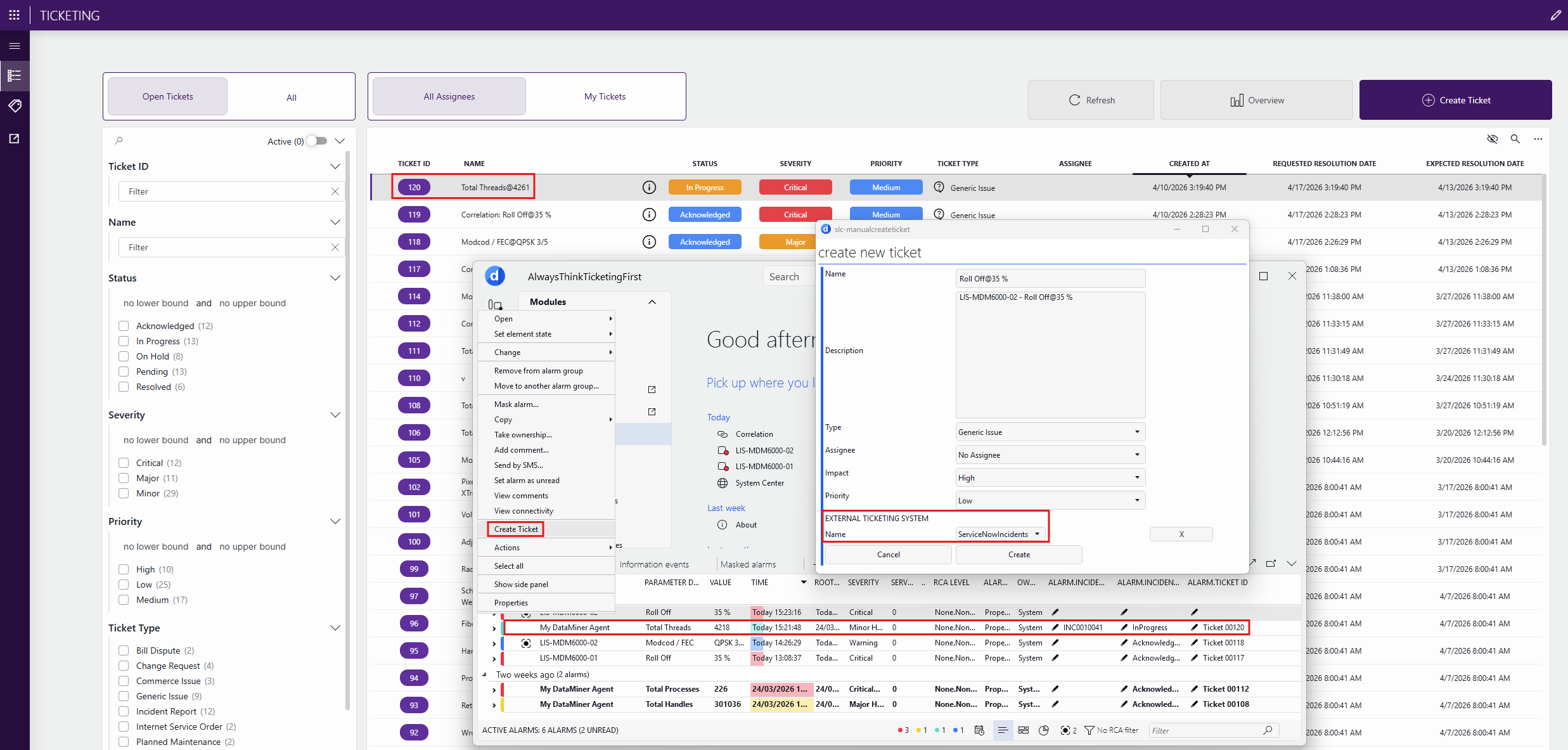
Several things will now happen:
- A DataMiner ticket ID and ServiceNow incident ID are generated and shown in the creation response.
- A ticket is created in DataMiner, linked to the alarm.
- A corresponding incident is created in ServiceNow.
- Ticket-related alarm properties in the Alarm Console (Ticket ID, Incident Status, and Incident Number) are updated accordingly.
Tip
Ensure that the related alarm properties are displayed in the Alarm Console so users can view this ticket-related information.
Viewing the ticket
In the Ticketing application, you will see the ticket listed with its assigned ID.
Clicking the information icon for the ticket will among others show the following details:
- Linked alarm and element
- External ticketing details
- The corresponding ServiceNow incident ID
Opening the ServiceNow incident
From the ticket information page, you can select the ServiceNow incident link.
This opens the corresponding incident directly in ServiceNow using the stored incident ID.
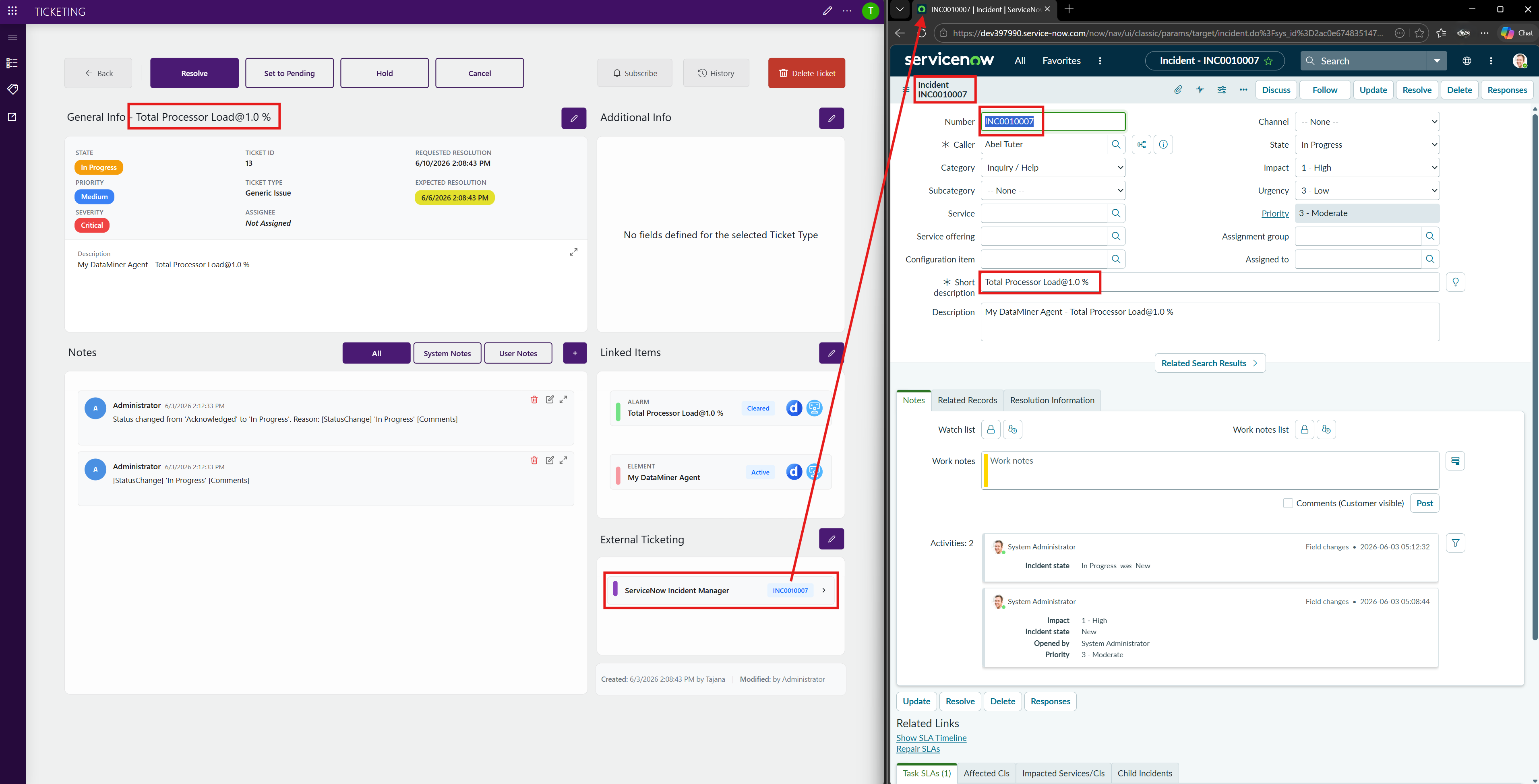
Synchronization with updates in ServiceNow
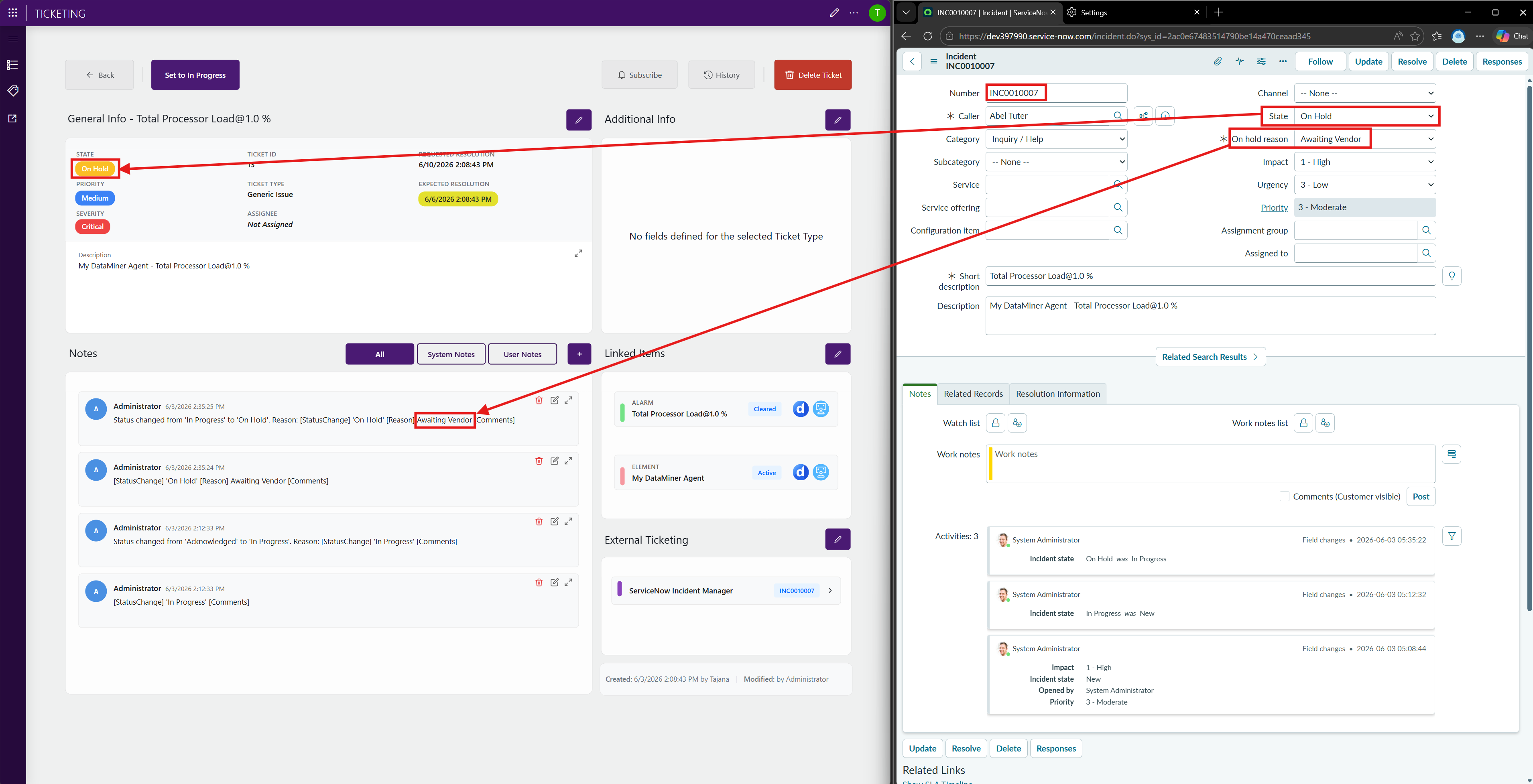
When the incident is updated in ServiceNow, for example, if the status is set to In progress, or if the incident is assigned to a user, the ServiceNow Incident Manager connector will automatically detect these updates. The connector will then synchronize the ticket accordingly in the Ticketing application.
After synchronization, the DataMiner ticket will reflect the updated state (e.g., status change to In progress), and you will be able to see the updates in the ticket details and notes section.
For example: