Ring
This component displays the name and, if applicable, the value of a DataMiner object within a colored ring matching the state of the object. This can be an element, a view, a parameter, etc.
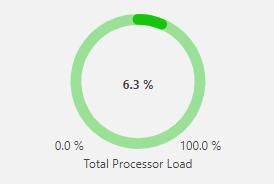
Ring component in DataMiner 10.4.6
To configure the component:
-
Column parameter data is supported.
Note
If no filter is specified, the number of parameter rows that can be displayed by this component is limited to 100. To display more rows or filter out specific rows, you can use a Parameter picker and link this to the state component.
In case parameter data included a parameter based on a protocol, a filter can be used to filter on a specific element.
From DataMiner 10.2.0/10.1.4 onwards, you can select view parameters as a data source to view information on aggregation rules on specific views. To select these, in the dropdown box for the parameter data source, select View.
Note
Once this component has been configured with data input, the exposed data will appear as component data in the Data pane and can be used by other components. This way, if the input for this component changes, the exposed data will update automatically for all components that use it as their data input.
Optionally, customize the following component options:
To customize the polling interval for this component, expand the Settings > WebSocket settings section, clear the checkbox in this section, and specify the custom polling interval.
In case the component displays more than one item, in the Settings pane, select how the items should be grouped: by parameter, by element, by table index (if relevant) or by all the above together. Note that view parameters can only be grouped together with other parameters with the option All together, otherwise they are placed in a separate group.
To customize the value range of the component, in the Settings pane, select Fixed minimum and/or Fixed maximum and specify the custom minimum and/or maximum. This option is available from DataMiner 10.2.0/10.1.6 onwards.
Fine-tune the component layout. In the Component > Layout pane, the following options are available:
The default options available for all components. See Customizing the component layout.
If parameter data input is used, in the Labels section, you can select whether the parameter name, the element name, the index (for a table parameter) or the value should be displayed in the component.
In case the component displays more than one parameter, in the Advanced > Layout section, you can adjust the way the different items are displayed:
Layout flow: Determines whether the different items are displayed next to each other or below each other. However, note that when the items are viewed on a small screen, they will always be displayed below each other.
Maximum rows per page: Determines how many items can at most be displayed below each other on a single page.
Maximum columns per page: Determines how many items can at most be displayed next to each other on a single page.
Note
Data with multiple elements, services, views, or redundancy groups are supported, but they have a fixed scroll configuration that cannot be adjusted in the Layout pane.
The Style section, the following options are available:
Align font sizes: Only available if Design is set to Auto Size. This option causes the font size to be aligned with the font size of other components using this option. If the option is not selected, the text is simply displayed as large as possible within the component.
Show progress: Only available if the component displays an analog parameter. In that case, a darker color within the ring will indicate the current parameter value.
Show minimum: Available from DataMiner 10.2.0/10.1.6 onwards. Select this option to show the minimum value of the value range below the ring. Note that this value can be customized in the component settings.
Show maximum: Available from DataMiner 10.2.0/10.1.6 onwards. Select this option to show the maximum value of the value range below the ring. Note that this value can be customized in the component settings.
Show icon: Determines whether an icon is displayed for the parameter. You can select which icon is displayed in a dropdown list.
For trended parameters, by default a trend icon is displayed. Clicking this icon will open the corresponding trend graph in the Monitoring app.
Design: Available from DataMiner 10.2.0/10.1.6 onwards. Determines how the text in the component is displayed. The options Small and Large show the text in a small and large font size, respectively. If you select Auto size, the font size will automatically be adjusted to fit in the available space.
Alignment: Available from DataMiner 10.2.0/10.1.6 onwards. Only displayed if Design is set to Small or Large. Allows you to align the contents of the components to the left, in the center or to the right.