Parameter picker
The parameter picker component allows you to select multiple parameters from a predefined list. At the top of the list, a box is available that allows you to select or deselect all items in the list at once.
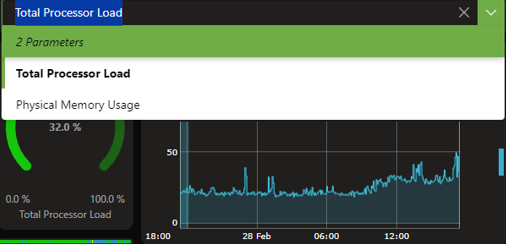
Parameter picker component in DataMiner 10.4.5
Note
Prior to DataMiner 10.3.0 [CU21]/10.4.0 [CU9]/10.4.12, this component is called the "parameter feed" component instead.
With this component, you can:
Select or deselect parameters individually or all at once.
Filter which parameters are listed, for example by applying an index or view filter.
Group parameters to control how the content of other, linked components is organized.
Pass selected parameter indices to other components, so you can reuse a selection elsewhere in your dashboard or app.
Supported data types
The component supports element and parameter data. See Adding data to a component.
In case a table parameter is added, an indices filter can be specified. In case all parameters or all elements are added, protocol or view data can be used as an additional filter.
Multiple view filters can be applied to a parameter picker. Parameters in those views will then be included as soon as they are included in one of the view filters.
A default index filter can be applied. To do so, first add the
showAdvancedSettings=trueoption to the dashboard or app URL. In the Data pane, a Parameter table filters section will then become available where you can configure the filter.
Note
From DataMiner 10.3.4/10.4.0 onwards, when an EPM picker is used to pass EPM identifiers to a parameter picker, it will also list the parameters of the enhanced elements that are linked to the EPM objects. EPM identifiers are System Type and Name data provided by an EPM picker (indicated as EPM identifiers in the Data pane).
Selecting parameters
Select or clear the checkbox in front of a parameter to include or exclude it from the selection. At the top of the list, a box is available that allows you to select or deselect all items in the list at once.
How "Select all" behaves can be configured via the Select all behavior setting. See Parameter picker settings.
If the component is loaded with an initial selection, the selected items are always displayed at the top. See Parameter picker settings.
Grouping parameters
When other components are linked to the parameter picker, so that their content changes dynamically based on what is selected in the picker, the default way the content of those components is grouped can be configured in the parameter picker.
To configure the default grouping:
Once data has been added to the component, go to the Component > Settings pane, and set the Default grouping setting to the option of your choice.
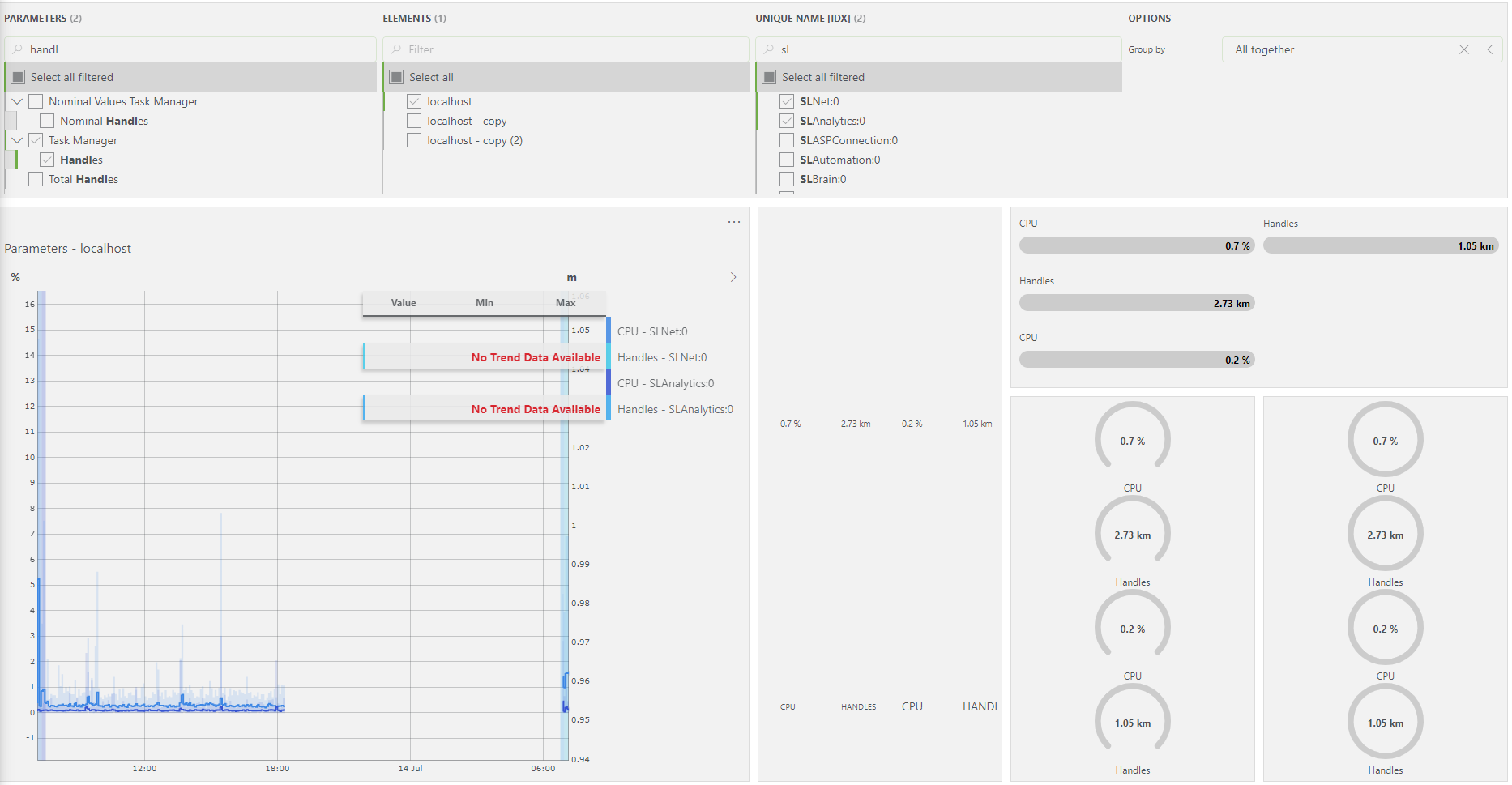
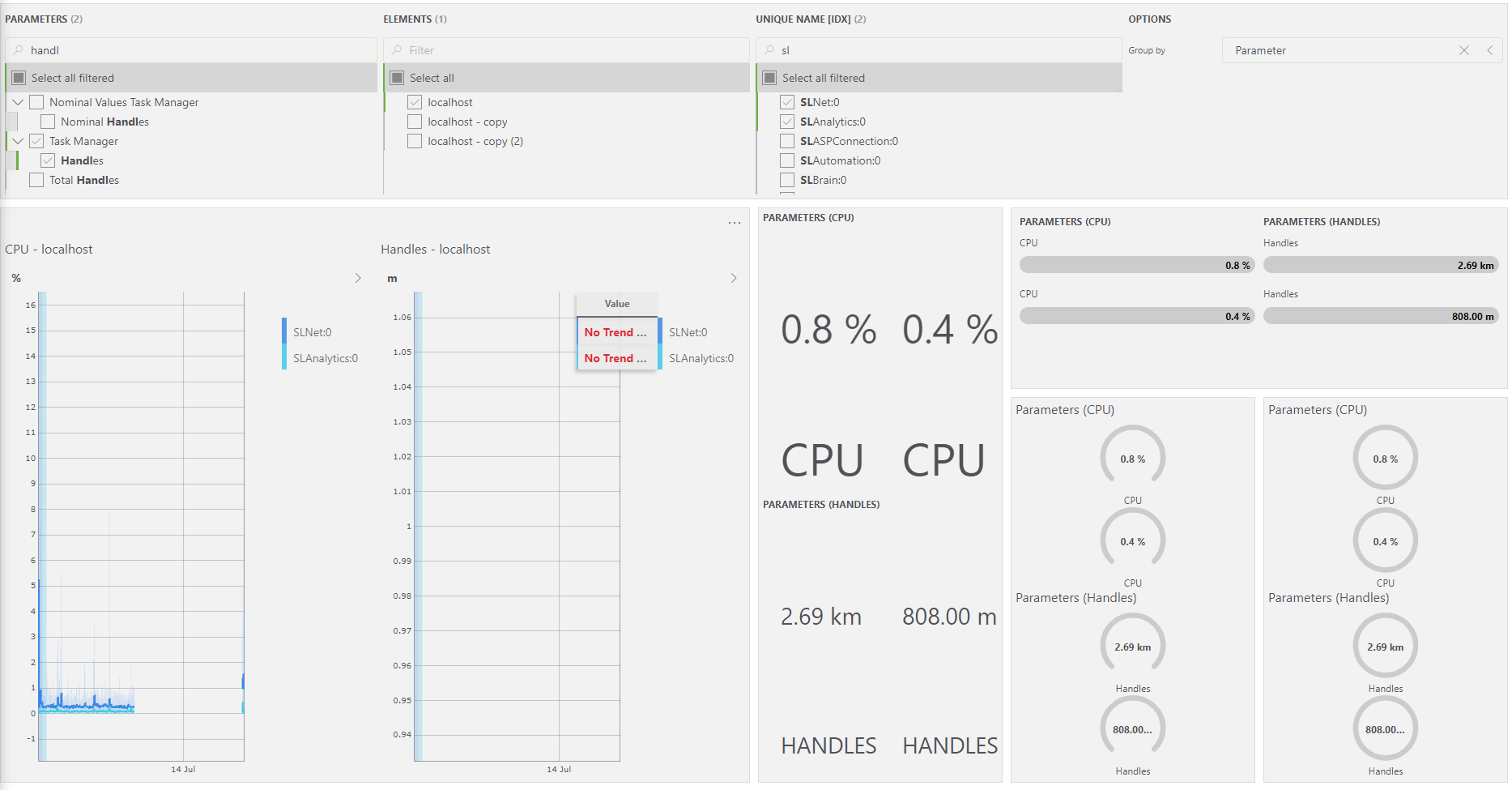
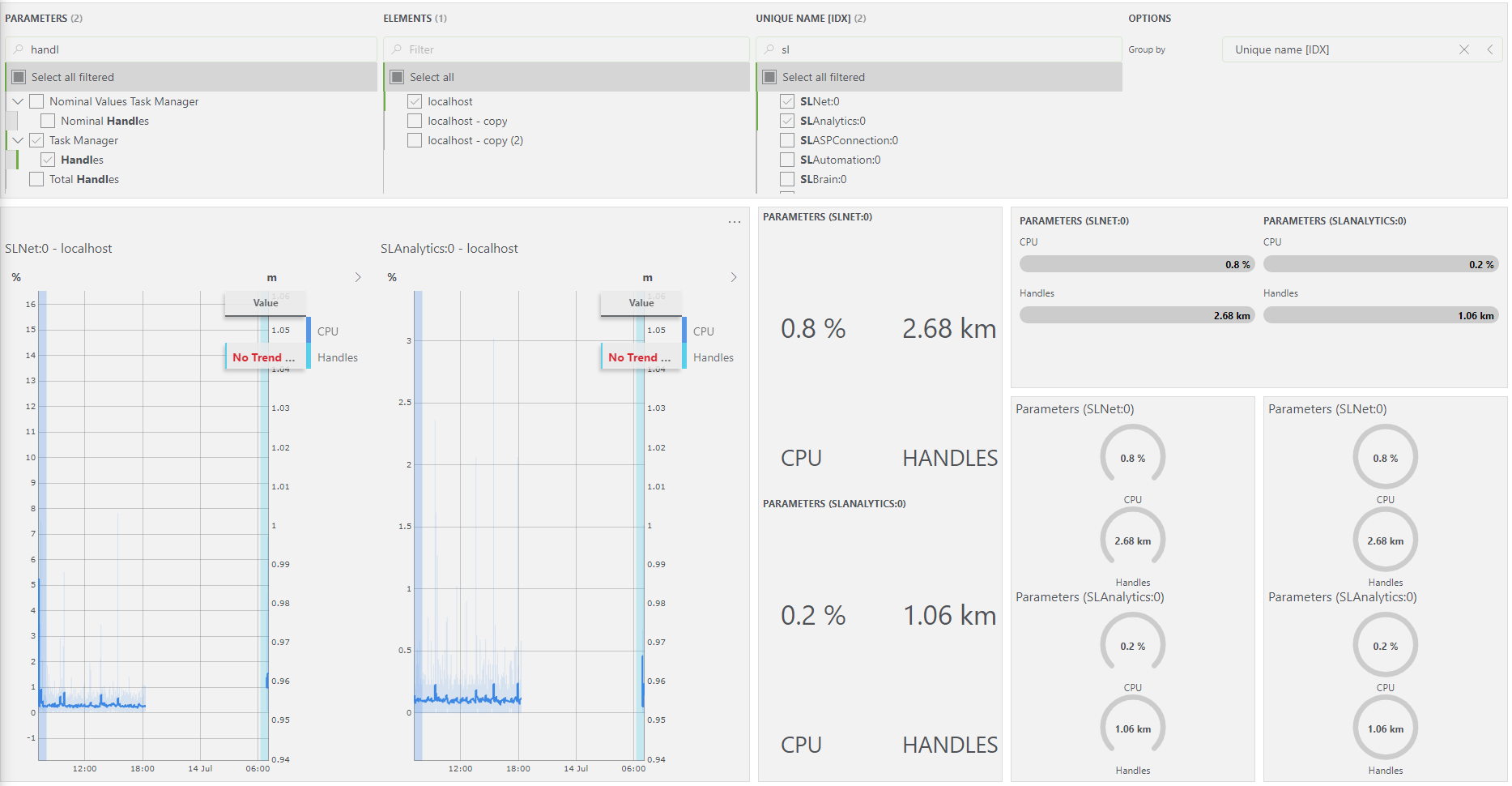
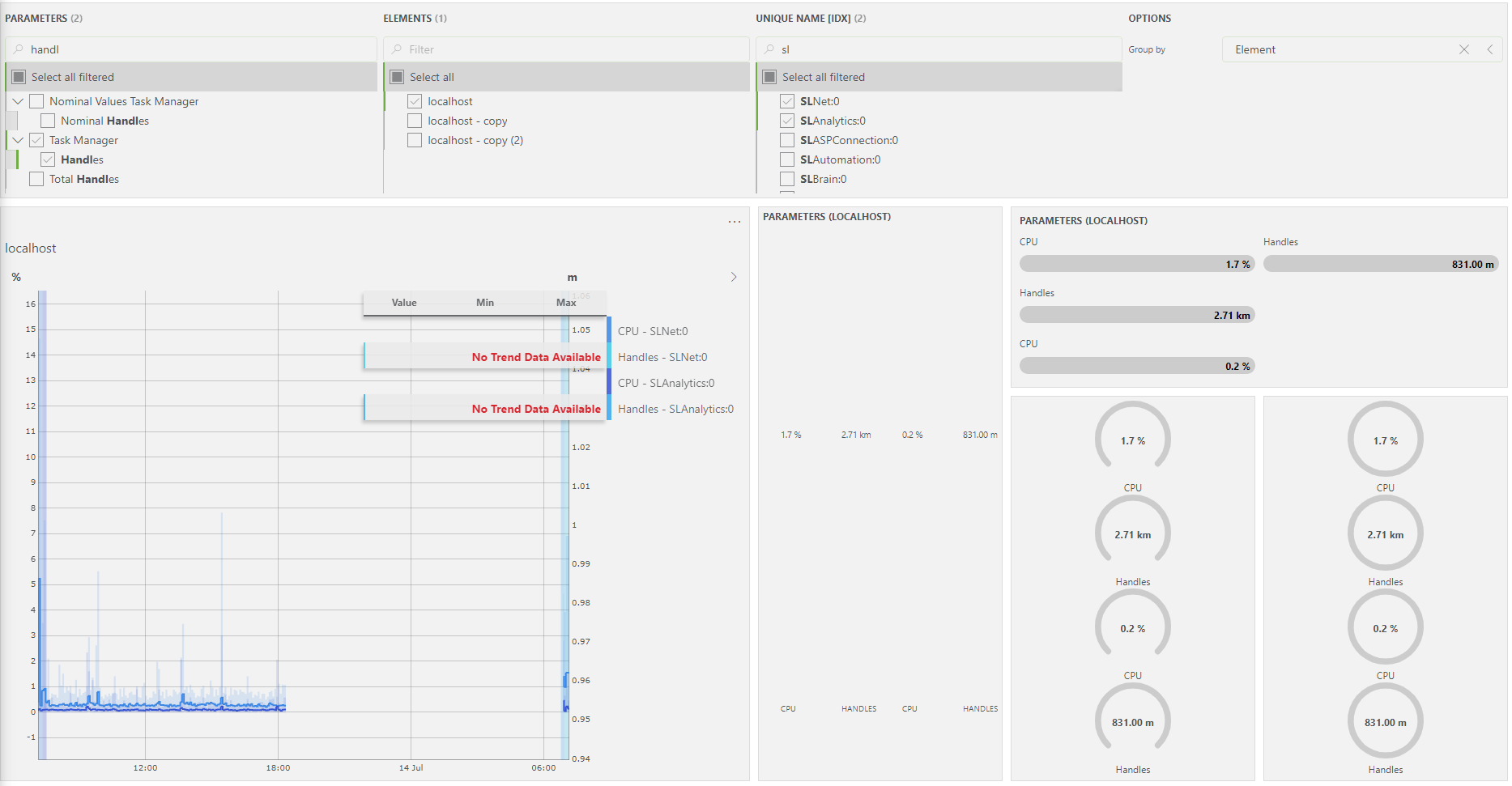
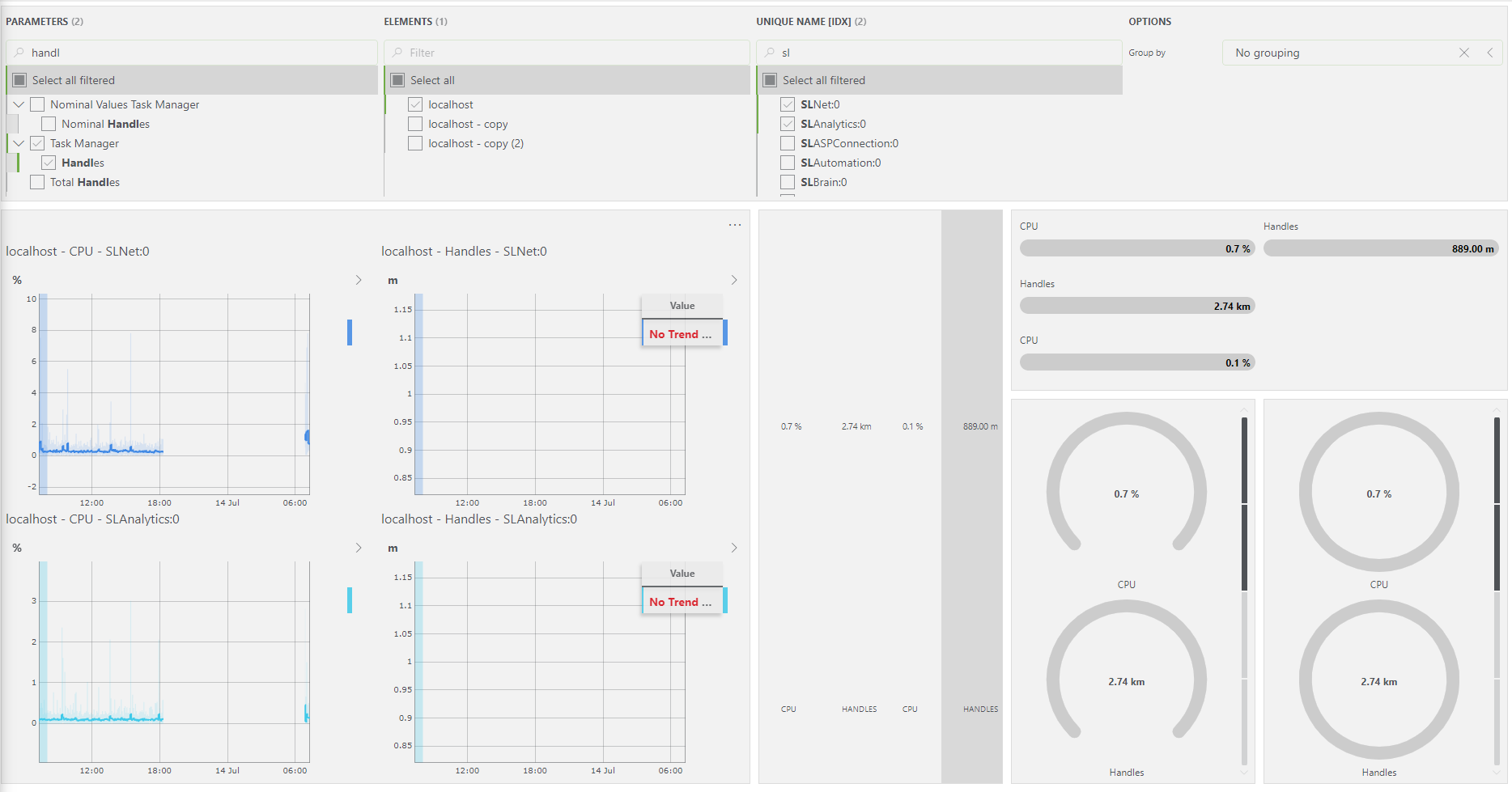
For example (in DataMiner 10.3.8):
Default grouping: All together
Default grouping: Parameter
Default grouping: Table index
Default grouping: Element
Default grouping: No grouping
Note
- This default grouping is supported for the following visualizations: State, Progress bar, Gauge, Ring, and Line & area chart.
- It is possible to override this default grouping with the Group by setting of the other components.
Passing selected indices to other components
After selecting column parameter indices in a parameter picker, you can pass those selected indices to other components that support the same data.
In the Parameter Picker window, select the checkboxes in front of the parameters you wish to include.
Available indices will appear under Indices.
Select the checkboxes in front of the indices you wish to include. For example:
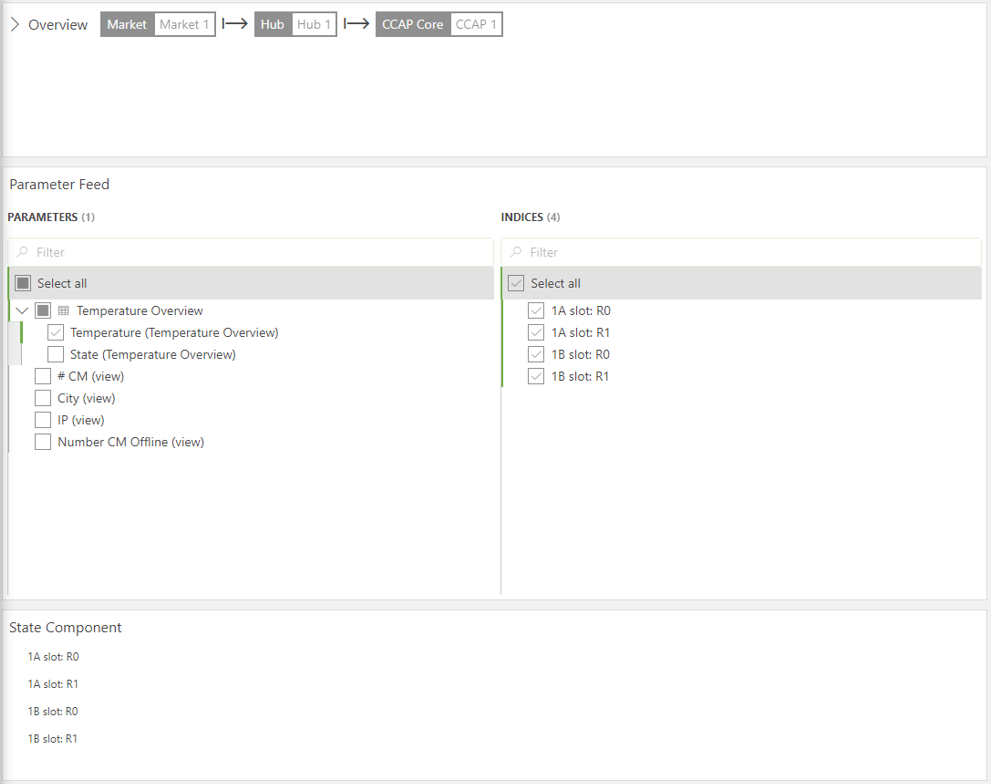
In the Data pane, go to All available data > Components > [Page/Panel name] > Parameter picker > Selected items and drag Indices to the component of your choice.
Note that depending on your setup, the exact path may be different. For example, in versions prior to DataMiner [CU21]/10.3.0 [CU9]/10.4.12, component data is found under the Feeds data category.
Configuration options
Parameter picker layout
In the Layout pane, you can find the default options available for all components. See Customizing the component layout.
Additionally, the following layout option is also available:
| Section | Option | Description |
|---|---|---|
| Advanced | Column order | Click the up or down arrow next to a column name to change the order in which the columns of the component are displayed. |
Parameter picker settings
In the Settings pane for this component, you can customize its behavior to suit your requirements.
| Section | Option | Description |
|---|---|---|
| WebSocket settings | Inherit WebSocket settings from page/panel | Clear the checkbox to use a custom polling interval for this component. When cleared, you can specify a different polling interval (in seconds). |
| Initial selection | Select item by default | Configure a default selection to preselect specific parameters when the dashboard is opened. A custom URL can override this selection. Formerly known as Feed Defaults (prior to DataMiner 10.3.6/10.4.0). |
| General | Auto-select all | When this option is selected, all items will be selected according to the Select all behavior settings below. This option is not available if the component uses EPM identifiers as its data source. |
| General | Select all behavior | - Select all items: "Select all" will select all items. -Select specific number of items: "Select all" will select a specified number of items. For a partial table, Select all items selects only the items on the first page, while Select specific number of items selects items across different pages. |
| General | Auto-expand parameters | Select this option to expand all tables and groups in the component by default. |
| General | Default grouping | Specify how selected parameters are grouped in linked components. See Grouping parameters. |
| General | Index filter separator | If a filtered list of indices is retrieved, you can specify the separator to use for this. For this you must make sure advanced dashboard settings are displayed. To do so, add the parameter showAdvancedSettings=true to the URL. For example, if only the indices with a primary key equal to "X" have to be retrieved, and you set the index filter separator to "Y", the indices will be retrieved using the filter PK == X OR PK == *YXY*. |
| General | Parameter groups | To group parameters in the picker, click Add parameter group. Then specify a group name and select the parameters that should be in the group. Repeat this for every parameter group you want to configure. |